Delete a workspace you made by mistake
Made a second workspace by accident? Delete the extra one so your account keeps just the one you use. A picture for every step.
Last updated Nov 20, 2026
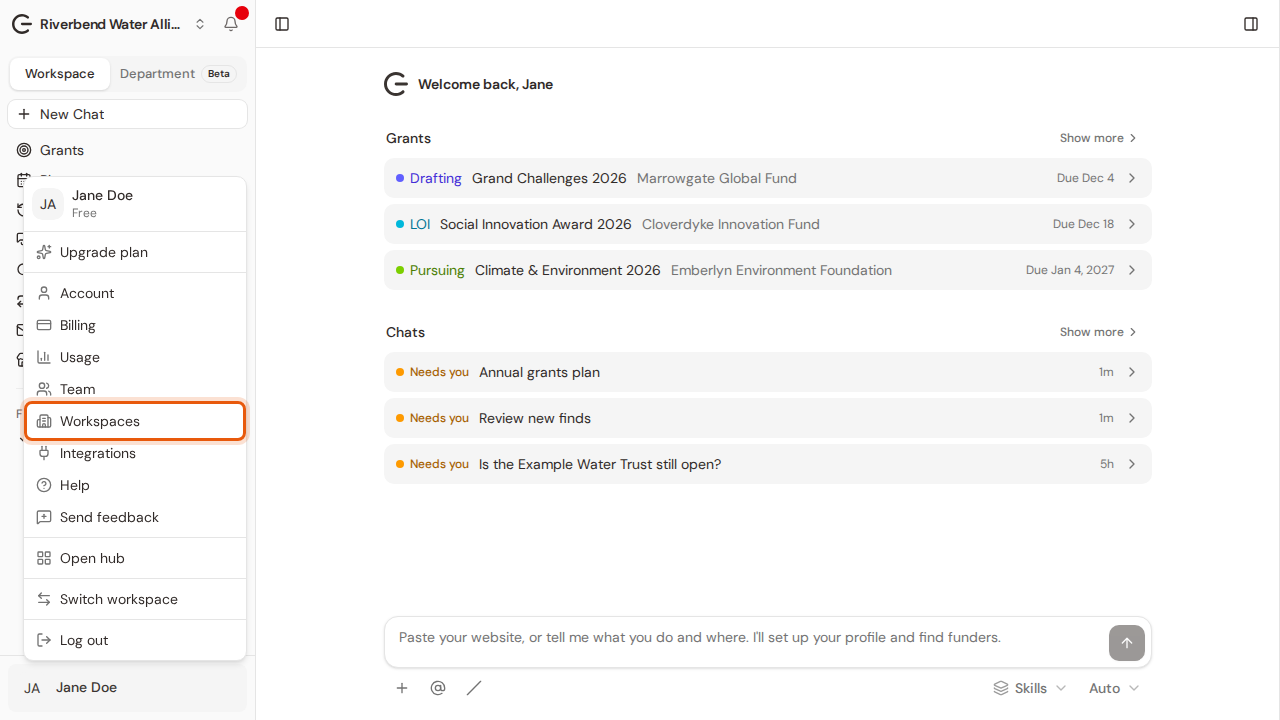
Step 1:Open your account menu at the bottom of the sidebar and choose Workspaces.
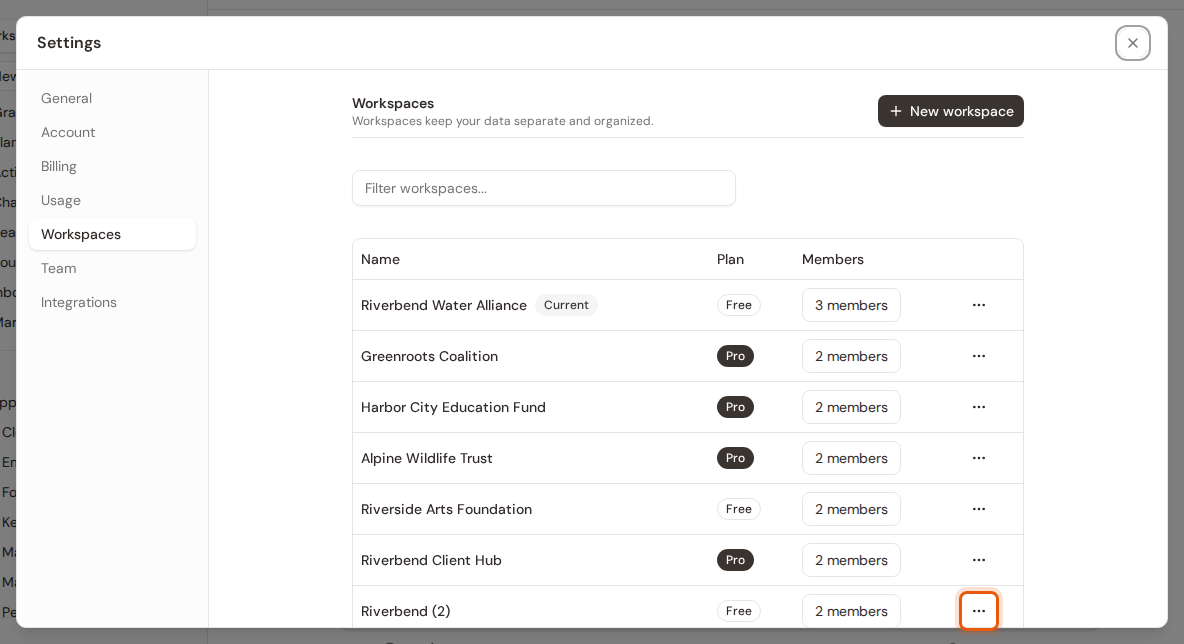
Step 2:Find the extra workspace by its name and click the three-dot button on its row.
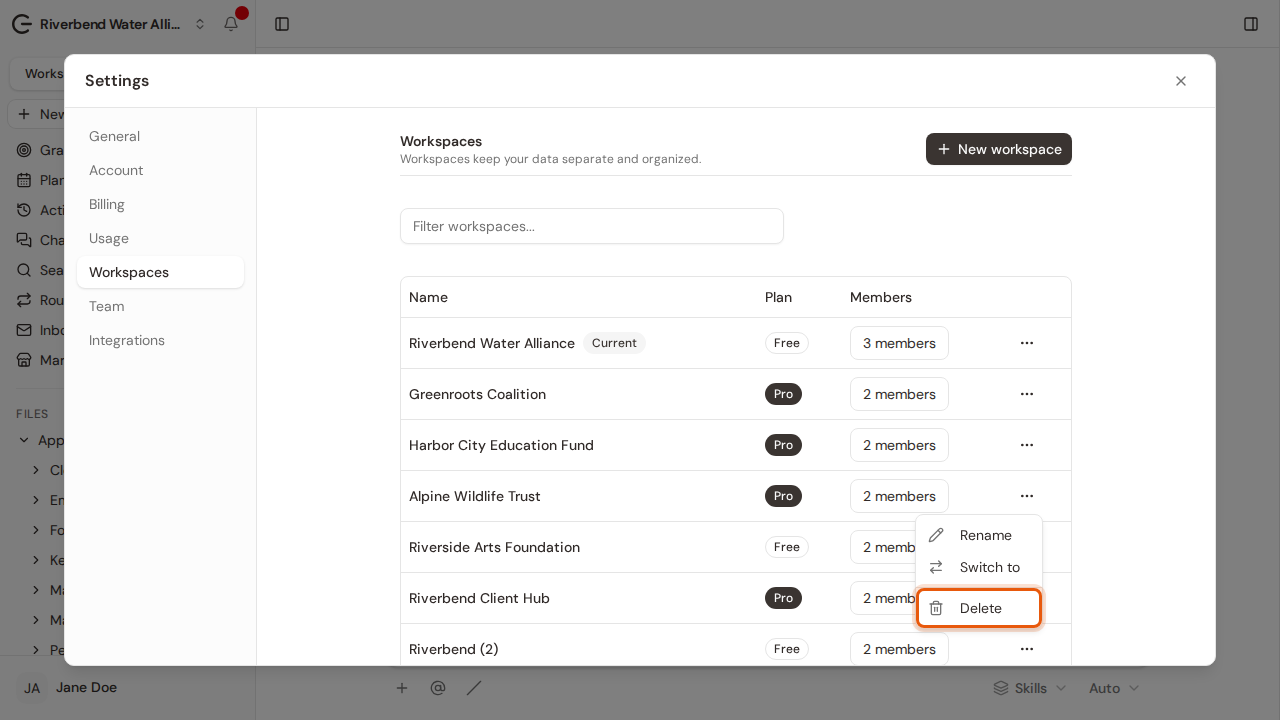
Step 3:Choose Delete.
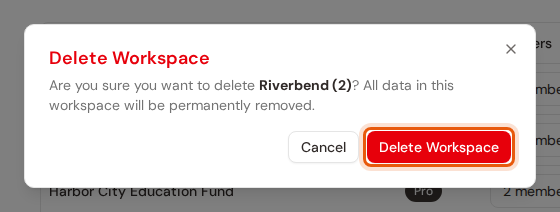
Step 4:Check the name is the one you want gone, then click Delete Workspace. Everything in that workspace is removed for good.