Grants
Every funder you're considering and every grant you're working on, in one list sorted by stage, from the first find to the final report.
Last updated Oct 2, 2026
One list, from first find to final report
Most grant teams keep two lists without meaning to. One holds the funders they might go after, and the other holds the applications they’re actually writing, and the two drift apart. Grants keeps them in one place. A funder Grantable just found and an award you’re reporting on sit in the same list, each at its own stage.
Open Grants in the sidebar.
Each row is a file in your workspace. A funder you’re considering is a brief in your Prospecting folder. A grant you’re applying for is a folder under Applications. Grants reads those files and lays them out by stage, so anything you change in Grants changes the file, and the other way around.
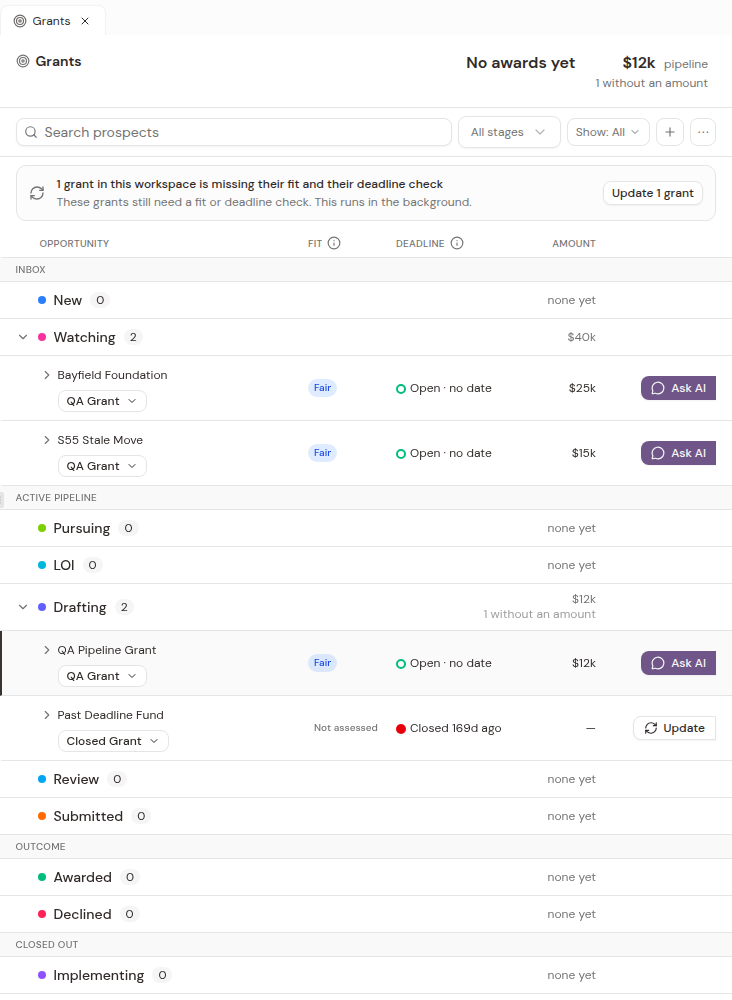
The stages
Every row sits at one stage, and the stages come in four groups, in the order a grant actually moves. Inbox holds New and Watching. New is a funder Grantable found that you haven’t looked at yet, and Watching is one you want to keep an eye on. Active pipeline runs from Pursuing through LOI, Drafting and Review to Submitted. Outcome is Awarded or Declined. Closed out covers Implementing, Reporting and Closed.
Each heading shows how many grants are at that stage and what they add up to. Empty stages stay on the list, so you always see the whole path.
At the top, two numbers sum it up. One is what you’ve been awarded, counting the award amounts you’ve recorded. The other is your pipeline: the money in grants from Pursuing through Submitted. Click the pipeline figure to see just the grants behind it.
Reading a row
Each row has four columns.
Opportunity is the funder, with the specific program or call underneath when Grantable knows it.
Fit is how well the funder matches you. Grantable checks three requirements (eligibility, geography and gift size) and scores three strengths (alignment, access and strategic value) from 1 to 3.
| Fit | What it means |
|---|---|
| Strong | Every requirement is met, and the strengths average 2.5 or more. |
| Fair | Every requirement is met, and the strengths average between 1.5 and 2.5. |
| Weak | Every requirement is met, but the strengths average under 1.5. |
| Blocked | A requirement isn’t met or couldn’t be checked. Open the row to see why. |
A row that hasn’t been checked yet reads Not assessed.
Deadline comes from the funder’s own page or listing, checked on the web. Grantable shows a date only once it’s been proven there, so a date the AI guessed while writing a brief never shows up here on its own. Instead of a date you might see Rolling, Open · no date, Invitation only, Closed or Not checked yet. Click the small info icon next to the column name for the full key.
Amount depends on the row. For a funder Grantable found, it’s the funder’s typical grant, taken from its tax filings. For an application, it’s what you’re asking for.
Opening a row
Click a row to open it.
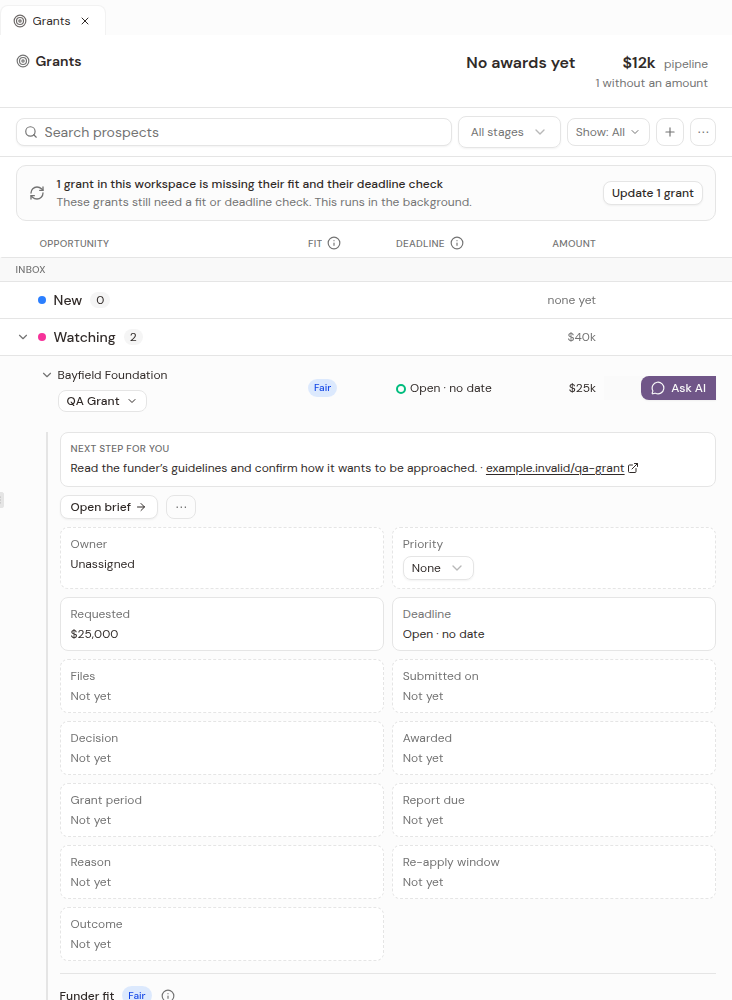
At the top is Next step for you: the one thing to do to move this grant along. Under it are buttons for what the row has, like Open brief, Open application or Source, which opens the funder’s page.
Then comes the grant’s record. You can set Priority right here, and Owner too if your workspace has more than one person. The rest fills in as the grant moves: the deadline, when you submitted, the decision, the award, the grant period, when the report is due, and when you can re-apply. Anything that hasn’t happened yet reads “Not yet.”
Last are the two fit checks, with their sources. Funder fit shows the requirements and strengths behind the Fit verdict. Opportunity fit shows what Grantable read about the open call, and when. Use Re-check to read the funder’s page again.
Moving a grant along
Open the … menu on a row and pick a stage under Move to.
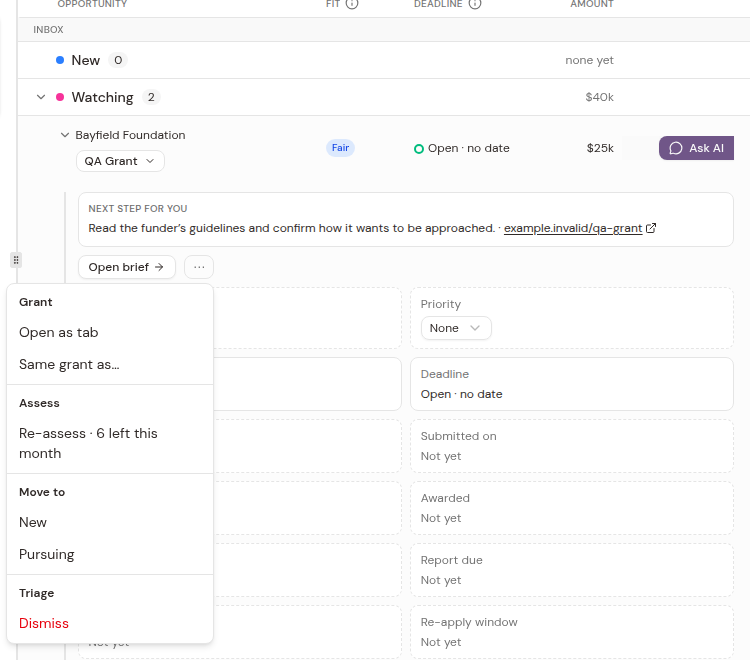
The menu offers only the moves that make sense from where the grant is. You can’t jump from Pursuing straight to Submitted, for example. Here’s the full map:
| From | You can move it to |
|---|---|
| New | Watching, Pursuing |
| Watching | New, Pursuing |
| Pursuing | Watching, LOI, Drafting |
| LOI | Drafting, Declined, Closed |
| Drafting | Review, Submitted, Closed |
| Review | Drafting, Submitted, Closed |
| Submitted | Awarded, Declined |
| Awarded | Implementing, Watching, Closed |
| Declined | Watching, Closed |
| Implementing | Reporting, Watching, Closed |
| Reporting | Watching, Closed |
Closed is the end of the line. Nothing moves out of it, so close a grant only when you’re done with it.
Not interested in a funder? Choose Dismiss. Grantable asks why, and you can pick a reason or skip it. Either way, the funder leaves the list. To see dismissed funders again, set the Show filter to Dismissed, and use Return to unreviewed to bring one back.
Ask AI
Every row has its own chat. Click Ask AI and Grantable opens it and asks for the next step at that stage. For a grant you’re watching, it re-reads the funder’s page to see if a round is open. For one you’re pursuing, it starts the application. For one you’ve submitted, it checks whether there’s a decision to log.
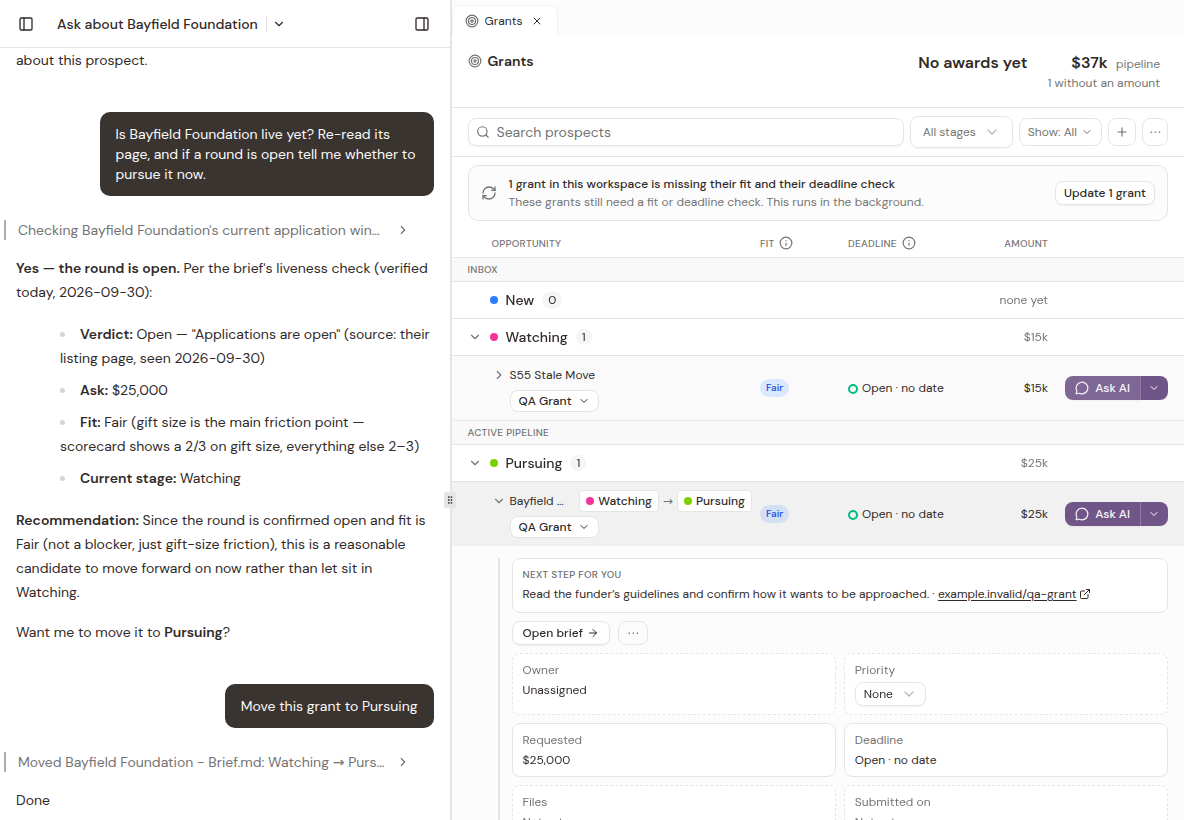
The AI in that chat can move the grant and re-check its fit. It’s also where you record what happened. Tell it “We were awarded $25,000 for two years, first report due June 1,” or “They declined us and said to apply again next spring,” and it fills in the record for you.
Tip: You can always do it yourself instead. Every stage move the AI makes is also on the row’s menu.
Where grants come from
Most grants start in chat. Describe the funders you’re after, or use the /prospecting skill, and each find lands at New. If you have no grants yet, Grants offers two ways to start: Find funders from our website and Use a past application.
The Prospect Scout routine adds more on its own. It searches on a schedule and sends you the strongest new fit (see Marketplace).
You can add one yourself, too. Click + to upload a brief you already have, or to start a blank one. And any folder under Applications that has a status shows up as a grant.
If one funder shows up twice, say as a found brief and as the application you started, choose Same grant as… in the row menu to join them into one row.
Keeping fit and deadlines current
When some grants are missing a fit check or a deadline check, a note at the top says how many. Click Update to run those checks in the background. One row at a time works too, with the Update button on that row.
On the free plan you get 6 fit checks a month. The row menu shows how many are left.
Finding your way around
- Search prospects finds a grant by funder name.
- The stage filter shows one stage or several.
- Show filters by review state (unreviewed, accepted or dismissed) and by whether a row has a specific opportunity.
- The … menu at the top picks which columns to show, sets the row density and exports the list as a CSV.
- Open as tab in a row’s menu, or Cmd-click (Ctrl-click on Windows) on the funder’s name, opens that one grant in a tab of its own.