Migrating from V1
Move your workspaces, files, and data from Grantable V1 to the new platform.
Last updated Aug 11, 2026
Your data is safe — and the upgrade is easy
If you’ve been using Grantable V1, the new platform brings a fundamentally different way of working with grants — but your existing data comes with you. Workspaces, files, organization profiles, and billing all transfer over, and you choose exactly what to bring.
V1 will be maintained through September 30, 2026, so there’s no rush. Take your time exploring the new platform while everything you rely on keeps working.
How migration works
When you sign in to the new platform with the same email you used for V1, Grantable automatically detects your previous account and shows you a list of workspaces available to import.
Step 1: Choose your workspaces
You’ll see a “Welcome back!” screen listing each workspace from your V1 account, along with its plan type. Check the workspaces you want to bring over — you can select one, several, or all of them.
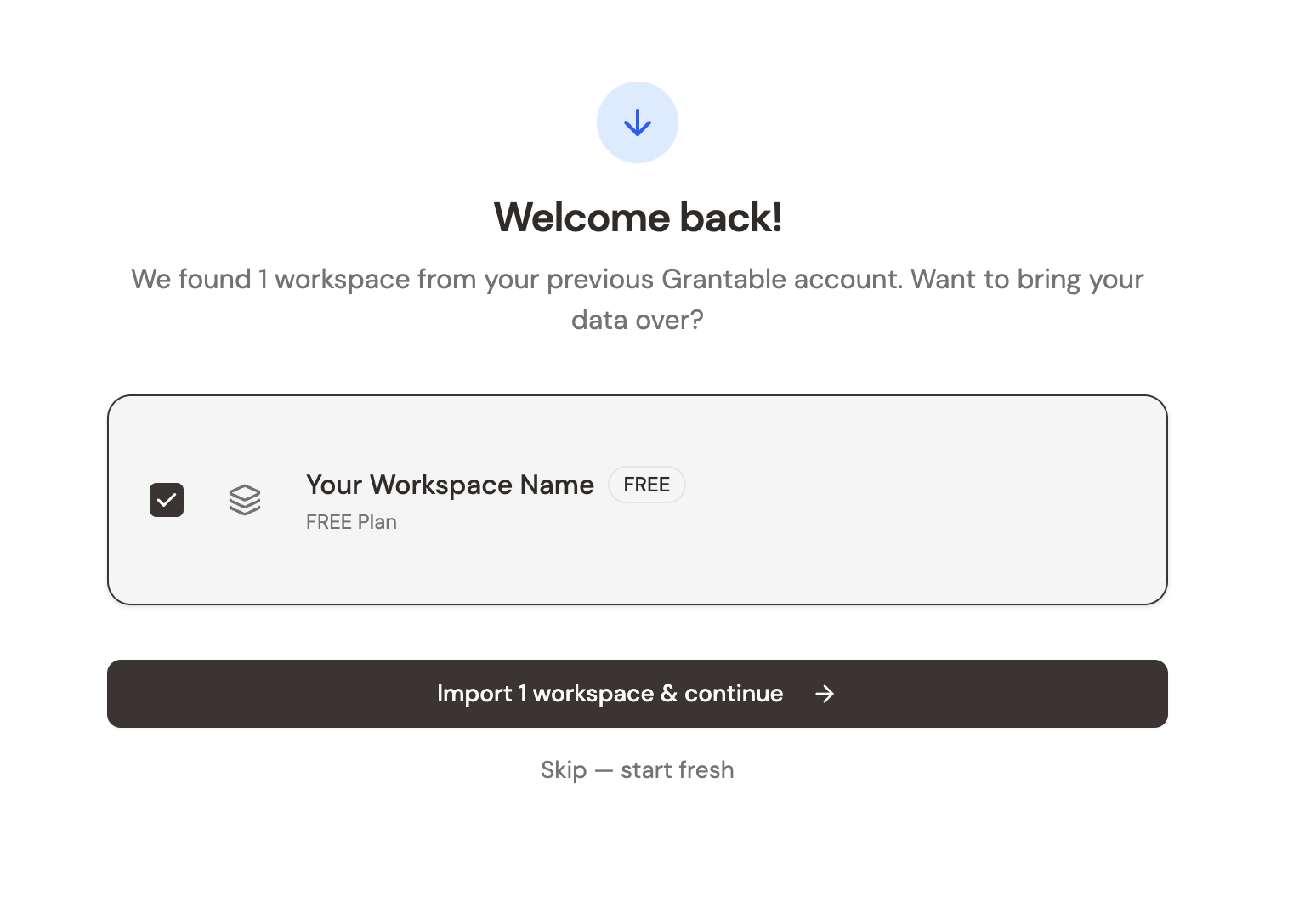
If you’d rather start fresh, click Skip — start fresh at the bottom. You can always import V1 workspaces later from Settings > Workspaces.
Step 2: Import
Once you’ve selected your workspaces, click Import & continue. The import runs in the background — you’ll see a spinner on each workspace as its data transfers.
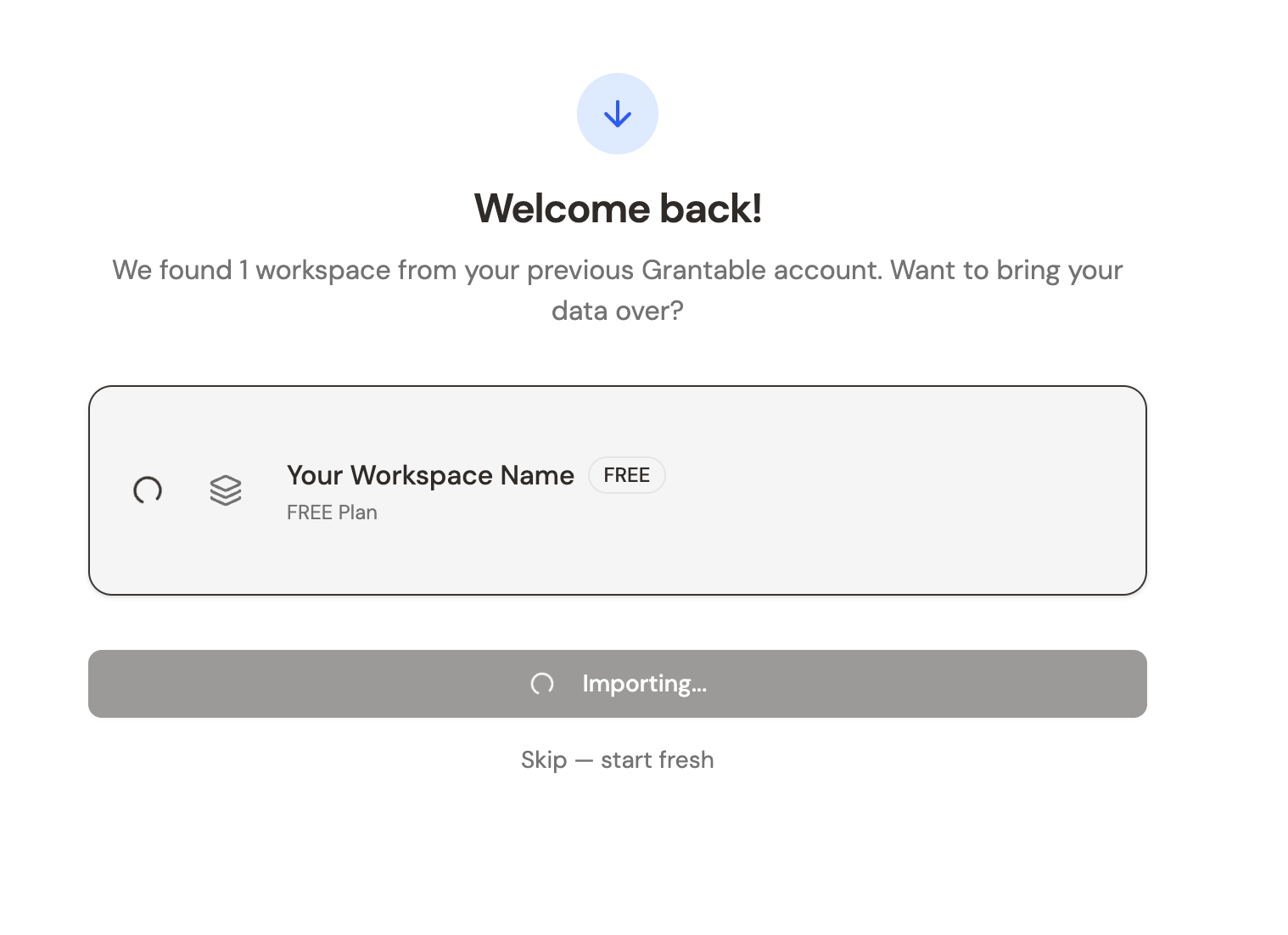
Most imports finish within a few minutes. Large workspaces with many files may take longer, but you don’t need to wait — you can start using Grantable immediately.
Step 3: You’re in
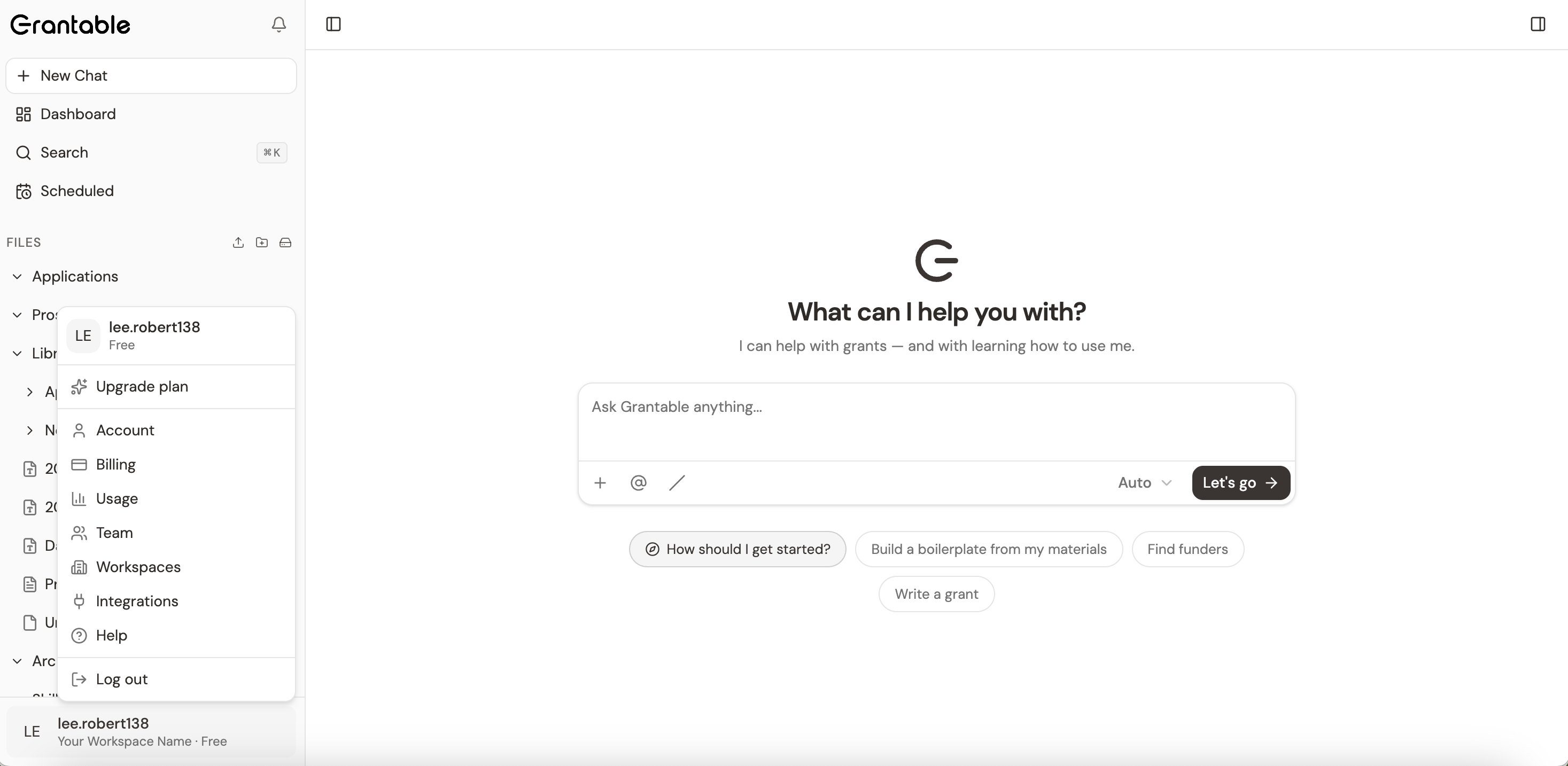
After the import completes, you land in the new Grantable interface. Your imported files appear in the sidebar under Files, and the organization details you’d filled in on V1 arrive as Profile.md in your Library.
What migrates:
- Workspaces — Your workspace structure and settings
- Files — All documents, proposals, and source materials
- Organization data — Your organization profile and team configuration
- Billing — Your existing subscription carries over at the same price
Your organization profile is the one file worth opening first. Grantable reads it in every chat in that workspace, so the more it says about your mission, programs, budget, and the people you serve, the better everything the AI writes for you will be. If your V1 account didn’t have those details filled in, you’ll see a Create my org profile prompt instead — take it, and answer in chat. You can edit Profile.md directly at any time.
How your V1 applications are organized after import
Each V1 application becomes its own folder in the new platform, sorted by status:
/Applications/{name}/— your active applications (still in progress)/Archive/{name}/— applications that were closed, submitted, or archived in V1
Inside each folder you’ll find an Application Draft.md built from your V1 application content, alongside any documents you’d attached to that application. Free-standing notes and your organization profile keep their own places in the sidebar — only application-linked content moves into these folders.
Tip: You don’t need to migrate everything at once. Start with your most active workspace, get comfortable, and bring the rest over when you’re ready.
Cancel your old V1 subscription
If you had a paid V1 plan, you need to cancel it manually to avoid being charged for both. Migration does not automatically cancel your V1 subscription.
Go to your V1 Billing Settings and cancel the old plan. Your V1 data will remain accessible through September 30, 2026 regardless of your subscription status — canceling just stops future charges.
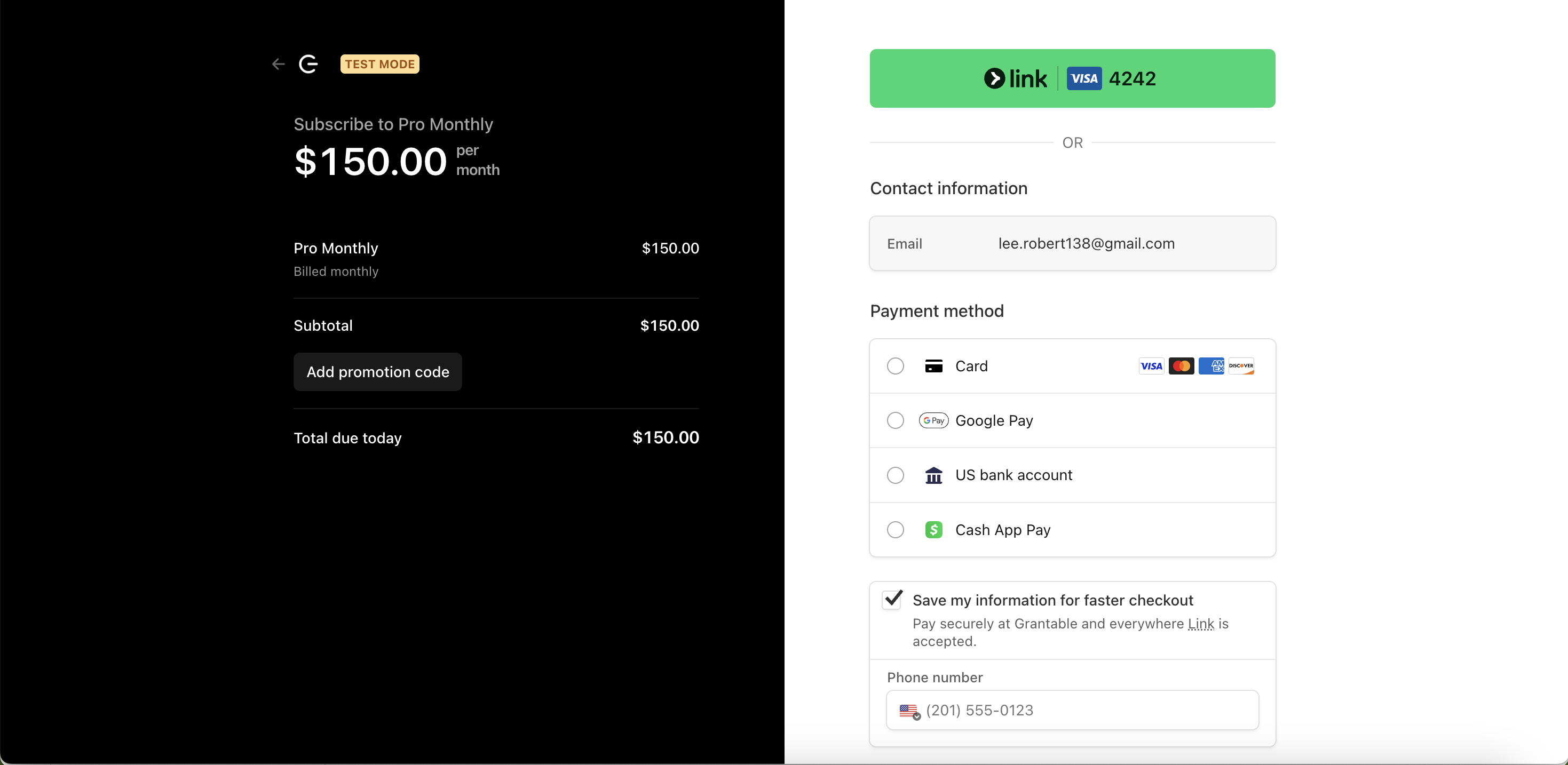
Your new plan is managed separately from the user menu in the bottom-left corner under Billing. If you were on Free, you’ll stay on Free. If you were paying for Pro, you can subscribe to the new Pro plan at the same price.
What’s changed
If you’re coming from V1, the biggest shift is that everything now flows through chat. Instead of navigating between separate project editors, you work in a single conversational interface where the AI has full context on your organization, your files, and the funders you’re pursuing.
Think of it this way: in V1, you went to different places to do different things. In the new platform, you stay in one place and tell the AI what you need — it pulls in the right context and produces output directly.
Here’s how the things you already know map to the new platform:
- Project editors → Chat — The work you used to do in project-specific editors now happens in chat. Ask the AI to draft, review, or edit — and it creates files directly in your workspace.
- Mode-based interface → Skills — Instead of switching between modes, type / in chat to access skills like
/grant-writing,/prospecting,/review, and/boilerplate. Each one gives the AI a structured playbook for that workflow. - File management → Context panel — Your files live in a sidebar alongside chat, with cloud integrations (Google Drive, Dropbox, OneDrive, Box) and AI-powered file creation built in.
- Pipeline tracking → Dashboard — A new centralized panel with an Overview, an Applications table (list, board, and calendar views), and a Prospects funnel.
- Working alone → Collaboration — Threaded comments with @mentions and email notifications make it easy to work with your team.
You still have full manual control over everything — the AI suggests and creates, but you review, edit, and decide what to keep.
FAQ
Will I lose any data? No. The migration copies everything from V1. Your original V1 data remains intact and accessible until V1 is retired on September 30, 2026.
Can I use both versions during migration? Yes. V1 remains fully accessible while you try the new platform. Use both side by side for as long as you need.
Do I need to re-invite my team? No. Your team members and their roles migrate automatically. They’ll see the new platform when they sign in.
Will my billing change? Your existing plan carries over at the same price. You won’t be double-charged for running both versions during the transition period.
How long does migration take? Most imports finish within a few minutes. Large workspaces with many files may take longer.
Can I import V1 workspaces later? Yes. Go to Settings > Workspaces to import any workspaces you skipped during initial setup.
What’s next?
If you’ve already migrated, the Quickstart guide will get you productive in your first 15 minutes on the new platform. It walks through a single chat-driven workflow — uploading files, getting AI output, and exploring your workspace.
Tip: You can always ask Grantable itself how to do something. Try “How is this different from V1?” or “Where do I find my files?” — the AI will walk you through it.