Comments & Mentions
Leave threaded comments on files, tag team members with @mentions, and get notified by email.
Last updated Mar 26, 2026
Keep feedback where the work lives
Grant proposals pass through a lot of hands — program staff, finance, leadership, external reviewers. Without a shared place for feedback, you end up chasing comments across email threads, Slack messages, and sticky notes on someone’s desk. By the time you’ve collected everyone’s input, you can’t remember which version they were looking at.
Comments in Grantable solve this by attaching feedback directly to the file it’s about. Every comment lives on the document itself, so when you open a file six months later to write a renewal, the full conversation is still right there.
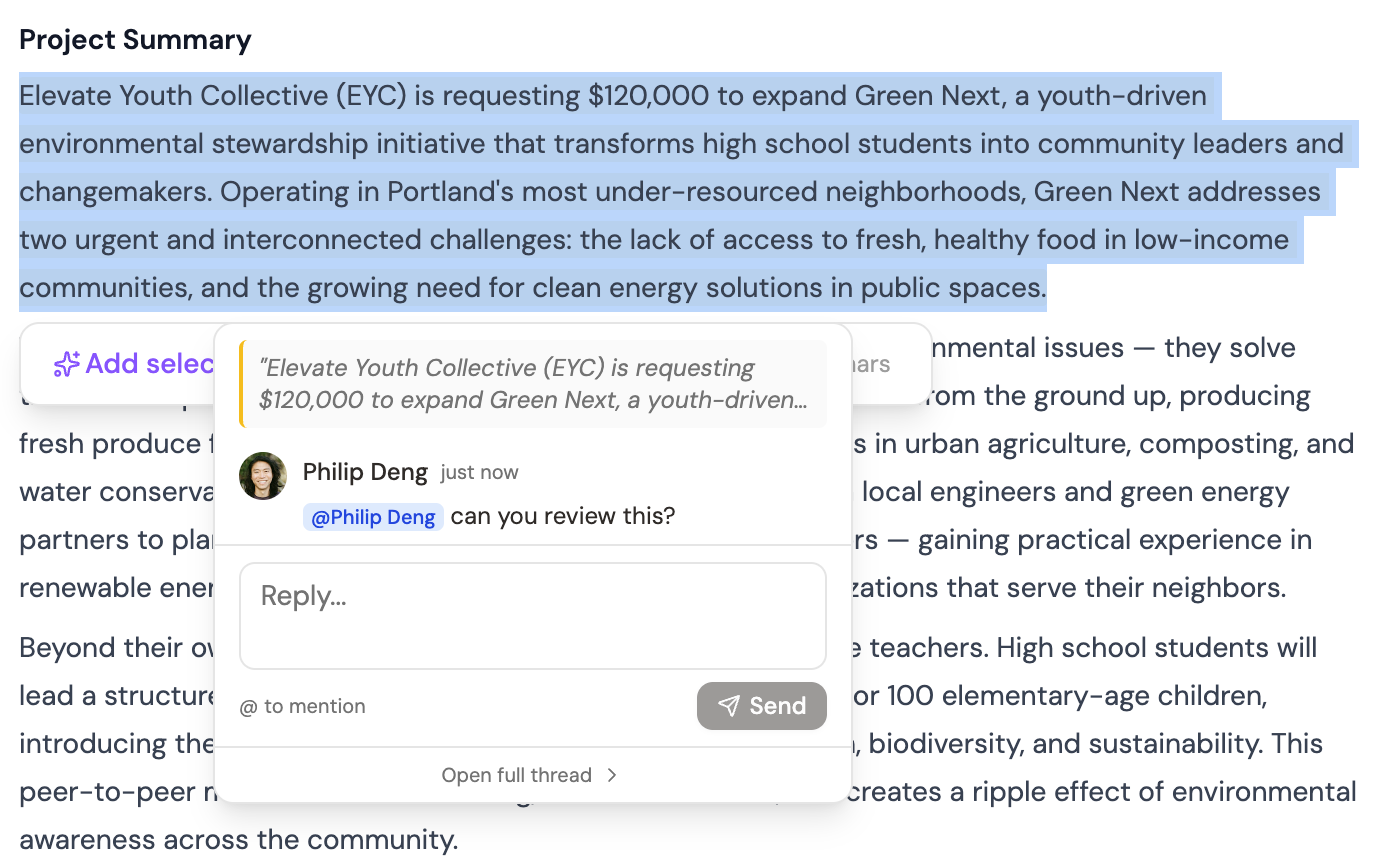
Starting a conversation
Open any file in your workspace and leave a comment. Other team members can reply, building a threaded conversation around that specific piece of content. The thread stays anchored to the file — even as the document evolves, the discussion history travels with it.
You don’t need to coordinate schedules for this. Leave a comment at 11pm, and your colleague picks it up over coffee the next morning. Async feedback is the default, not the exception.
@mentions — get the right eyes on it
Type @ followed by a team member’s name to loop them in. When you @mention someone, they get notified both in-app and by email (depending on their preferences), with a direct link back to the comment thread.
This is especially useful when you need a specific person’s input:
- “@Sarah the budget justification needs the staffing breakdown from our HR documents.”
- “@Marcus can you confirm the match commitment numbers before I finalize this section?”
- “@Lisa flagging this for your review — the funder changed their reporting requirements.”
Loop in people outside your team
You can also @mention anyone by email address — even people who don’t have a Grantable account. Type @ and enter their email, and they’ll receive a notification with the comment text and a link to view the file.
The best part: they can reply directly from the email without logging in. Their response appears in the comment thread, attributed to them. This is powerful for getting input from board members, program officers, or external reviewers who don’t need (or want) a full Grantable account.
Email notifications
When someone @mentions you, you get an email with the comment text, the file it’s attached to, and a link to jump straight into the thread. No need to log in and hunt for what changed — the notification takes you right there.
A few things worth knowing
- One topic per thread. If you have feedback on the budget and the narrative, start two separate comments. Keeps things findable later.
- Tag only who needs to see it. Resist the urge to @mention the whole team on every comment. Signal stays strong when you’re selective.
- Great for async teams. If your team spans time zones or works different hours, comments become your primary feedback channel — no meetings required.
Pro Tip: You can ask the AI in chat to review a document and leave its suggestions as a starting point. Then use comments to discuss the AI’s recommendations with your team.