AI Model Tiers
Choose between auto, pro, and fast AI models depending on your task.
Last updated Mar 26, 2026
Most of the time, you don’t need to think about this
Grantable’s AI defaults to Auto mode, and for the vast majority of grant work — drafting, research, funder search, analysis — Auto handles it well. You can use Grantable for months without ever changing this setting.
But when you want more control, you have it. The model selector gives you three speeds for different moments in your workflow.
Three speeds, not three products
Think of it like driving. You don’t pick a car for every errand — you shift gears depending on the road. Same idea here.
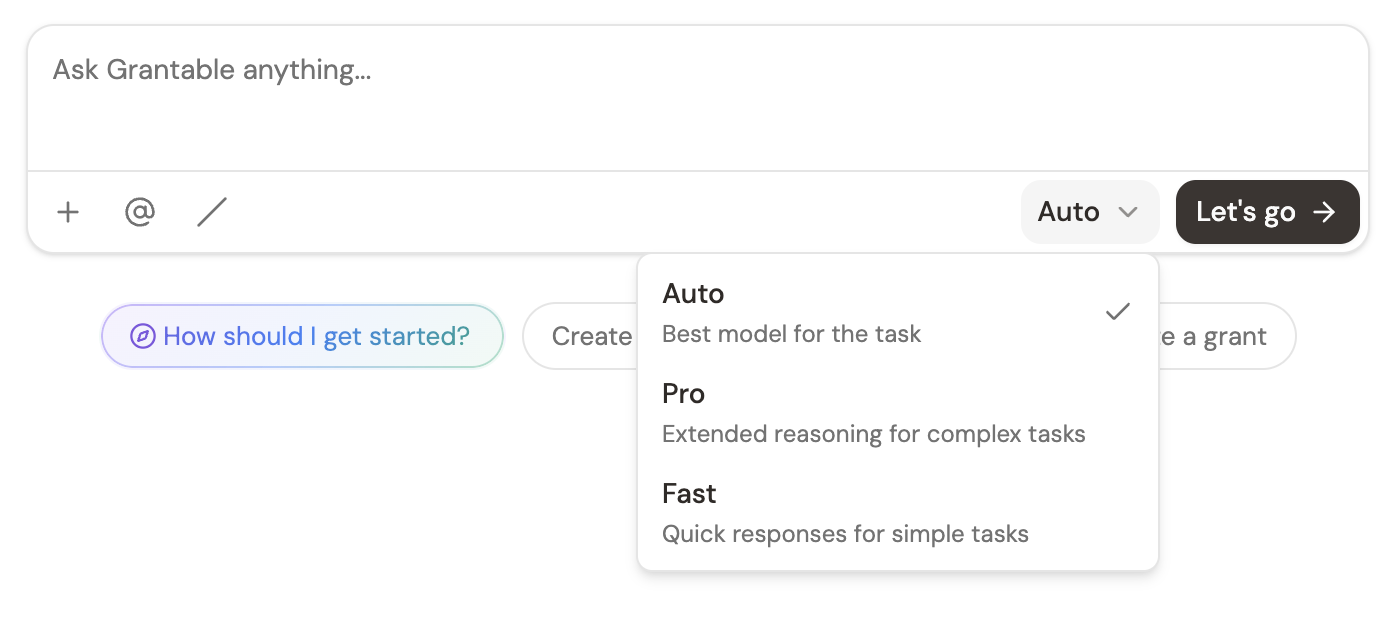
Click the model selector in the prompt input area to switch between tiers. Your choice applies to that message only — you can shift gears mid-conversation without losing context.
Auto — your everyday default
Model: Claude Sonnet
This is where you’ll spend most of your time. Auto strikes the right balance between thoughtful output and reasonable speed. It handles drafting proposal narratives, researching funders, analyzing RFPs, reviewing documents, and answering questions about your grants — all the daily work that makes up 90% of grant management.
If you’re not sure which tier to use, the answer is Auto. It’s the default for a reason.
Pro — for the work that matters most
Model: Claude Sonnet (higher quality settings)
Pro uses the same base model as Auto, tuned to take more time and produce more polished results. Responses may take a beat longer, but the output is more nuanced and detailed.
Reach for Pro when you’re working on a final-pass narrative that needs to be compelling, a complex strategic analysis, or a funder evaluation where the subtleties matter. It’s the difference between a solid first draft and a draft you’d actually feel good sending. Available on Pro and Pro+ plans.
Fast — for quick questions
Model: Claude Haiku
Fast is exactly what it sounds like. Responses arrive near-instantly, because the model behind it is smaller and lighter. Use it when you need a quick factual answer, want to brainstorm a list of ideas, or have a simple question that doesn’t need deep analysis.
Fast also uses significantly less of your AI budget per message, so it’s a good habit for the small stuff.
A practical pattern
Here’s how many teams use the tiers in practice: start a conversation in Auto to draft a proposal section. Switch to Fast for a quick follow-up question about formatting or a funder’s deadline. Then bump up to Pro for the final revision of a critical narrative before submission.
You’re not locked into one tier per conversation. Shift as the work shifts.
Usage and your budget
Different tiers consume your AI budget at different rates. Fast is the lightest, Auto is moderate, and Pro uses the most per message. See AI Usage & Budgets for the full breakdown.
The practical takeaway: use Auto as your baseline, Fast for the small stuff, and save Pro for the moments where quality really counts. You’ll get more out of your budget without sacrificing quality where it matters.
Pro tip: You can switch tiers mid-message, but you can also switch mid-workflow. Use Fast to ask the AI to outline a section, review the outline in Auto, then switch to Pro for the final draft. Match the tier to the task, not the conversation.