File Sharing
Share files with team members, external collaborators, and stakeholders.
Last updated Mar 26, 2026
Getting the right eyes on your work
Grant writing is a team sport — and the team extends well beyond your organization. Your program officer needs to review the narrative. A board member wants to see the budget. A partner org needs the MOU draft. Each of those people needs a different level of access, and you shouldn’t have to think too hard about how to get it to them.
Grantable gives you three ways to share files, each designed for a different audience.
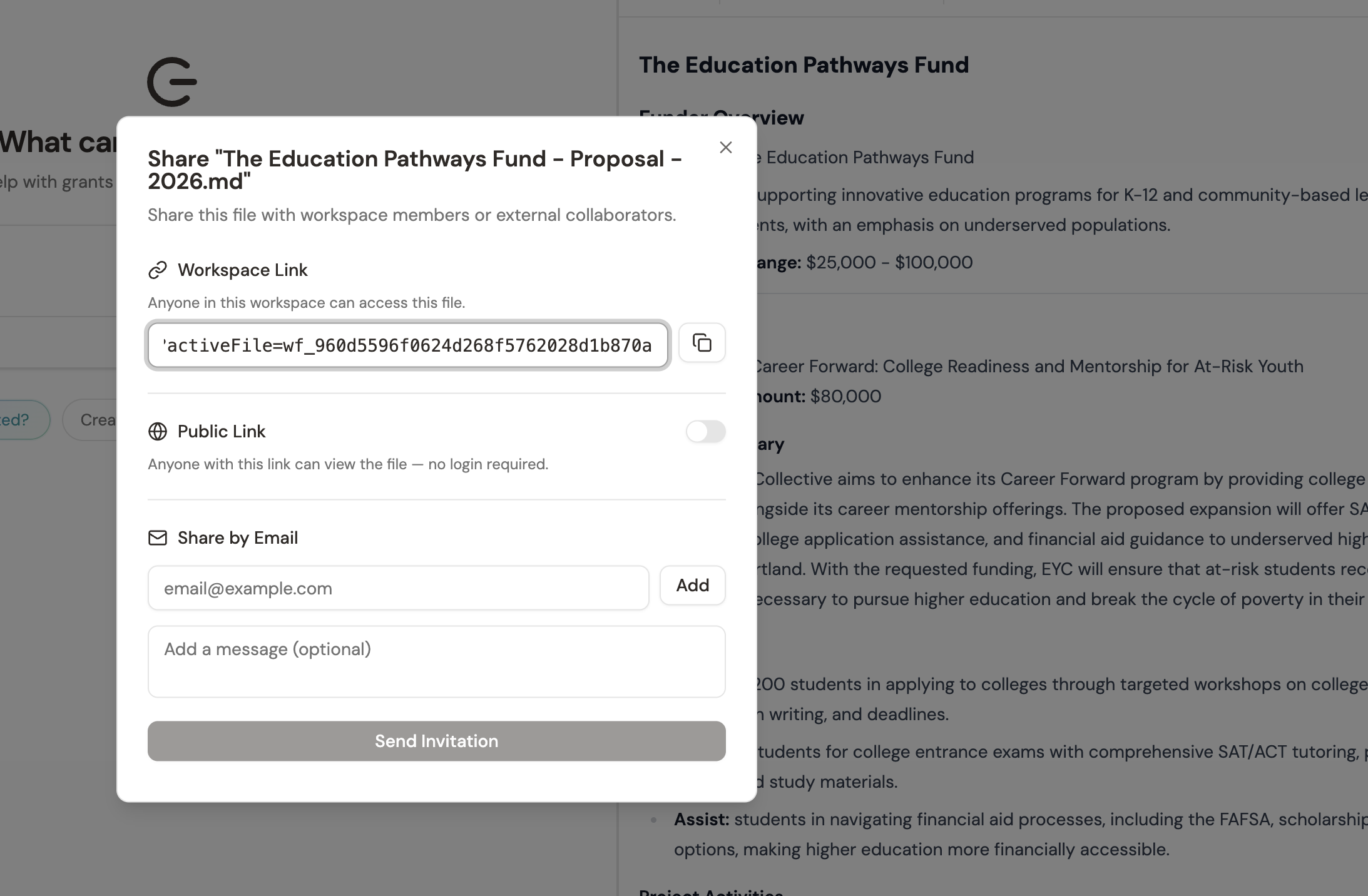
Internal links — for your team
When you’re working with people who already have access to your Grantable workspace, internal links are the simplest option. Copy the link, drop it in Slack or an email, and your teammate opens it with whatever permissions their workspace role gives them — admin, editor, commenter, or viewer.
You don’t have to configure anything. The link respects the permissions you’ve already set up for your workspace, so the right people can edit and everyone else can view.
Public links — for external reviewers
Sometimes the person who needs to see your work doesn’t have a Grantable account — and shouldn’t need one. Public links generate a URL that anyone can open in their browser to view the file. No login, no account creation, no friction.
Public links are read-only. The recipient can see the content but can’t edit or comment, which is usually exactly what you want when sharing a draft with a board member or an external advisor. They read it, they give you feedback through their usual channel, and you stay in control of the document.
Email shares — for direct delivery
If you want to put a file directly in someone’s inbox, email sharing sends them a message with a link to view it. This is the most direct path when you know exactly who needs to see something and you don’t want to rely on them clicking a link you posted somewhere else.
Revoking access
Every shared link can be revoked at any time. Once you revoke it, the link stops working immediately — anyone who clicks it after that gets nothing. This matters when a draft has been superseded, when a review cycle is over, or when you simply want to tighten up who can see what.
Get in the habit of cleaning up old public links, especially for sensitive content like budgets or organizational financials.
Pro tip
Running a board review cycle? Create a public link for your proposal draft and share it with all your board members at once. They can read it without creating accounts, and when the review period is over, revoke the link so the old version doesn’t keep floating around. Clean and controlled.