AI Writing & Editing
How to use the AI to draft, edit, and refine your grant application documents.
Last updated Mar 26, 2026
Your AI writing partner lives in the workspace
If you’ve used ChatGPT or Claude, you know the usual dance: ask an AI to write something, copy the text, paste it into a document, format it, realize it’s not quite right, go back to the AI, paste again. Grantable skips all of that.
When you ask Grantable’s AI to write something, it creates a real file — right in your workspace, alongside the rest of your grant materials. No copying, no pasting, no toggling between windows. The AI writes directly into your file tree, and you review the result in the same document viewer you use for everything else.
Think of it less like a text generator and more like a writing partner who sits inside your workspace. You talk through what you need, it drafts, you review, you ask for changes, it revises. The whole loop happens in one place.
The writing workflow
Here’s what a typical writing session looks like.
1. Ask for what you need
Tell the AI what to write, just like you’d brief a colleague. Be specific about the document type, the audience, and any source materials it should reference.
“Draft a project narrative for our youth mentoring program. Use the data from our 2025 annual report and address the evaluation criteria in the uploaded RFP.”
The AI draws on everything in your workspace — your organization profile, uploaded files, and the full conversation — to produce relevant content.
2. The AI creates a file
Instead of dumping text into the chat, the AI creates an actual document in your file tree.
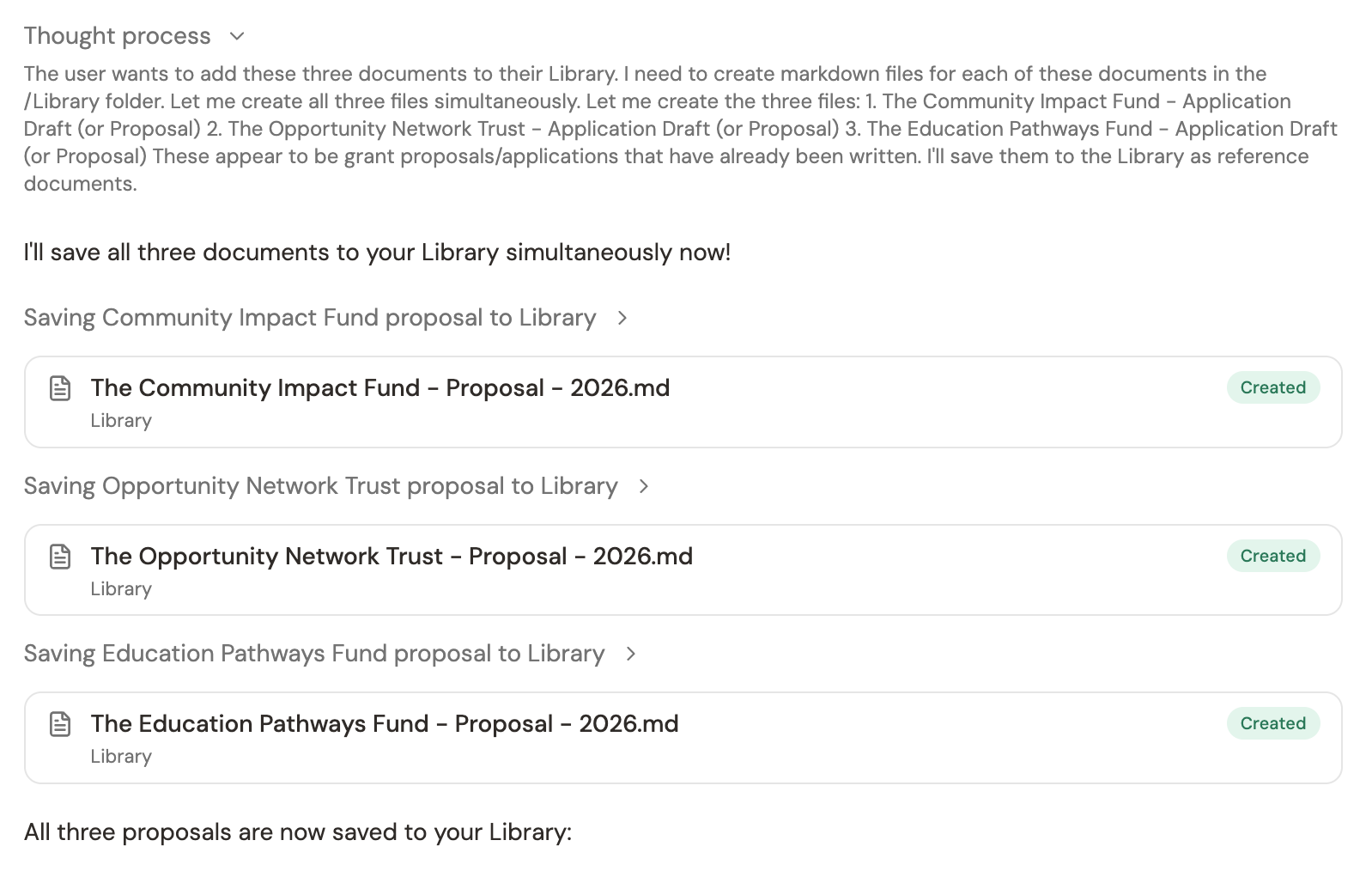
You’ll see a confirmation in the chat that the file was created, along with a preview of what it wrote.
3. Review in the document viewer
Click the file to open it in the document viewer — the same viewer you use for RFPs, budgets, and everything else in your workspace.
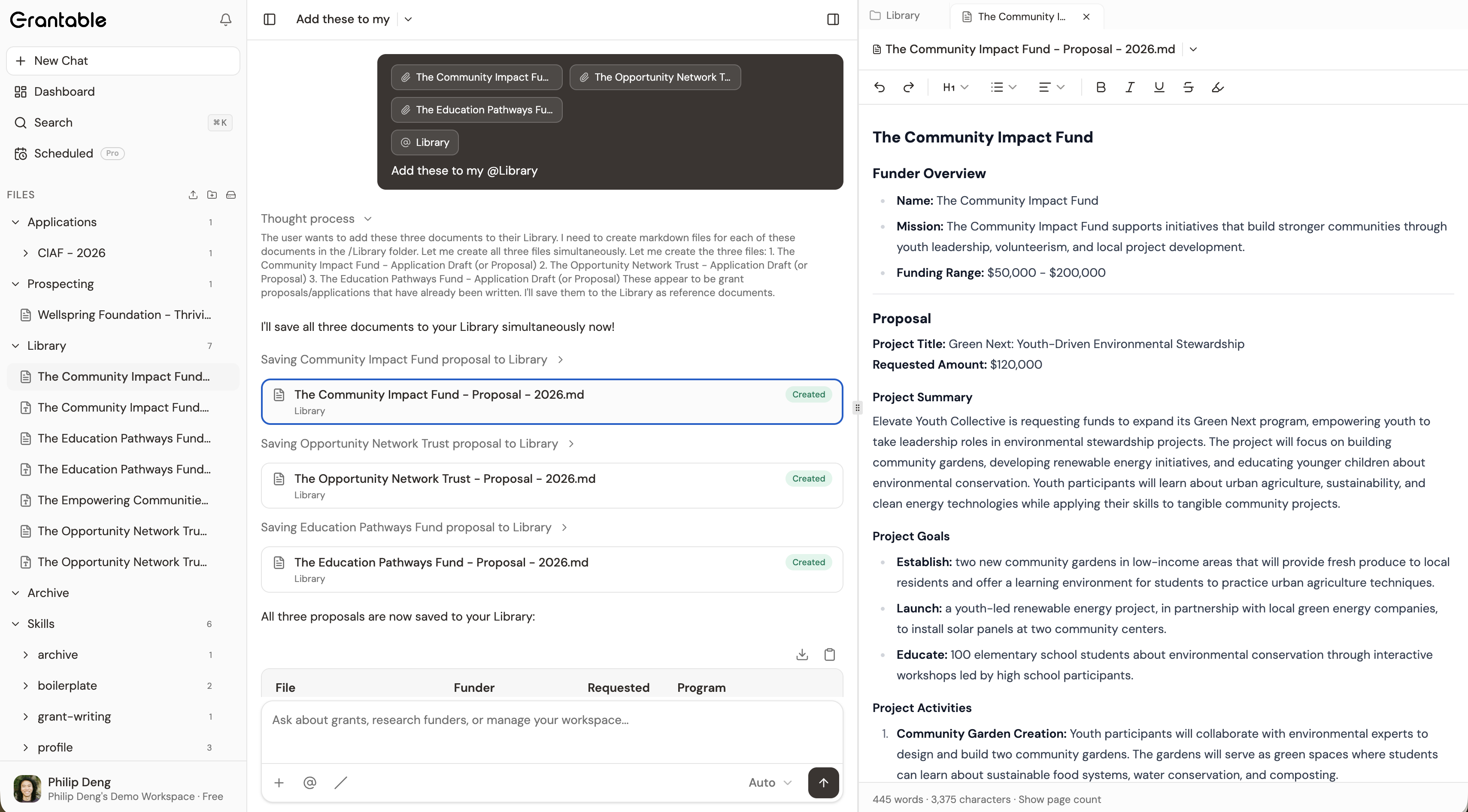
This is where “AI drafts, humans decide” becomes real. The document is yours. Read it, mark up what needs work, and head back to the chat.
4. Ask for revisions
Don’t like the opening paragraph? Want more specific data in the methodology section? Just say so in the chat.
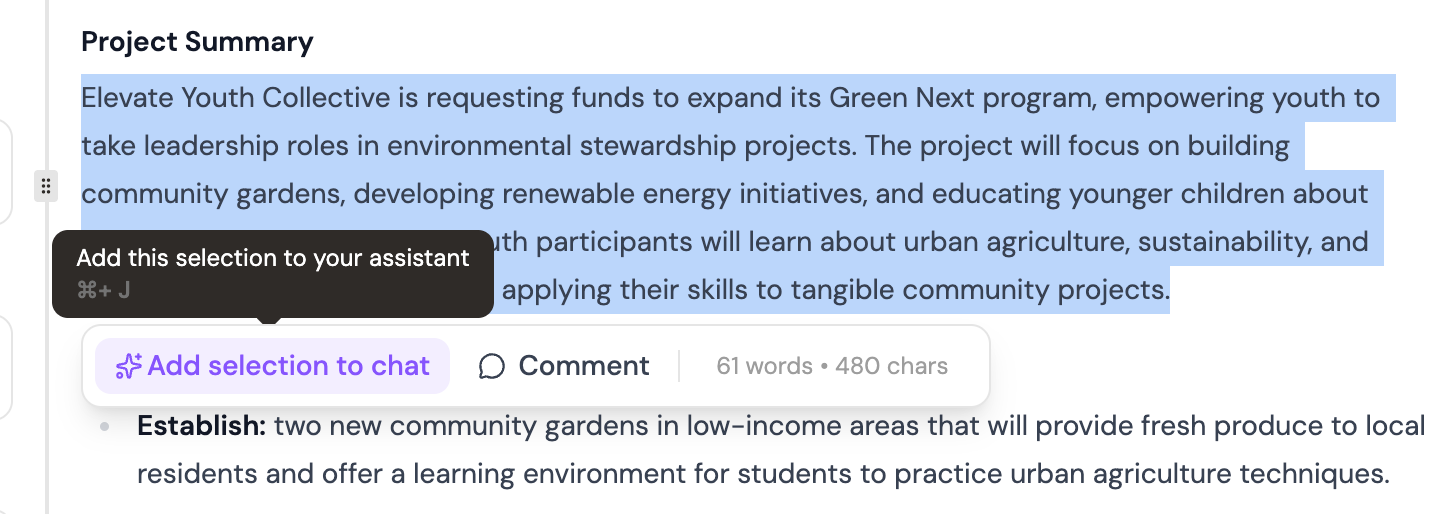
The AI reads your feedback and updates the file directly — no new document, no version confusion.
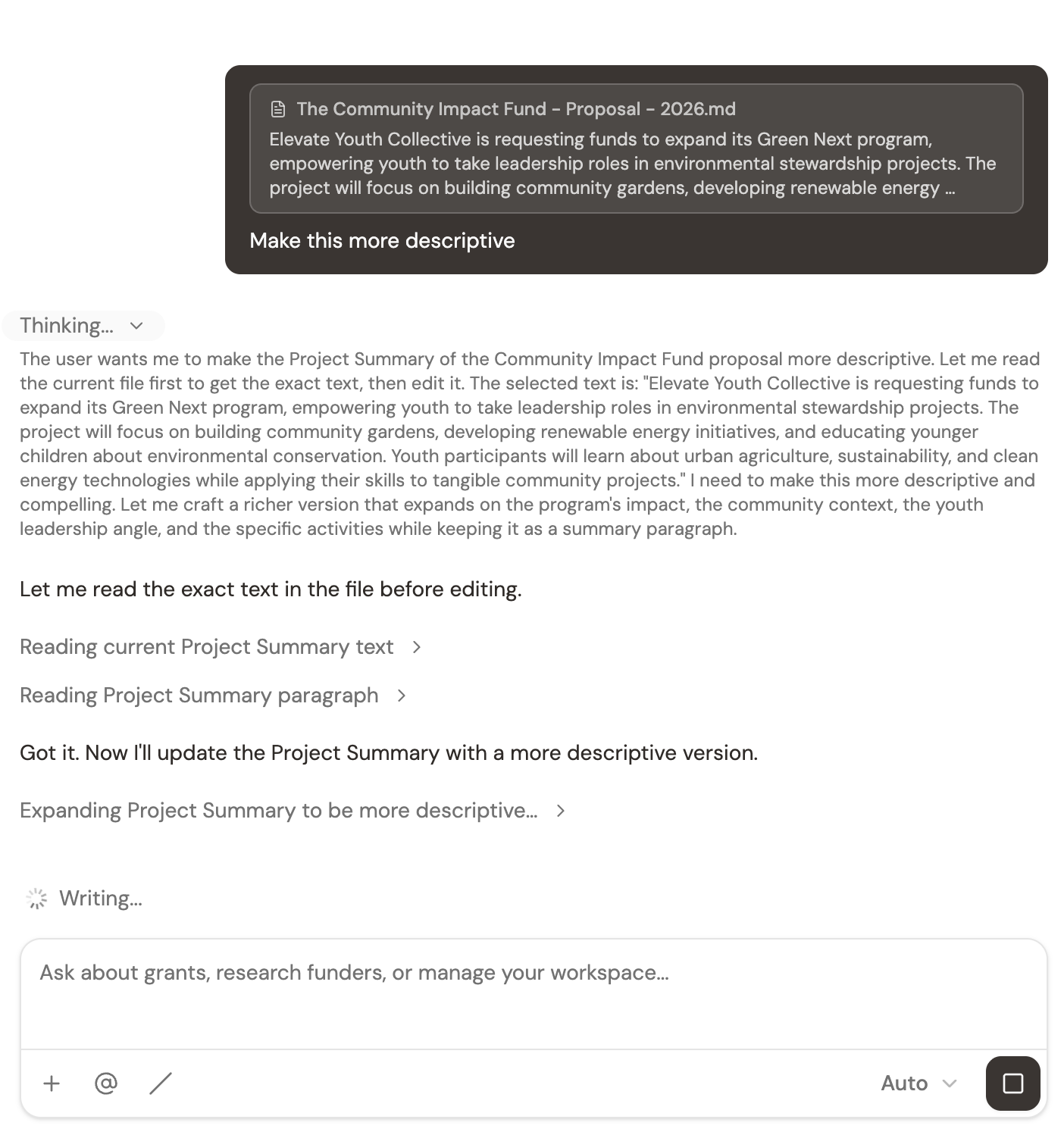
5. Review the updated file
Open the file again to see the changes in place.
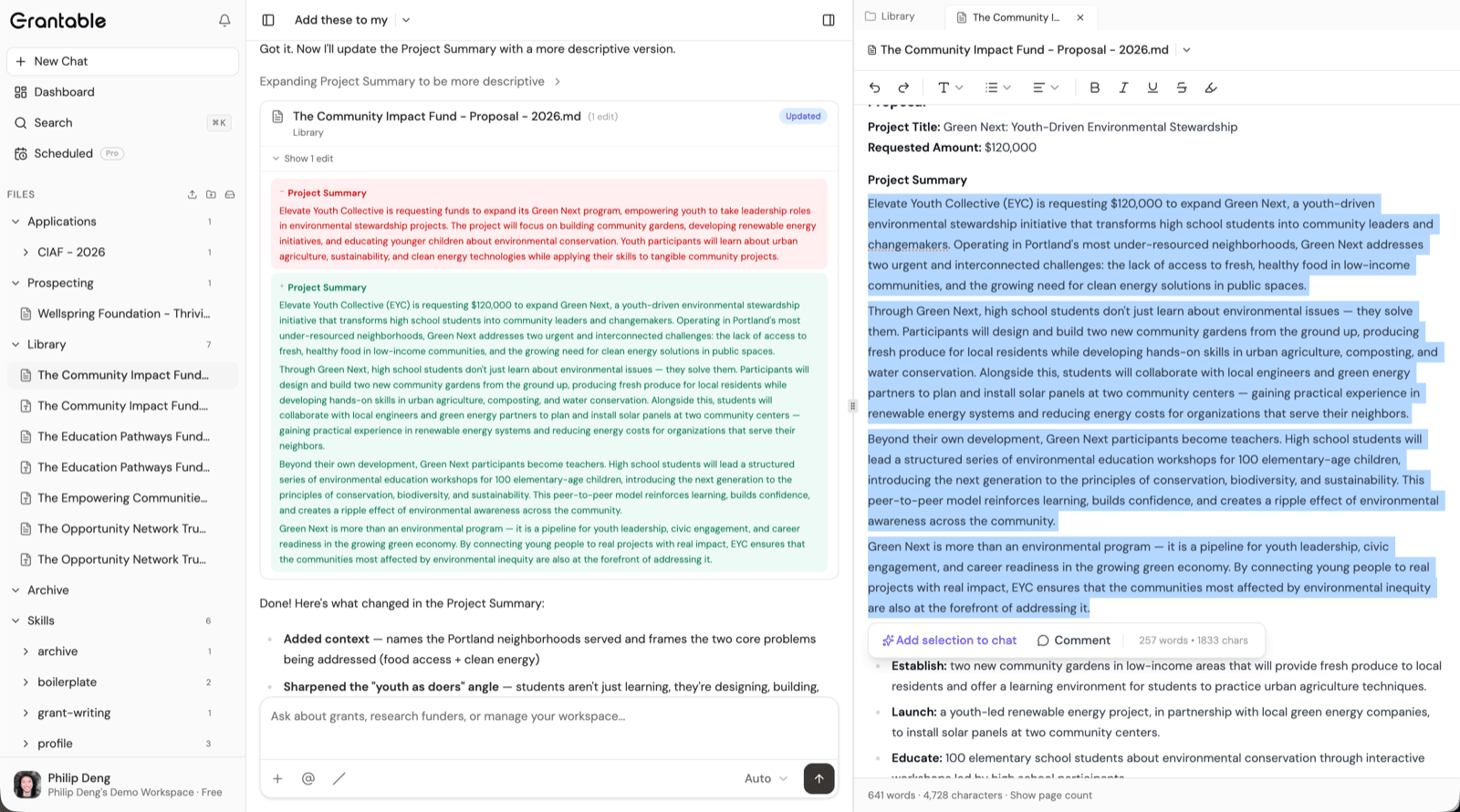
Repeat steps 4 and 5 as many times as you need. First drafts are starting points. The AI expects you to push back, redirect, and refine.
The /grant-writing skill: focused grant drafting
For serious grant writing — the kind where you need the AI to carefully read an RFP, check your source materials, and produce content that addresses specific criteria — use the /grant-writing skill.
Type /grant-writing in the chat to activate it. This puts the AI into a structured writing mode where it:
- Reads your RFP requirements before it starts writing
- Cross-references your uploaded source materials for accuracy
- Addresses specific grant criteria point by point
- Draws on your organization’s own data and documents
Think of /grant-writing as the difference between asking a colleague to “write something about our programs” and handing them the RFP with sticky notes on the important parts. Same AI, more focus.
Tips for better results
- Be specific about what you want. “Draft the needs statement for our youth mentoring program using data from the 2025 annual report” will always beat “write something about our programs.”
- Ask for an outline first. For complex sections, have the AI outline its approach before writing. Review the outline, give feedback, then ask it to draft. This saves you from revising a full document when the structure was wrong from the start.
- Attach files to your message. Drop an RFP, a past proposal, or reference materials directly into your message. The AI will use them immediately — no need to upload them to the file tree first.
- Iterate without hesitation. The revision loop is the point, not a sign that something went wrong. Professional grant writers revise constantly. Your AI writing partner should too.
Pro tip: The
/grant-writingskill is just one of several skills that focus the AI on specific workflows. Check out Skills & Slash Commands to see what else is available — from funder research to compliance checks.