Quickstart
Your first 15 minutes with Grantable — upload files, start a chat, and see results.
Last updated Mar 16, 2026
Your first 15 minutes
The fastest way to see what Grantable can do is to start a conversation. Everything in Grantable flows through chat — uploading files, researching funders, drafting proposals, organizing your workspace. This guide walks you through a single chat-driven workflow that gets you productive immediately.
Step 1: Start a conversation and attach your documents
From the home page, you’ll see a prompt input along with quick-start prompts. Click any prompt to get started instantly, or type your own question — this is how most of your work in Grantable begins.
To give the AI context about your organization, click the + icon to attach files directly to your message. Start with a few key documents — past proposals, an organizational overview, a budget narrative, program descriptions. The AI reads them immediately.
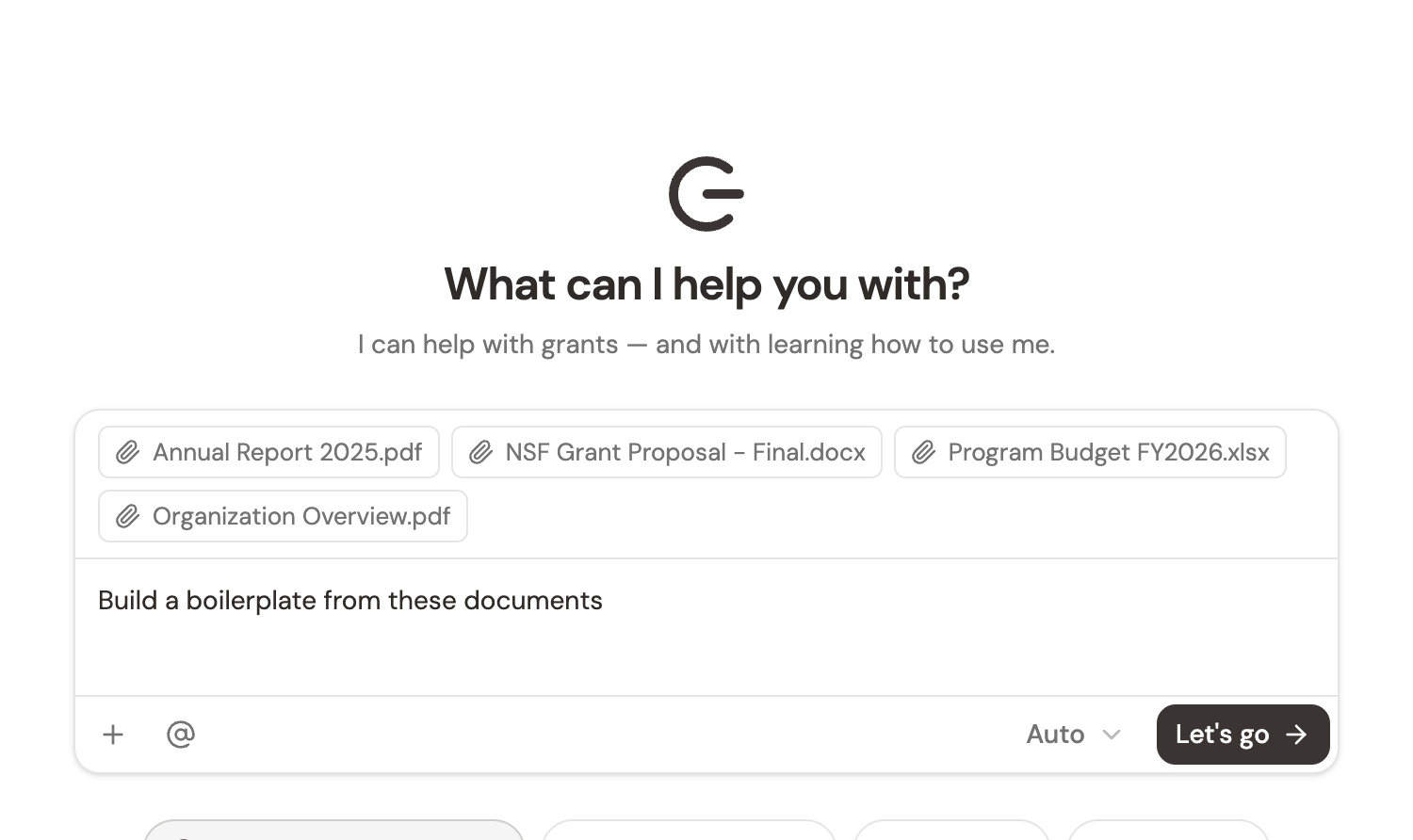
This is the fastest way to give Grantable everything it needs to start producing useful output. You can upload PDFs, Word docs, spreadsheets, text files, and images.
Tip: You don’t need to upload everything at once. Start with 3–5 key documents. The AI gets more helpful with every document you add, and you can always attach more in future conversations.
Step 2: See the results
Ask Grantable to do something with what you’ve uploaded. For example:
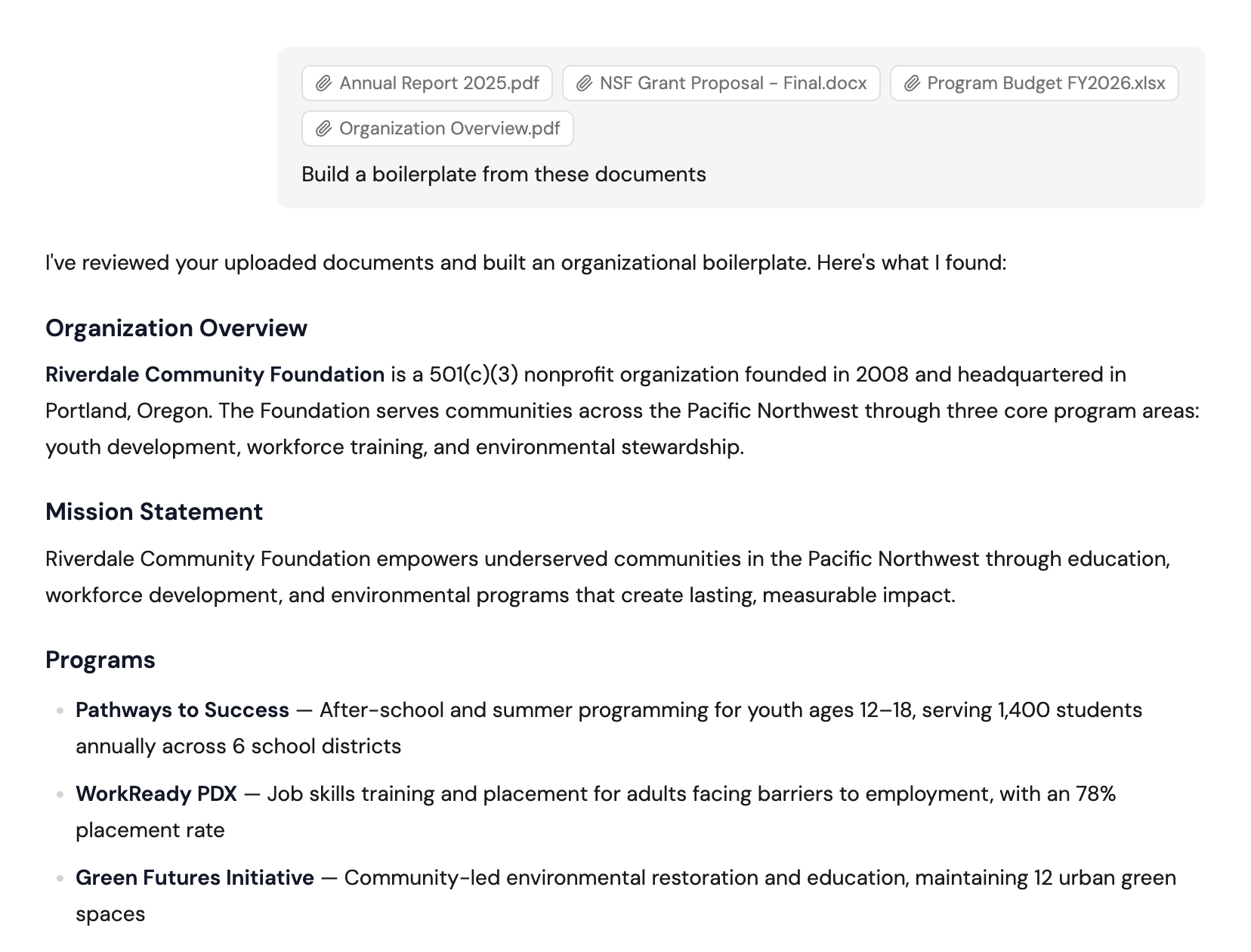
- “Build a boilerplate from these documents” — The AI creates a reusable organizational profile from your materials
- “Review this proposal and flag any weaknesses” — Get an instant assessment of a draft
- “Find funders that match our programs” — AI-driven prospecting based on your actual work, not keyword searches
The AI responds with drafts, analysis, and files — grounded in the materials you’ve provided. Ask follow-up questions to refine the output, attach more documents for additional context, or ask the AI to save its work as a file in your workspace.
As you get comfortable, try typing / in the chat input to discover skills — reusable workflows for common tasks like building boilerplates, researching funders, or drafting proposals. Skills give the AI a structured playbook to follow, and you can customize them to match your workflow.
Step 3: Explore your workspace
As you work, documents accumulate in your file tree — both files you’ve uploaded and files the AI has created. You can browse, open, and edit them in the context panel alongside your chat.
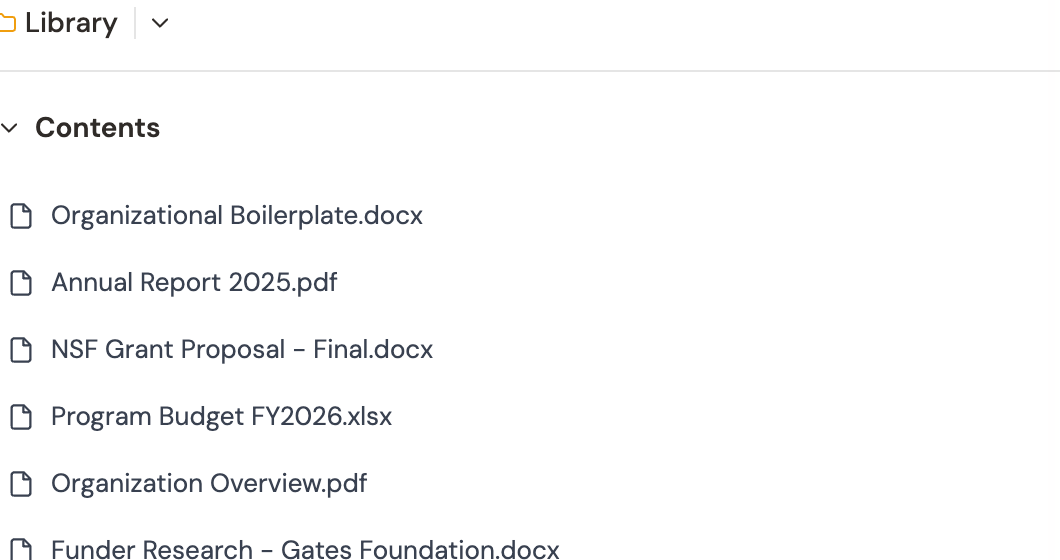
Your file tree works just like the folder systems you’ve used for decades. Create folders, drag files around, rename things — it’s all there. But you can also ask the AI to organize things for you, create folder structures, or find documents you’ve uploaded.
What’s next?
- AI Chat — Learn about chat modes and how conversations work
- AI & Automation — Understand the full range of AI capabilities, including skills and templates
- AI Writing & Editing — Deep dive into proposal drafting and document editing
Tip: You can always ask Grantable itself how to do something. Try “What can you help me with?” or “How do I research funders?” — the AI will walk you through it.