Planner
Every date on your grants on one calendar, and a board of the grants you're working on, by stage.
Last updated Oct 2, 2026
Every grant date in one place
A grant comes with more dates than its deadline. There’s the day you’ll hear back, the day the first report is due, and the day you can apply again if they said no. Those dates usually end up scattered across funder pages, award letters and someone’s own calendar. The Planner puts them all on one calendar, next to a board of the grants you’re actively working on.
Open Planner in the sidebar, just under Grants. Switch between Calendar and Board at the top right. The Planner remembers which one you used last.
The Planner doesn’t keep a list of its own. It reads the same grants you keep in Grants. Move a grant there and the Planner shows it. Move a card on the Planner’s board and Grants shows that too.
Calendar
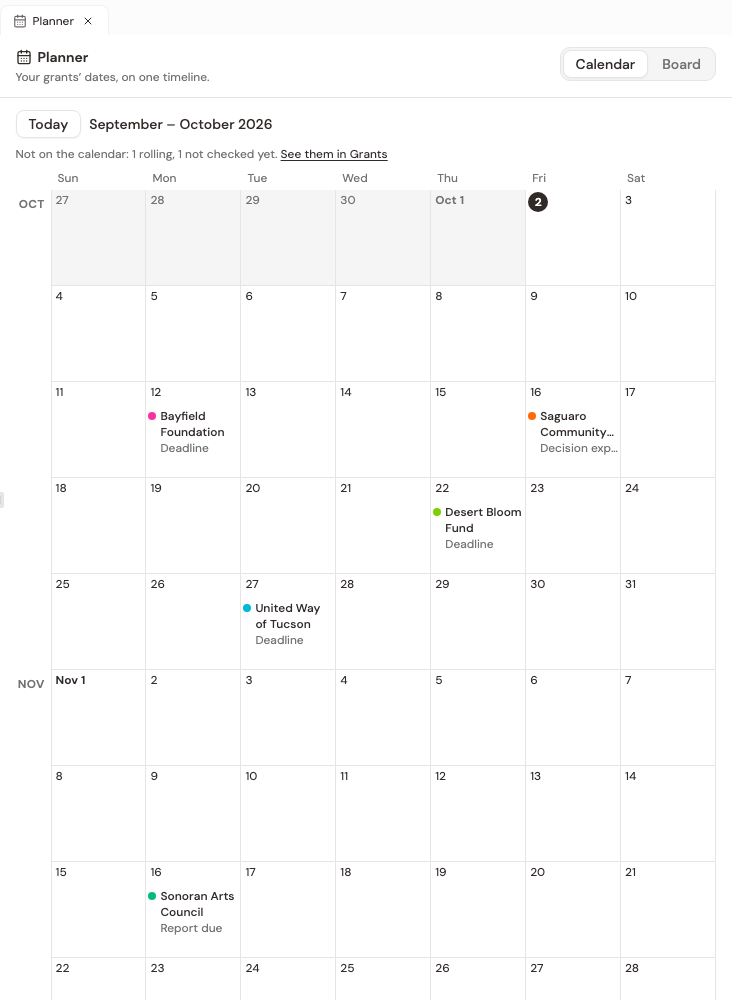
The calendar opens on this week, with today circled. Scroll up to see the last four weeks, or down to look a year ahead. Today brings you back.
Each date is a small chip with the funder’s name and what kind of date it is.
| Label | The day |
|---|---|
| Deadline | the application is due |
| Decision expected | you expect to hear back |
| Report due | a report on an award is due |
| Re-apply | a funder that declined you opens again |
Click a chip to open that grant in its own tab.
What lands on the calendar
Grants show up here once you’re watching them. New finds you haven’t looked at yet stay in Grants, and so do grants you’ve closed.
A deadline goes on the calendar only once Grantable has proven it, either by checking the funder’s page or listing or because you set it on an application folder. Some grants have no day to show. Their deadline is rolling, or it hasn’t been checked yet. The line above the calendar counts those, like “Not on the calendar: 1 rolling, 1 not checked yet.” Click See them in Grants to find them.
The other three dates come from what you record about a grant. Tell the grant’s chat when you expect a decision, when the report is due or when you can re-apply, and the date appears here. The Grants page covers how, under Ask AI.
On a narrow screen
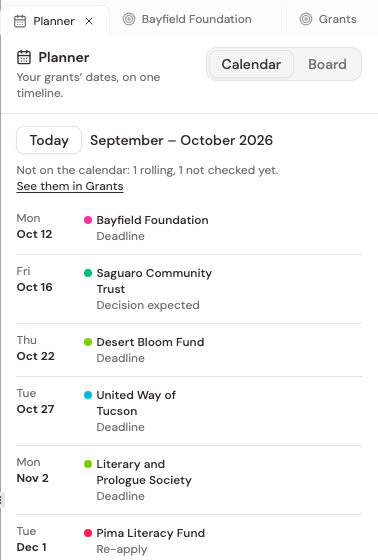
When the panel is narrow, the calendar turns into a list of days. Only days with something on them appear.
Board
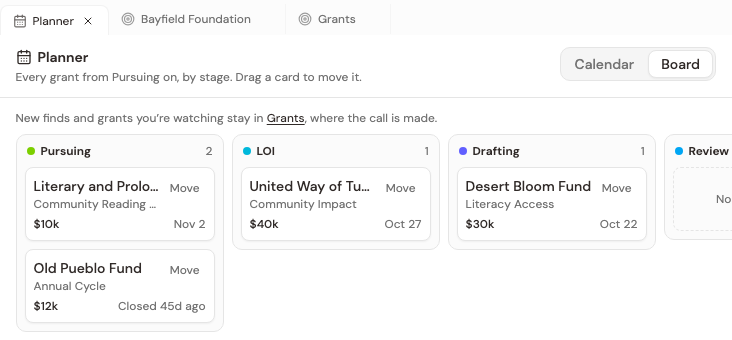
The board shows every grant you’re working on, from Pursuing through Reporting, one column per stage. New finds and grants you’re only watching stay in Grants, since that’s where you decide whether to go after them.
Each card shows the funder, the program, the amount and the one date that matters at that stage. Before you submit, that’s the deadline. Once it’s submitted, it’s when you expect a decision. After an award, it’s when the next report is due. If the date is within a week, the card says so, like “in 2 days” or “tomorrow.”
Moving a card
Drag a card to another column, or click Move on the card and pick a stage. Either way, only the moves that make sense from where the grant is are allowed. A grant in Pursuing can go to LOI or Drafting, for example, but not straight to Submitted. The full map of moves is on the Grants page.
Every move shows a note at the bottom of the screen with an Undo button. You have 10 seconds to take it back.

Awarded and declined
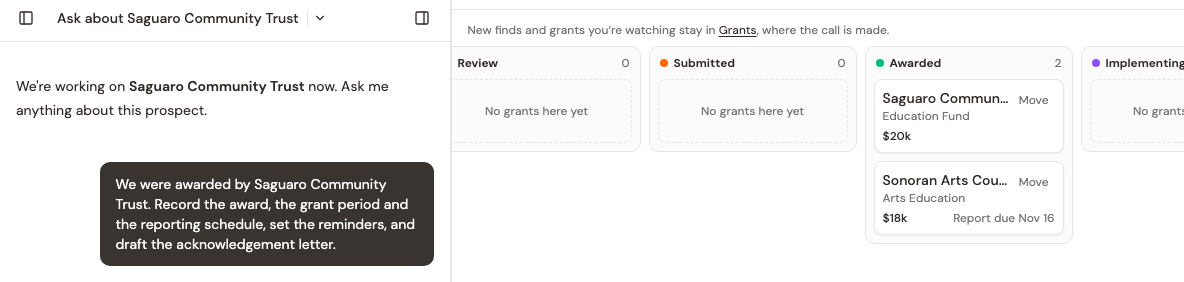
When you move a card to Awarded, Grantable opens that grant’s chat and asks it to record the award, the grant period and the reporting schedule, and to draft an acknowledgement letter. Moving a card to Declined does the same for the decline. It asks the chat to record why and when you can re-apply, and to draft a short note asking the funder for feedback.
Declined and closed
The last column, Declined · Closed, is folded. It shows a count rather than cards. Drop a card there to finish with it. A grant at LOI or Submitted is marked Declined. From Drafting, Review, Awarded, Implementing or Reporting, it’s marked Closed. A grant in Pursuing can’t be dropped there; move it on first.
Closing is final. A closed grant can’t be reopened, here, in Grants or in chat. So Grantable asks before it closes one, and the Undo still works for 10 seconds after.
Ask about your Planner
You don’t have to open the Planner to use it. Ask in any chat:
- “What’s on my Planner for the next two weeks?”
- “Which grants are in Drafting or Review?”
Grantable reads your Planner and answers.
Tip: If a date is missing, check Grants first. A grant with no proven deadline, or one that’s still New, won’t be on the calendar yet.