AI Chat
Chat with Grantable to research funders, draft proposals, review budgets, and manage your grant workflow — all through conversation.
Last updated Mar 26, 2026
Think of it as a conversation with a colleague who never forgets
If you’ve used ChatGPT or Claude, you already know how AI chat works. Grantable works the same way — except it knows your organization, has access to your files, and understands grant workflows. You don’t start from scratch every conversation. Grantable remembers what you told it last week, what you submitted last quarter, and what’s coming up next month.
Everything in Grantable flows through this conversation. Ask it to find funders for your afterschool program and it searches real funder data, cross-references your org profile, and ranks the results — not a list of Google links. Ask it to draft a letter of inquiry and it pulls from your boilerplate, your past proposals, and the funder’s stated priorities. Ask it to review a budget narrative and it checks the numbers against your actuals.
You’re always in control. Anything the AI does, you can also do manually — create files, organize folders, edit documents — directly in the workspace alongside chat. AI drafts, humans decide.
Starting a conversation
Click + New Chat in the sidebar to start a fresh conversation. Think of chats as lightweight workspaces that float above your files and data — one for prospecting, another for drafting an LOI, another for reviewing a budget. They all share the same underlying workspace, so create as many as you need.
The home page shows quick-start suggestions below the chat input. These adapt to where you are — a new account sees “Create my org profile,” while an established account sees prompts relevant to your current work. Click one to jump in, or type whatever you need.
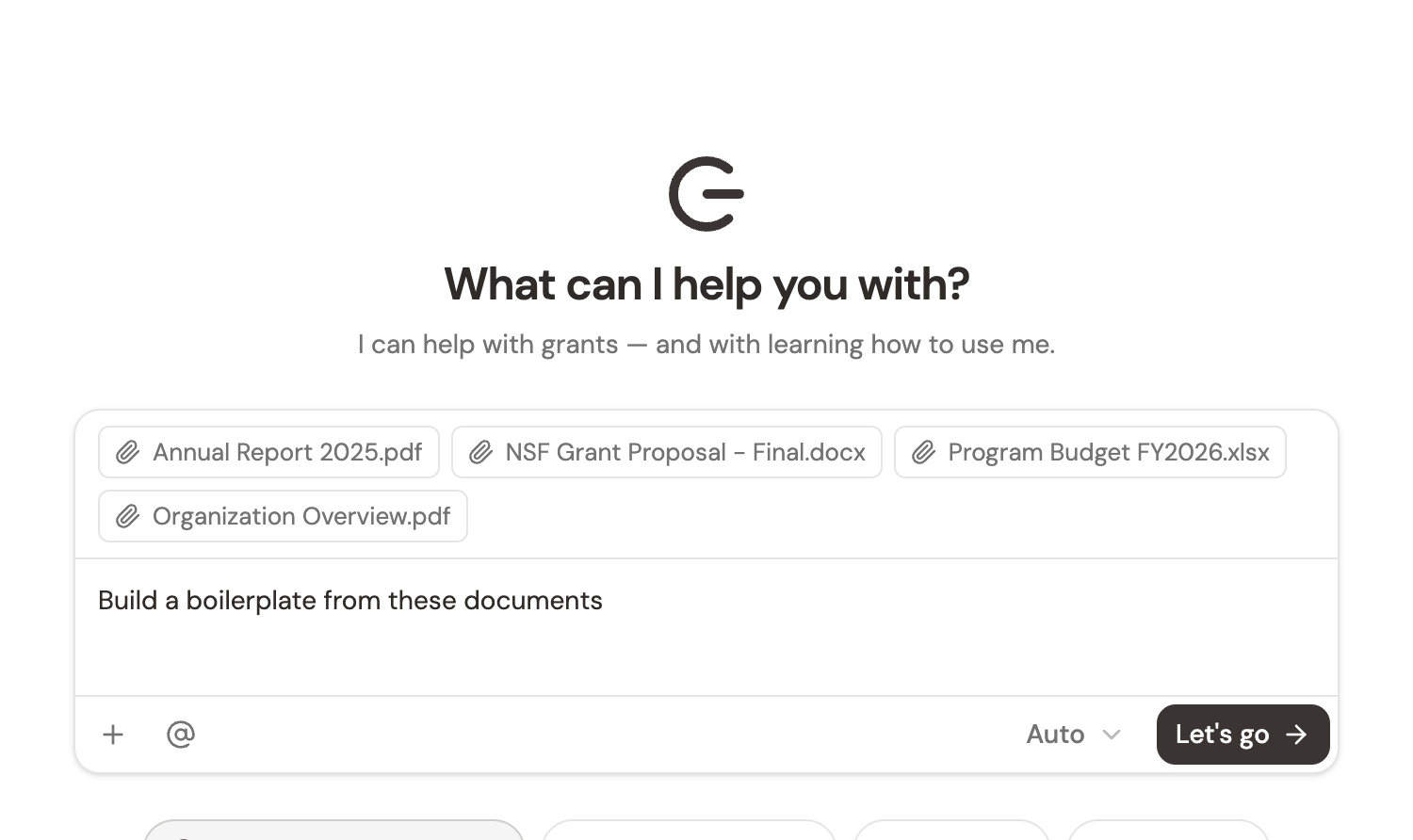
Tip: The best first message is the one that’s most useful to you right now. “Review this RFP and tell me if we’re a good fit” with an attached PDF will get you further than “hello.”
Give it context, get better results
The more context you include in a message, the better the response. Your message is a briefing — the AI works with whatever you give it.
- Attach files — Click + (or drag and drop, or paste from your clipboard) to attach documents directly to your message. The AI reads them immediately. Upload an RFP, a past proposal, a budget spreadsheet — whatever is relevant.
- @ mention workspace files — Type @ to reference files or folders already in your workspace without re-uploading. Point the AI at your boilerplate, a past proposal, or a template to guide the output format. You can @ reference multiple files in one message. This is one of the most powerful features in Grantable — see @ Mentions & References for the full guide.
- Use skills — Type / to access skills like
/prospecting,/grant-writing,/review, and/boilerplate. These give the AI a structured playbook for common grant tasks rather than open-ended conversation. More on this below. - Select text from a document — If you have a file open in the context panel, select a passage and click “Add to chat.” The AI responds in the context of that specific text.
You can combine all of these in a single message. Attach an RFP, @ mention your boilerplate, and type “Draft a letter of inquiry based on this RFP and our boilerplate” — the AI gets all the context at once.
Tip: You don’t need to give perfect instructions. Start with what you have and refine as you go. The AI asks clarifying questions when it needs more information.
The AI takes action, not just answers questions
This is the biggest difference from general-purpose AI tools. When you ask Grantable to draft a proposal section, it doesn’t just paste text into the chat — it creates a real document in your workspace. When you ask it to organize your files, it moves them. When you ask it to research funders, it searches, evaluates, and produces a structured report.
You’ll see this in how responses look:
- File cards — When the AI creates or edits a document, a clickable card appears showing what changed. Open it to see the file in your context panel.
- Research results — Funder searches, fit assessments, and other research appear as structured output with scores, rationale, and sources you can verify.
- Reasoning — An expandable section showing the AI’s thought process. Open it when you want to understand why it made a particular recommendation.
- Structured questions — When the AI needs your input, it presents clear options to choose from rather than asking you to type a paragraph. See below.
- Live tables — Checklists and prospect slates that persist as interactive objects near the chat input. See below.
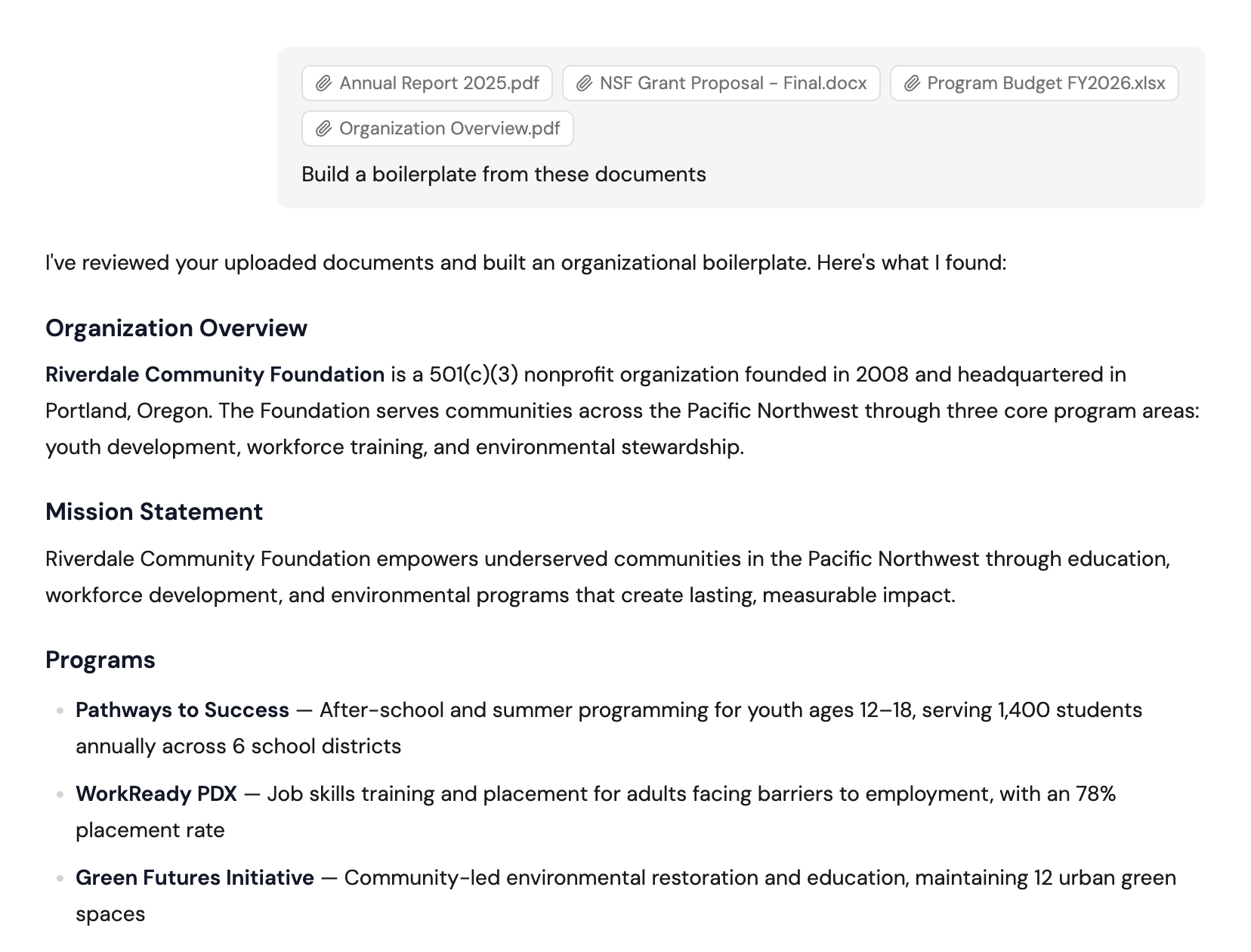
The AI builds context throughout a conversation. Each follow-up gets a more specific answer because it remembers everything discussed so far. When a conversation gets long or shifts topics, start a new one — it’s free and keeps things focused.
Structured questions: the AI asks before it assumes
Sometimes the AI needs your input before it can do good work — and rather than asking you to type a paragraph, it gives you clear options to choose from. When this happens, a question overlay appears in place of the chat input with options you can click.
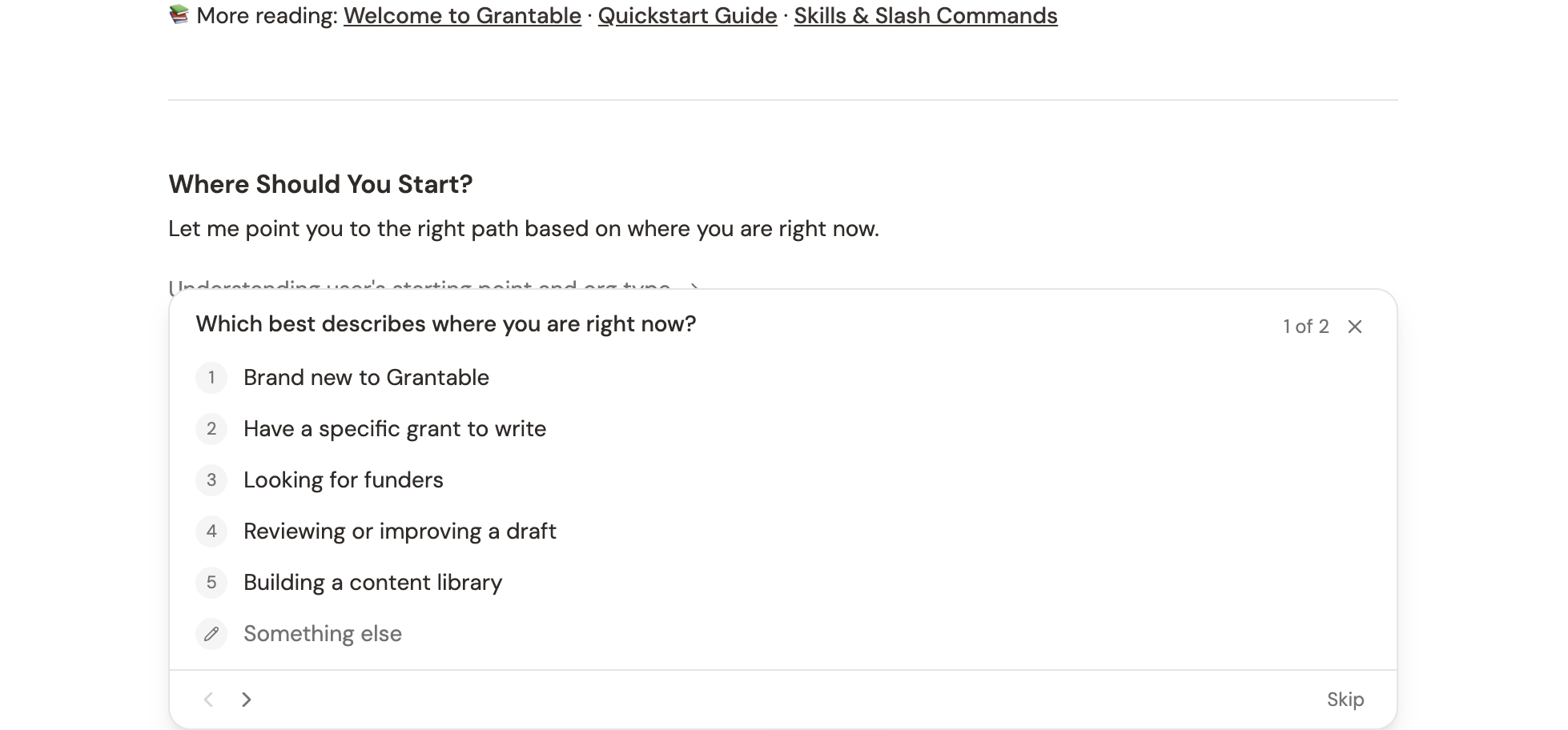
These aren’t yes/no pop-ups. The AI asks substantive questions to understand your situation:
- Single-select — Pick the option that fits. Click it and the AI moves on immediately — no extra buttons to press.
- Multi-select — Check everything that applies, then click Next. Useful when the AI needs to understand the full scope of what you’re working on.
- “Something else” — Every question includes a free-text option if none of the choices fit. Type whatever you need.
The AI can ask up to eight questions in a sequence, with back and forward navigation so you can change your mind. You can also skip any question you’re not sure about — the AI works with whatever you give it.
This shows up naturally in the flow of work. Ask Grantable to help you start a new application and it might ask which type of funder you’re targeting, what program area to focus on, and whether you have an existing relationship. Ask it to review a draft and it might ask what your top concerns are. The answers shape what happens next — the AI uses your responses as context for the rest of the conversation.
Tip: You don’t need to answer perfectly. The AI uses your selections as a starting point, and you can always course-correct in follow-up messages.
Live tables: checklists and prospect slates
Some AI outputs aren’t one-and-done text responses — they’re living objects that stay with you throughout a conversation. When the AI creates a checklist or a prospect slate, it appears as a compact pill near the chat input that you can expand, interact with, and reference as you work.
RFP checklists
When you upload an RFP and start working on an application (especially with the /grant-writing skill), the AI extracts every requirement — narrative sections, budget items, formatting rules, supplemental documents — and builds an interactive checklist. This appears as a pill labeled Checklist with a progress count like “0/12.”
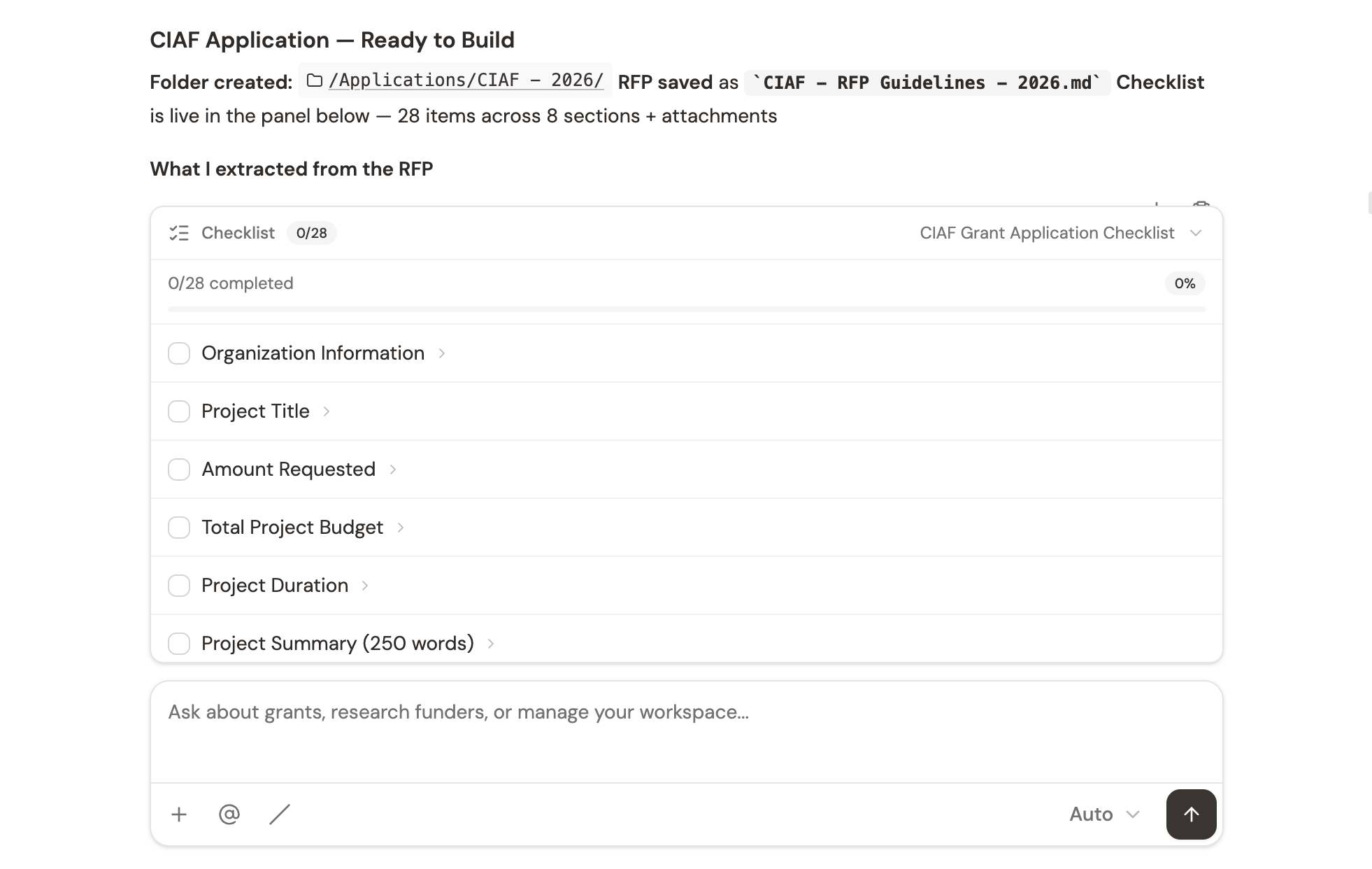
Expand it and you see every requirement with a checkbox and description. As you complete sections, check them off — the progress bar updates in real time. On any item you haven’t completed yet, click Help me and the AI jumps into working on that specific requirement with you.
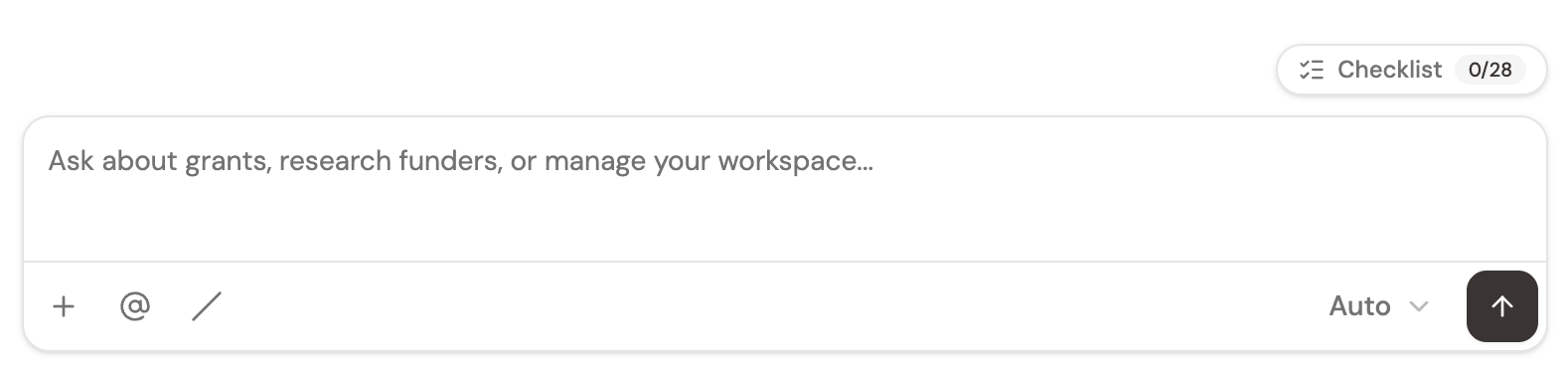
The checklist is the AI’s running understanding of what the funder is asking for. It updates as you work — when the AI drafts a section that addresses a requirement, it can mark that item complete. You always have a clear picture of what’s done and what’s left.
Prospect slates
When you use /prospecting to research funders, the results appear as an interactive table — not just a list in the chat. Each funder shows a fit classification (Strong, Good, Moderate, or Low), location, and annual giving. The table persists as a pill labeled Prospects near the chat input, so you can keep referencing it as the conversation continues.
Click any funder row to open their detailed brief in the context panel. If a funder looks promising, accept them — or dismiss them and tell the AI why. Dismissal feedback refines future searches, so the AI gets better at matching your priorities over time.
The prospect slate is a working document, not a static report. The AI can update it as you refine your criteria or ask for additional research. A blue dot on the pill tells you when the AI has made changes.
Tip: You can ask the AI to update your checklist or prospect slate at any time. “Mark the budget narrative as complete” or “Remove any funders that don’t fund in California” — the AI adjusts the table and it updates in place.
Skills: structured workflows for common tasks
Open-ended conversation is great for exploring ideas, but some tasks follow a predictable pattern. That’s what skills are for. Type / in the chat input and you’ll see the available skills:
/prospecting— Research and rank potential funders based on your organization’s profile/grant-writing— Draft full applications grounded in your files and funder requirements/review— Run a structured assessment of a draft against an RFP’s criteria/boilerplate— Build reusable organizational narratives from your source materials
The difference between a skill and a regular message is focus. When you type “find funders for our education programs,” the AI does its best with an open-ended approach. When you type /prospecting, it follows a deliberate research methodology — profiling your organization, searching funder databases, scoring fit across multiple dimensions, and presenting ranked results.
Use regular chat for exploration and follow-up. Use skills when you want a thorough, repeatable process.
Tip: Not sure which skill to use? Just describe what you’re trying to do in plain language. Grantable will suggest the right skill if one applies.
Skills are covered in depth in Skills & Slash Commands.
Model tiers: you probably don’t need to think about this
The chat input includes a model selector with three options: Auto, Pro, and Fast. Leave it on Auto — it picks the right model for each message and is the right choice for most work.
If you want more control:
- Pro — Extended reasoning for complex analysis, nuanced writing, or multi-step research. Uses more of your AI budget per message. Good for high-stakes drafts and detailed funder evaluation.
- Fast — Quick responses for simple questions, formatting, or when speed matters more than depth. Uses less of your budget. Good for straightforward tasks like “reformat this table” or “summarize this email.”
See Usage & Budgets for how model tiers affect your plan.
What’s next?
- @ Mentions & References — Use @ to reference workspace files in chat or mention people in comments
- Managing Conversations — Search, rename, and organize your chat history
- Skills & Slash Commands — The full list of skills and how to get the most from each one
- AI Writing & Editing — How the AI creates, edits, and manages documents in your workspace
Tip: You can always ask Grantable itself how to do something. Try “What skills do you have?” or “How should I get started?” — it knows the platform and can walk you through any workflow.