Scheduled Tasks
Automate recurring AI tasks — funder monitoring, report generation, and more.
Last updated Mar 26, 2026
Your early-morning assistant
Think of scheduled tasks like having someone who shows up before you do every morning, handles the routine work, and leaves a summary on your desk. Check for new funder filings? Done. Scan for upcoming deadlines? Already handled. Flag stale drafts that need attention? There’s a note waiting for you.
That’s what scheduled tasks do — they run AI prompts on a recurring schedule, with full access to your workspace files and context. You define what you want done, pick a cadence, and Grantable handles the rest. Available on Pro and Pro+ plans.
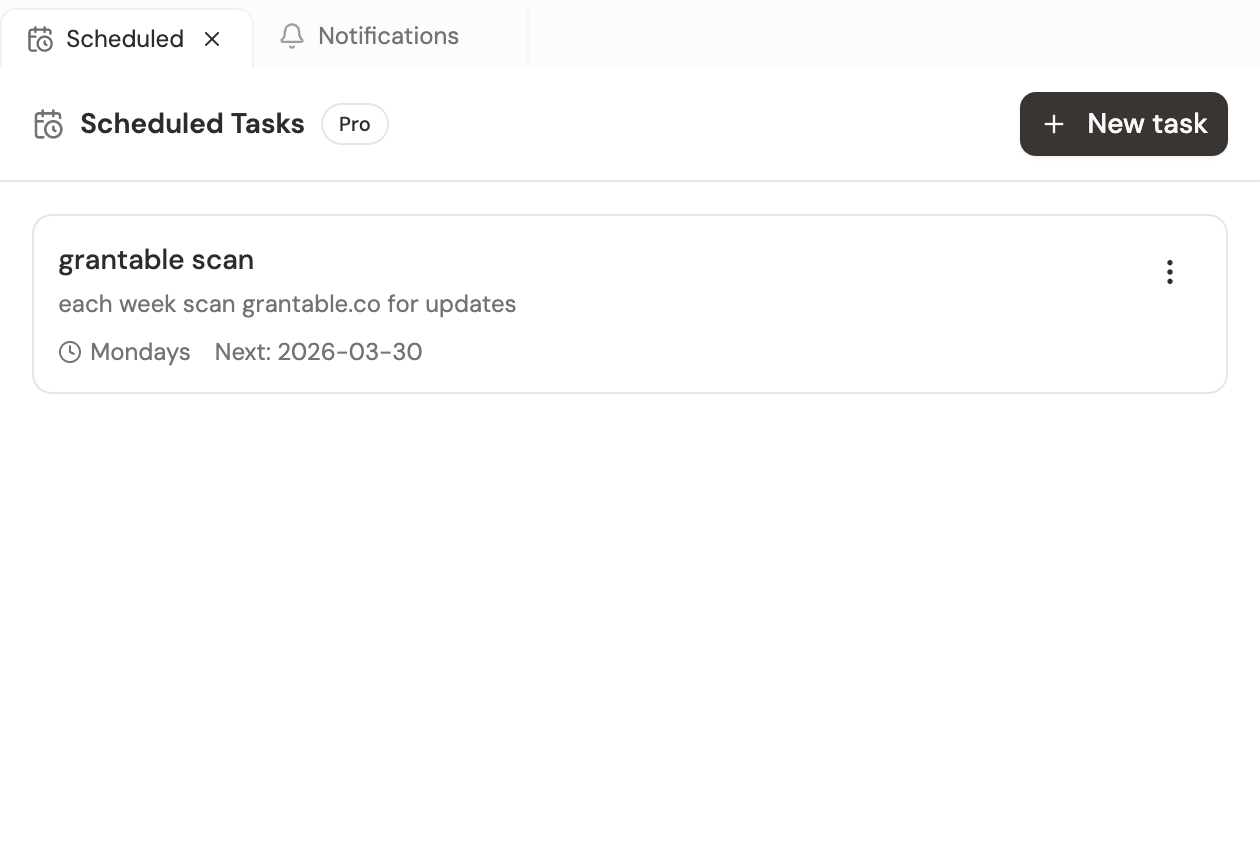
Setting one up
- Open the scheduled tasks panel
- Click New Task
- Write the prompt — describe exactly what you want the AI to do, the same way you’d ask it in chat
- Set a schedule — daily, weekly, or a custom interval
- Save it
The AI runs your prompt on schedule with full access to your workspace files, organization profile, and any relevant context. It’s the same AI you talk to in chat, just working on a timer instead of waiting for you to type.
Tasks worth automating
Morning funder briefing — “Check for new 990 filings from the 15 foundations on our priority list. If any filed since yesterday, summarize changes in their giving — total grants awarded, new program areas, and any shifts in average grant size. Save the briefing as a file in the Funder Research folder.”
Weekly prospect sweep — “Search for foundations that fund environmental education programs in the Pacific Northwest with grants between $25K and $150K. Cross-reference against our existing prospect list and add any new matches with a note about why they’re relevant.”
Stale draft detector — “Review all draft documents in the workspace. Flag any that haven’t been updated in 7 days and list them with the last editor’s name and the deadline for that project, if one exists.”
Deadline countdown — “Check all projects with deadlines in the next 14 days. For each one, list what’s done, what’s still in draft, and whether any required sections are missing.”
What happens when a task runs
Each run creates its own chat thread — just like a conversation you’d have manually, except the AI starts it on schedule. The thread title is prefixed with [Scheduled] so you can spot it in your chat list.
When the task completes, you get a notification with a summary of what the AI found or did. Click the notification to open the full chat thread and see everything — the AI’s reasoning, any files it created or updated, and any issues it flagged. The output lives in that thread permanently, so you can reference past runs the same way you’d revisit any conversation.
From the scheduled tasks panel, you can also click View result on any task to jump straight to its most recent run.
You’re always in control. The AI does the legwork; you make the decisions.
Managing your tasks
From the scheduled tasks panel, you can:
- View all tasks — See active tasks with their schedules and last run status
- Edit — Update the prompt or change the schedule
- Pause — Temporarily stop a task without deleting it (handy during quiet periods)
- Delete — Remove a task permanently
Pro Tip: Write your task prompts the same way you’d talk to the AI in chat. Start with one simple daily task — like checking for deadline changes — and add more as you see what saves you time. The best candidates are things you do every day that feel like busywork: monitoring, checking, summarizing, flagging.