Navigating the Workspace Inbox
Setting up and using your workspace email address.
- Setting Up Your Inbox
- Two Ways to Get Email Flowing
- What Happens When an Email Arrives
- Working With Inbox Messages
- Inbox Rules — Automated Monitoring
9 min
reading time
Interactive knowledge check
Navigating the Workspace Inbox
Most grant teams juggle a separate email client alongside their grant tools — forwarding funder emails, copy-pasting updates, losing track of who said what. The Workspace Inbox brings email into the same place where you do your grant work, so correspondence and context live side by side.
When an email arrives, Grantable’s AI reads it, summarizes it, classifies it, and surfaces the right actions — all before you open the message. Instead of scanning a wall of emails, you scan a wall of summaries and tags.
Workspace Inbox is available on Pro and Pro+ plans.
Setting Up Your Inbox
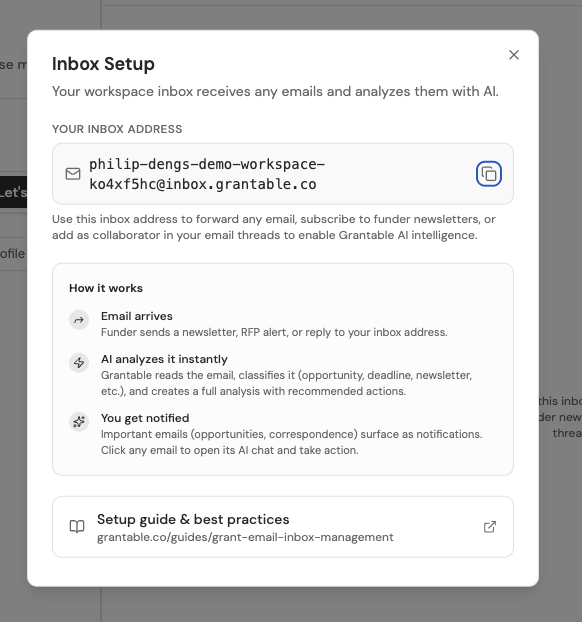
Each workspace gets its own email address based on your workspace slug — something like your-org@inbox.grantable.co. To find it:
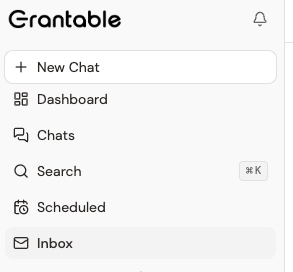
- Click Inbox in the sidebar
- Click Configure at the top of the inbox panel
- Copy your workspace email address
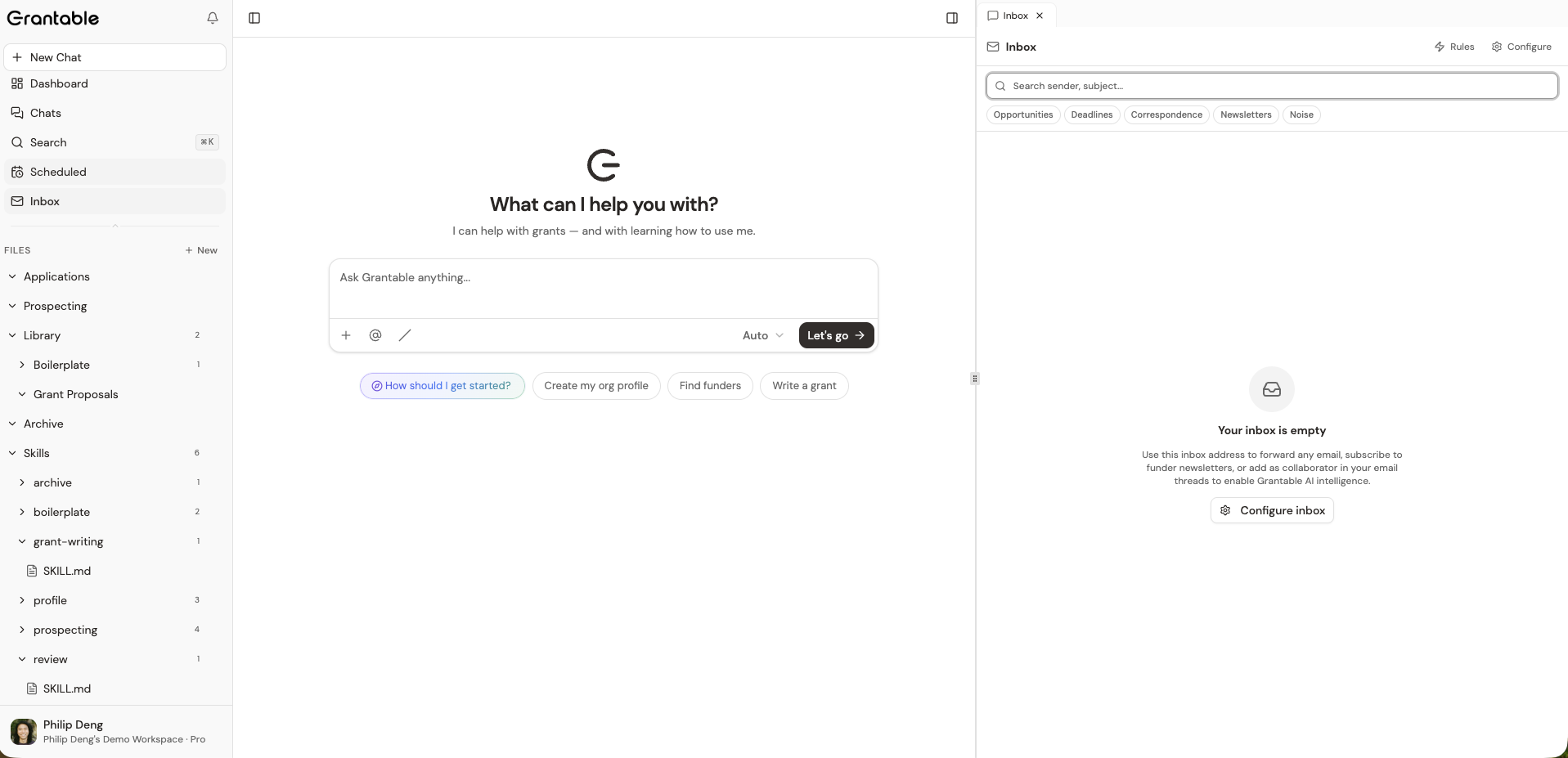
The inbox opens as a panel on the right side of your screen — it doesn’t take you away from whatever you’re working on. You can have a conversation open in the main area and check incoming emails at the same time.
Two Ways to Get Email Flowing
Forwarding from your email client. Set up a filter in Gmail or Outlook that auto-forwards emails from key funders to your workspace address. RFP announcements and deadline reminders show up in Grantable automatically.
Subscribing directly with your workspace address. Here’s a power move: use your workspace email address to subscribe to funder newsletters and mailing lists. When a foundation announces a new funding cycle, that email lands directly in Grantable — where the AI can read it, classify it, and flag the opportunity before you even check your inbox.
You don’t need to route everything through Grantable. Start with your top five funders and any newsletters that announce new opportunities. Expand from there once you see what’s useful.
What Happens When an Email Arrives
Each incoming email is analyzed by the AI, which does two things automatically:
- Summarizes the message so you can scan your inbox quickly without opening every email
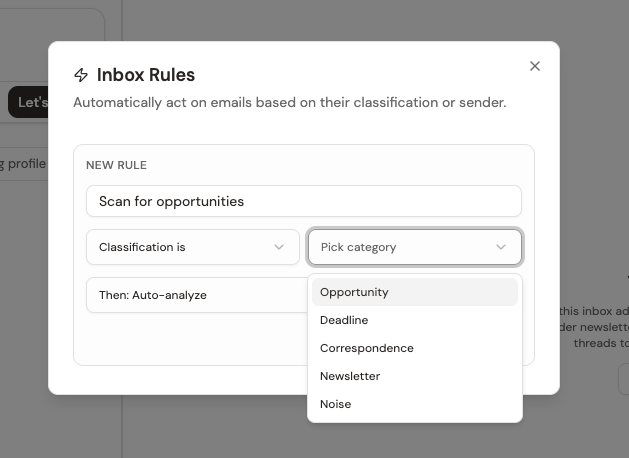
- Classifies it into one of five categories: Opportunity (RFPs, funding announcements), Deadline (upcoming due dates), Correspondence (direct funder communication), Newsletter (digests and updates), or Noise (spam, auto-replies)
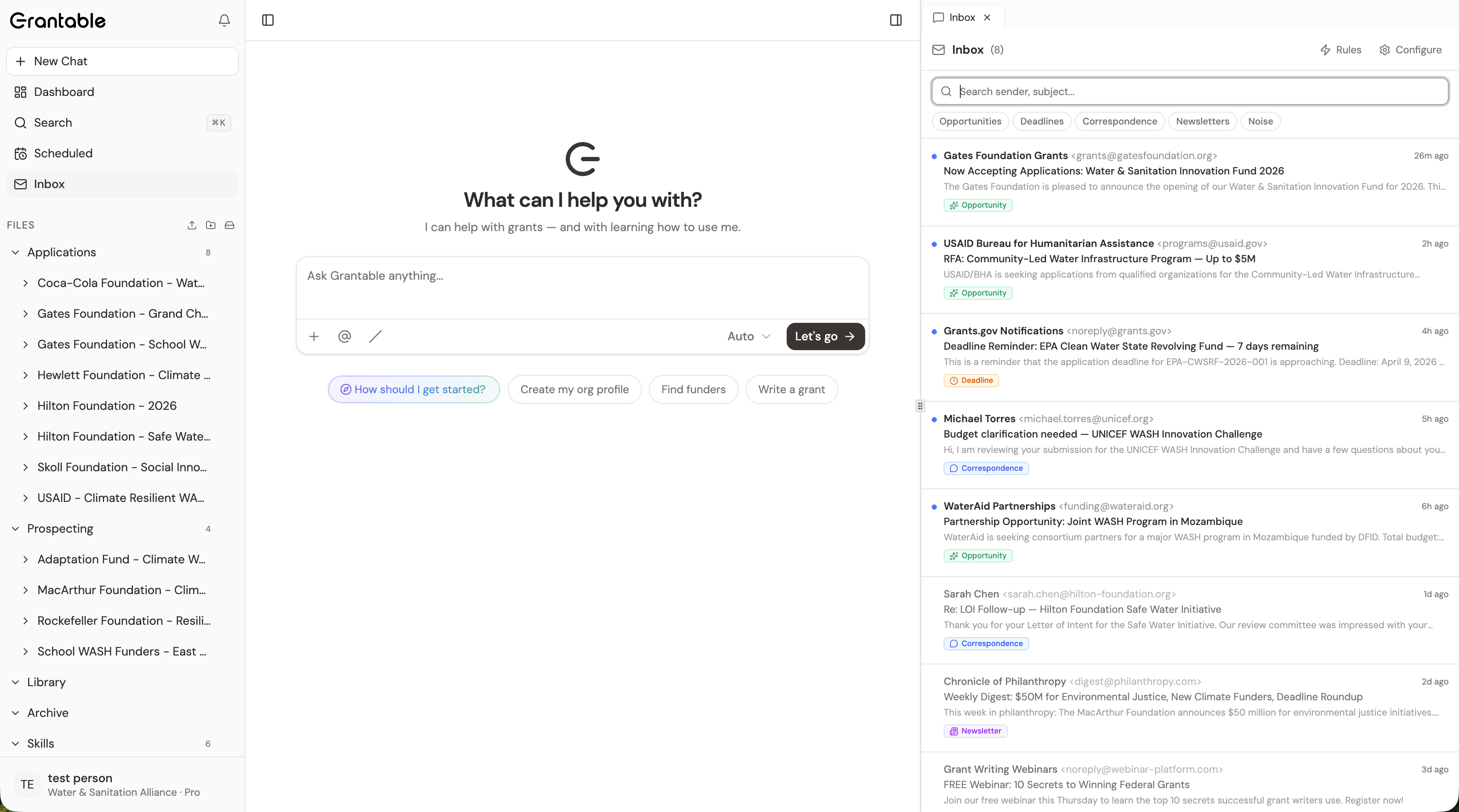
You can filter your inbox by any of these categories using the filter bar at the top — helpful when you want to see only opportunities or only deadlines.
Working With Inbox Messages
Click any message to open it in the inbox panel. From there you have several actions:
Send to chat
Click the forward icon to load the email into a new AI conversation. The AI has the full email content and can help you draft a reply, analyze requirements, or plan next steps.
Add to library
See an important attachment — an RFP, budget template, or updated guidelines? Click 'Add to Library' to save it directly to your workspace files. It's instantly available to the AI in future conversations.
Archive or delete
Archive messages you've handled to keep your inbox clean. Delete irrelevant ones. Archived messages are still searchable if you need them later.
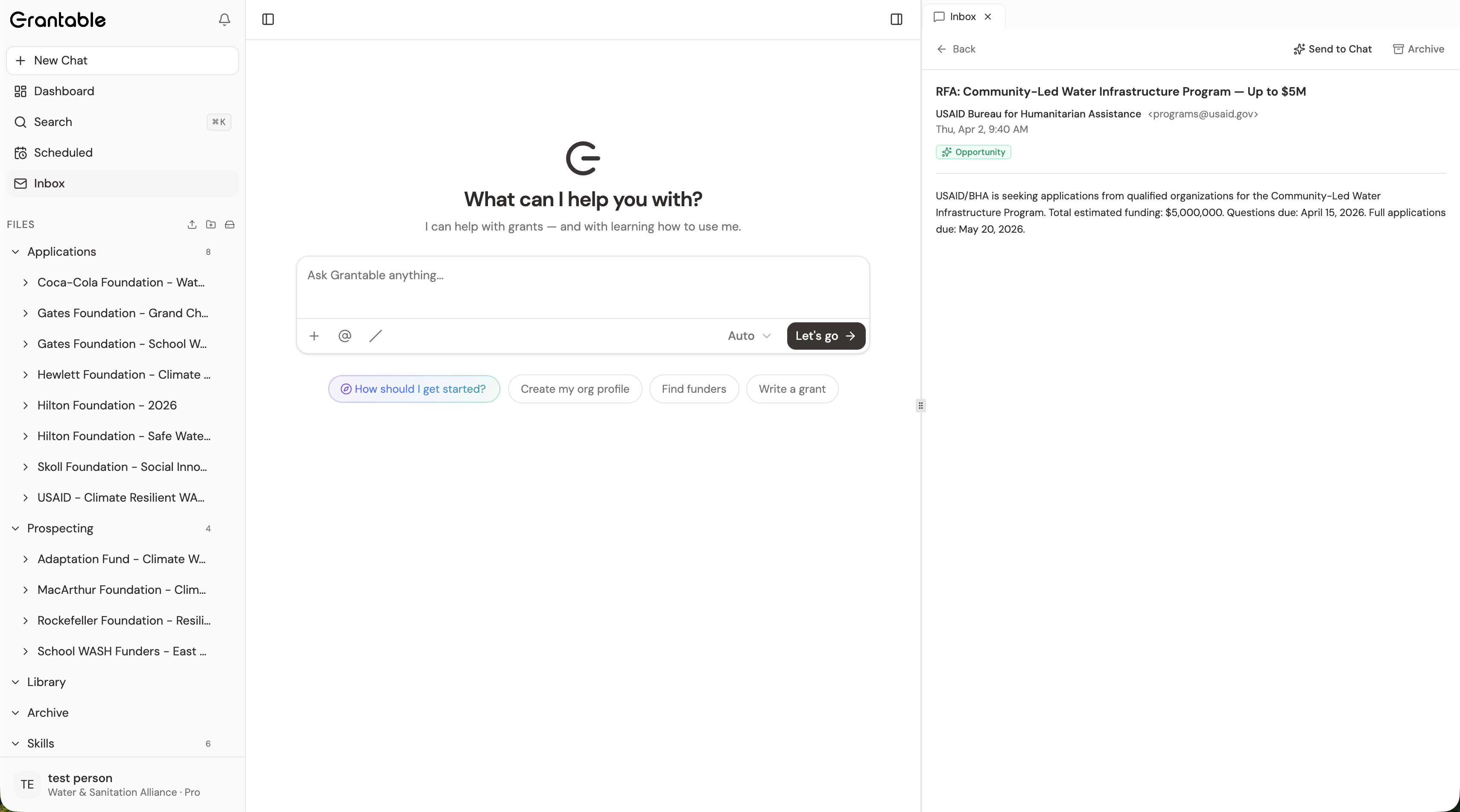
The “send to chat” action is one of the most powerful. When a funder sends you a complex RFP or a set of requirements, forwarding it into a conversation lets you immediately ask the AI to break it down, compare it to past applications, or start working on a response — all with the full email context loaded.
Inbox Rules — Automated Monitoring
Beyond reading and processing messages one at a time, you can set up rules that tell Grantable how to handle certain emails automatically. Click the lightning bolt icon at the top of the inbox panel to open the rules dialog.
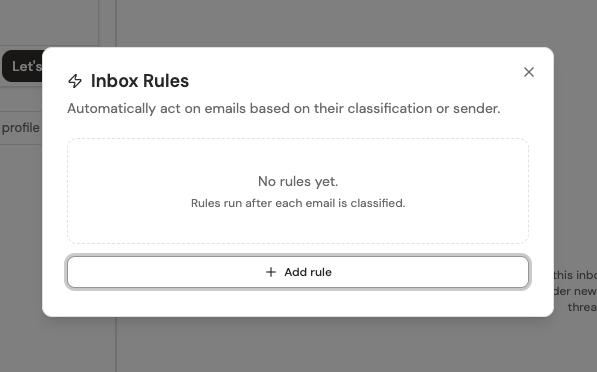
Click + Add rule to create your first rule. Each rule has three parts: a name, a condition, and an action.
Naming Your Rule
Give the rule a descriptive name that tells you at a glance what it does — something like “Scan for opportunities” or “Monitor Gates Foundation.” You’ll see this name in your rules list, so make it specific enough that you can manage ten or twenty rules without confusion.
Choosing a Condition
The condition tells Grantable which emails this rule applies to. Click the condition dropdown to choose from three options:
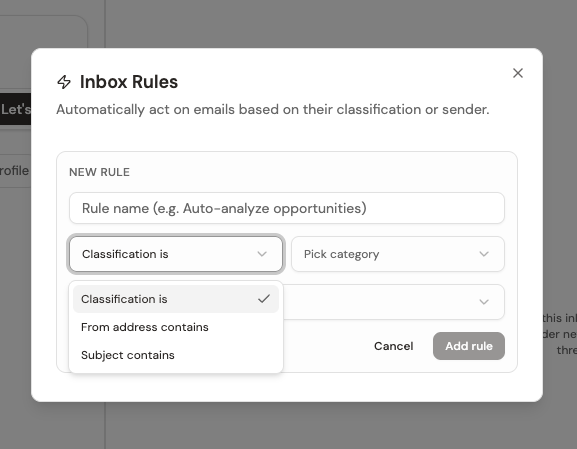
- Classification is — triggers based on the AI’s automatic category. After you pick this, a second dropdown lets you choose which category:
- From address contains — matches the sender’s email address or domain. Enter something like
sunrisefoundation.orgto catch all emails from that organization, or a specific address likegrants@example.org. - Subject contains — matches keywords in the subject line. Useful for catching emails about specific programs, like “Community Health Initiative” or “SBIR.”
Choosing an Action
The action tells Grantable what to do when an email matches the condition:
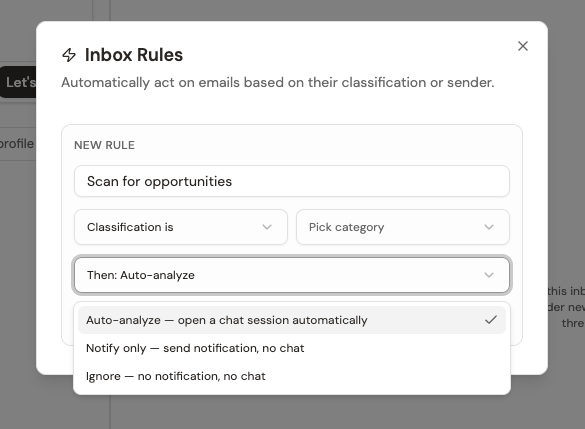
- Auto-analyze — opens a chat session automatically and has the AI analyze the email against your organization’s profile and documents. This is the most powerful option — the AI reads the email, evaluates whether it’s relevant to you, and surfaces its analysis.
- Notify only — sends you a notification so you know the email arrived, but doesn’t trigger an AI analysis. Good for emails you want to see but handle yourself.
- Ignore — classifies and stores the email silently. No notification, no analysis. Use this for routine emails that clutter your inbox.
The Funder Newsletter Trick
Here’s where the inbox becomes a proactive research tool, not just a reactive one. Say you’re tracking the Sunrise Foundation. They send a quarterly newsletter announcing new funding priorities and RFPs.
- Subscribe your workspace email address (
your-org@inbox.grantable.co) to the Sunrise Foundation’s newsletter - Create a rule — name it “Scan for opportunities,” set the condition to “From address contains” with the funder’s domain, and set the action to “Auto-analyze”
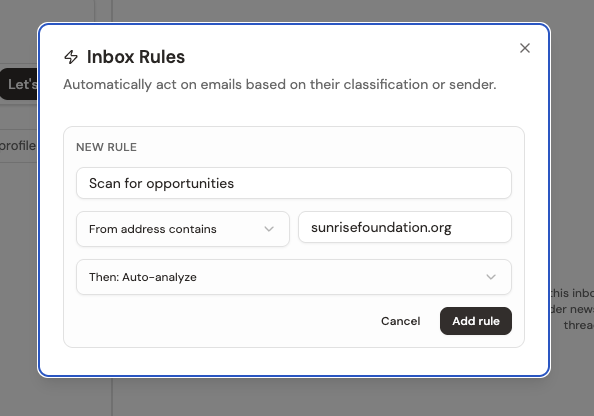
- Let it work — next time the Sunrise Foundation sends a newsletter, the AI reads it, checks for grant opportunities relevant to your organization, and starts a conversation with its analysis — before you’ve even seen the email
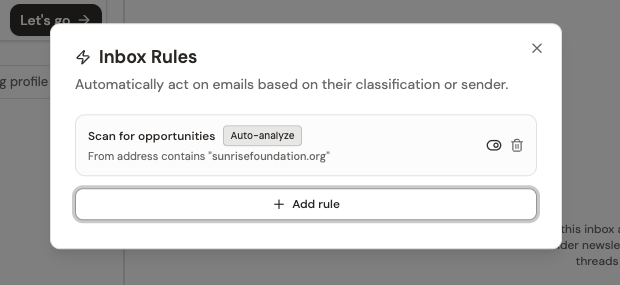
Scale this across ten or twenty funders and you have an AI-powered opportunity scanner running in the background. You’re no longer waiting for someone on your team to spot a new RFP — Grantable catches it and brings it to your attention.
We cover inbox rules in depth in Workspace Inbox Actions. For the strategic approach to building a full funder monitoring system, see Funder Monitoring.
The Workspace Inbox turns email from a disconnected communication channel into part of your grant workflow. A funder email becomes a classified message with a summary. An attachment becomes a workspace document. A complex RFP becomes an AI conversation. And with rules + newsletter subscriptions, the inbox becomes a proactive opportunity scanner — catching funding announcements before anyone on your team has to go looking.
Try this now with a real funder in your pipeline:
- Find a funder newsletter. Pick a foundation you’re tracking that has an email newsletter or mailing list. Check their website for a “Subscribe” or “Stay Informed” link.
- Subscribe with your workspace address. Use your
@inbox.grantable.coaddress as the subscriber email. - Create an inbox rule. Open the inbox panel → click the lightning bolt → + Add rule. Name it something descriptive like “Scan [Funder Name] newsletters.” Set the condition to “From address contains” and enter the funder’s email domain. Set the action to “Auto-analyze.”
- Forward a test email. While you wait for a real newsletter to arrive, forward a recent funder email to your workspace address. Watch it appear in the inbox, get classified and summarized, then try sending it to a chat conversation.
- Add an attachment to your library. If the email has an attachment, click “Add to Library” and verify it appears in your workspace files.
By the end of this exercise, you’ll have email flowing into Grantable, at least one rule watching for opportunities, and hands-on experience with every inbox action.
You want Grantable to automatically analyze emails from a foundation that announces new RFPs via newsletter. What do you set up?
- Each workspace gets its own @inbox.grantable.co email address
- AI summarizes and classifies every incoming email into five categories
- 'Add to Library' pulls attachments into your workspace; 'Send to Chat' starts an AI conversation
- Subscribe your workspace address to funder newsletters for automated opportunity scanning
- Inbox rules match on classification, sender, or subject — then auto-analyze, notify, or ignore
Next Lesson
Your workspace is fully set up. In the next module, we’ll dive into Discover — finding and evaluating the right funders for your organization.
Notice an error or have a question about this lesson?
Get in touchHave questions about this lesson?
Ask Grantable to explain concepts, suggest how they apply to your organization, or help you think through next steps.