Library Hygiene — A Walkthrough
Step-by-step: the quarterly 30-minute pass that keeps your folder structure, org profile, search results, and abandoned drafts honest — so a two-year-old workspace is easier to use than a fresh one, not harder.
- Before you start
- Stage 1: Update the org profile (10 minutes)
- Stage 2: Archive completed applications (5 minutes)
- Stage 3: Resolve dead drafts (5 minutes)
- Stage 4: Spot-check the search (5 minutes)
- Stage 5: Refresh top funder profiles (5 minutes)
- What hygiene actually maintains
7 min
reading time
Interactive knowledge check
Library Hygiene — A Walkthrough
Year one in any tool is easy to keep clean. Year two is when things drift. Drafts get abandoned but never deleted. The org profile referenced in last week’s proposal is the version from before the last big strategic shift. Search returns three slightly different versions of the same boilerplate paragraph and you can’t tell which one the team actually uses. The workspace got bigger; it didn’t get more useful.
This lesson is the walkthrough for the quarterly pass that prevents that drift. Block 30 minutes once every three months. Open Grantable in one tab and this lesson in another. Walk the five stages below; by the end the workspace is sharper than when you started, and the AI is generating drafts off current data instead of stale data.
Before you start
You’ll want:
- A 30-minute calendar block, recurring quarterly (set it up once; let the calendar enforce it).
- Admin or editor access to your workspace — you’ll be moving files and editing the org profile.
- A baseline folder structure already in place. If your workspace is brand new and the folder structure isn’t established yet, this lesson is premature; come back when you have a year of work to maintain.
The recommended folder shape (from M1 setup):
/
├── Applications/         (active and historical grant applications, by year)
│   ├── 2026/
│   └── 2025/
├── Prospecting/         (Funder Profiles, prospect briefs, Opportunity Briefs)
├── Reports/             (interim and final reports to funders)
├── Library/             (boilerplate, org profile, evaluation data, budgets)
└── Skills/              (workspace-level skill customizations)
If your structure looks meaningfully different from this, that’s fine — but the principles below assume something like it. Adapt the steps to whatever your shape is.
Stage 1: Update the org profile (10 minutes)
This is the most valuable thing you’ll do in this routine. The org profile in /Library/Organization Profile.md (or wherever yours lives) is the document the AI references most. A profile that’s two updates behind silently produces outdated proposals for months.
Open the file in the context panel. Walk it section by section:
- Mission and theory of change. Has anything substantive changed? Strategic pivot, new program areas, sunsetting old ones?
- Outcomes data. Update with the most recent year’s numbers. Annual report data, evaluation reports, dashboard stats — pull the freshest version into the profile so the AI’s drafts cite current numbers, not last year’s.
- Leadership and key staff. Title changes, new ED, new program lead, new development director.
- Financials. Budget size, top funders, organizational health. The AI uses this for fit eligibility checks.
- Partnerships and credentials. New partners, new accreditations, new awards.
Edit inline — every change saves automatically. If you’re not sure what’s current, ask the AI to compare:
“Read our org profile and our 2025 annual report (the one in /Reports/). Tell me what’s outdated in the profile based on the report.”
The AI walks the diff and tells you what to update. You decide what to commit.
An outdated org profile is the single biggest stealth problem in a long-running workspace. Drafts will silently use yesterday’s outcomes data, last year’s leadership, the budget number from the previous fiscal year. None of this throws an error; the AI just produces drafts that are quietly behind reality. The annual update is the floor; refresh sooner after any major change.
Stage 2: Archive completed applications (5 minutes)
Open the file tree on the left. Navigate to /Applications/. Look at the current year folder.
Move anything from past cycles — applications that have been submitted and either awarded or declined more than 60 days ago — into the relevant year subfolder. The dashboard still sees them via metadata; the file tree just gets visually quieter so this year’s active work is easier to navigate.
To move a file, right-click it (or use the kebab menu) and pick Move to. Type or pick the destination. The file moves; any links to it in chats and other documents update automatically.
If you don’t have a year subfolder yet, create one. “2025” is the only convention you need; subfolders inside don’t have to be elaborate.
Stage 3: Resolve dead drafts (5 minutes)
Open /Applications/[Current Year]/. Look for any application folders where:
- The deadline has passed and the application was never submitted, or
- The proposal was abandoned partway through (the funder changed terms, you decided not to apply, the program officer suggested a different cycle).
For each dead draft, you have three options:
- Delete it if the work has no future value and you’re sure.
- Move it to
/Library/Abandoned/with a one-line note in the file about why. (“Withdrew — funder shifted to invitation-only.”) The lesson is preserved; the active folder gets cleaner. - Leave it where it is if you’re genuinely going to come back to it next cycle. But mark the status (in the dashboard or the file metadata) as “Deferred” so it stops looking active.
Ambiguity is what costs the team later — three months from now, nobody will remember whether that incomplete draft was supposed to be picked back up or not. The routing today is the cheap version of the conversation.
Stage 4: Spot-check the search (5 minutes)
Open the search panel (the search icon in the sidebar, or Cmd+K on Mac / Ctrl+K on Windows). Type a query you’d expect to need this year:
“outcomes paragraph for K-12 STEM proposals”
Or:
“NEA application from 2024”
Or:
“budget template for capacity-building grants”
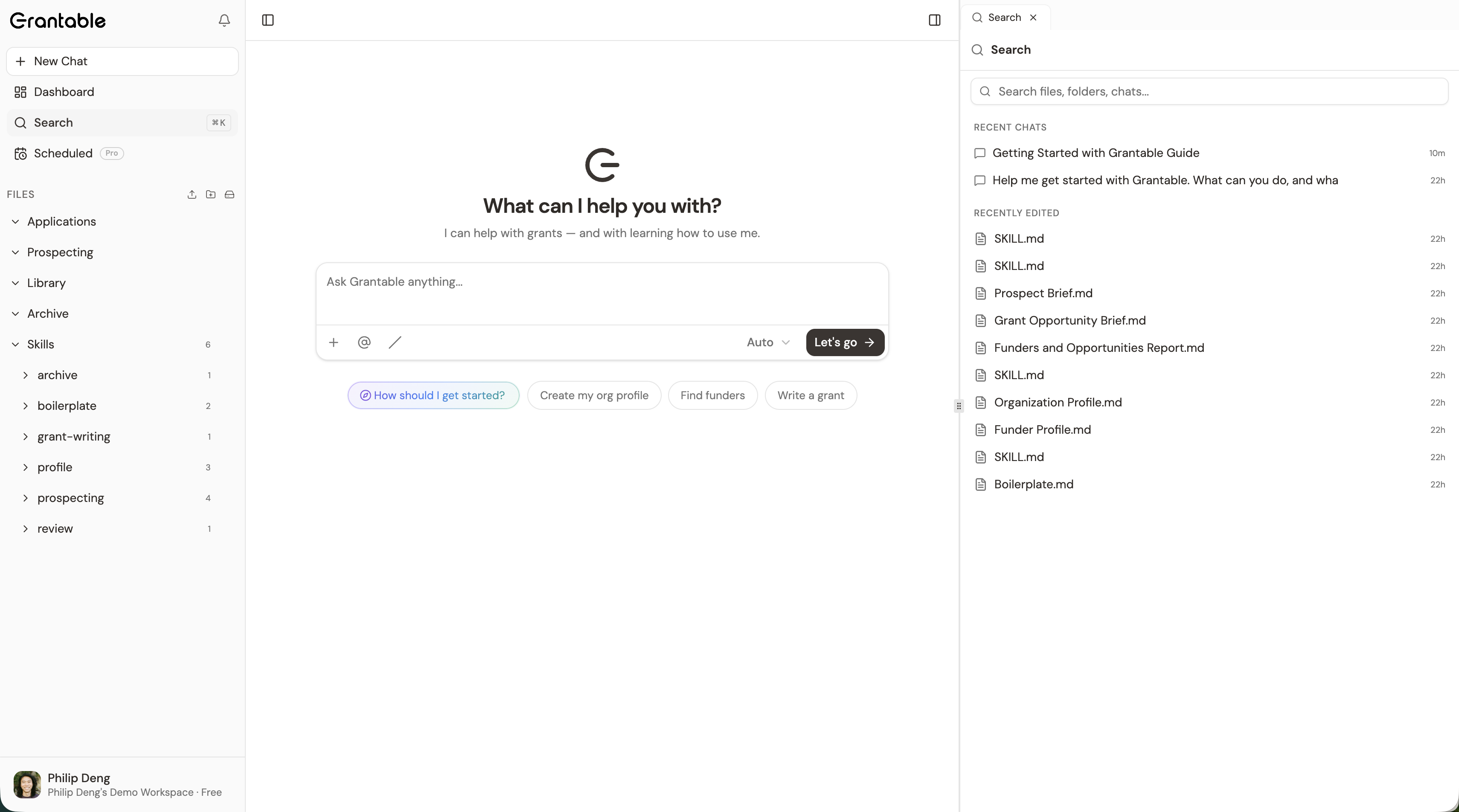
Look at what comes back. Three patterns mean drift:
- Three near-duplicate versions of the same content. Pick one as canonical; archive the others or delete them.
- The thing you wanted doesn’t surface. Either the metadata is wrong (folder, status), or the document doesn’t exist where you thought it did. Move it; rename it; tag it.
- Too much noise — you have to scroll past 15 unrelated hits. Filenames are too generic; rename for specificity.
Two or three searches is enough to catch the patterns. You’re not auditing every search; you’re spot-checking that the workspace responds the way you’d expect for the work you’ll actually do this year.
Stage 5: Refresh top funder profiles (5 minutes)
For your top three to five active or imminent prospects, glance at each Funder Profile in /Prospecting/. Anything obviously stale? Last grant date older than 18 months? Program officer who’s known to have left? Mission language that’s been reframed since you wrote the profile?
For anything stale, ask the AI to refresh:
“Update the [Funder Name] profile with the latest 990 data and any recent giving from the last 12 months. Preserve any Strategic Notes I’ve added.”
The AI re-runs the data pulls and overwrites the data sections, but leaves your custom notes in place.
What hygiene actually maintains
The structural choices are small. The reliability they provide is large. A workspace with up-to-date org profile, clean folder structure, no zombie drafts, and useful search is one the team can trust. A workspace with drift on any of these accumulates a tax: every search costs a little more, every draft cites slightly outdated numbers, every team member’s onboarding takes longer.
What this routine specifically prevents:
- Outdated drafts. The AI references the org profile; if the profile is wrong, the drafts are wrong.
- Lost institutional memory. Abandoned drafts with no resolution become noise that hides the proposals that actually got submitted.
- Search fatigue. Three versions of the same outcomes paragraph means the team stops trusting search and starts hand-rolling new versions of things that already exist.
- Onboarding tax. A new hire’s first month is dominated by figuring out what’s where; a curated workspace cuts that to a week.
Calendar this. Quarterly hygiene only happens if it’s on the calendar with a recurring event. Once it’s a habit you can probably stop calendaring it; until then, treat it like any other meeting.
The structural choices are small — a few folder conventions, a quarterly thirty-minute pass — and they compound dramatically. Two years in, a curated workspace makes drafting faster, search more useful, and onboarding lighter. An uncurated workspace at year two is harder to use than year one, and the team starts working around it instead of inside it.
It's the start of a new fiscal year. You have one hour for workspace maintenance. Where does the hour pay off most?
- Block a recurring quarterly 30-minute slot — without the calendar, the routine doesn't happen
- Update the org profile first; it's the AI's most-referenced document and outdated data silently degrades every draft
- Archive completed applications into year-folders; the file tree gets quieter and active work becomes easier to navigate
- Resolve abandoned drafts: delete, archive, or explicitly defer with a one-line note — ambiguity is what costs later
- Spot-check search with the kinds of queries you'd actually run; drift shows up as duplicates, missing content, or noise
Next Lesson
You’ve covered the structural arc — workflows, daily rhythm, library hygiene. The final lesson is the graduation lap: small techniques fluent operators rely on to compound everything else. Slash commands, model tiers, prompt patterns, and the file action cards that connect chat work to document work.
Notice an error or have a question about this lesson?
Get in touchHave questions about this lesson?
Ask Grantable to explain concepts, suggest how they apply to your organization, or help you think through next steps.