Inviting Your Team and Setting Permissions
Adding team members and configuring workspace access.
- How to Invite Team Members
- Understanding Roles
- What Team Members See
4 min
reading time
Interactive knowledge check
Inviting Your Team and Setting Permissions
Grant work is rarely solo work. Bringing your team into Grantable means everyone shares the same context, the same documents, and the same AI-powered tools — without duplicating effort.
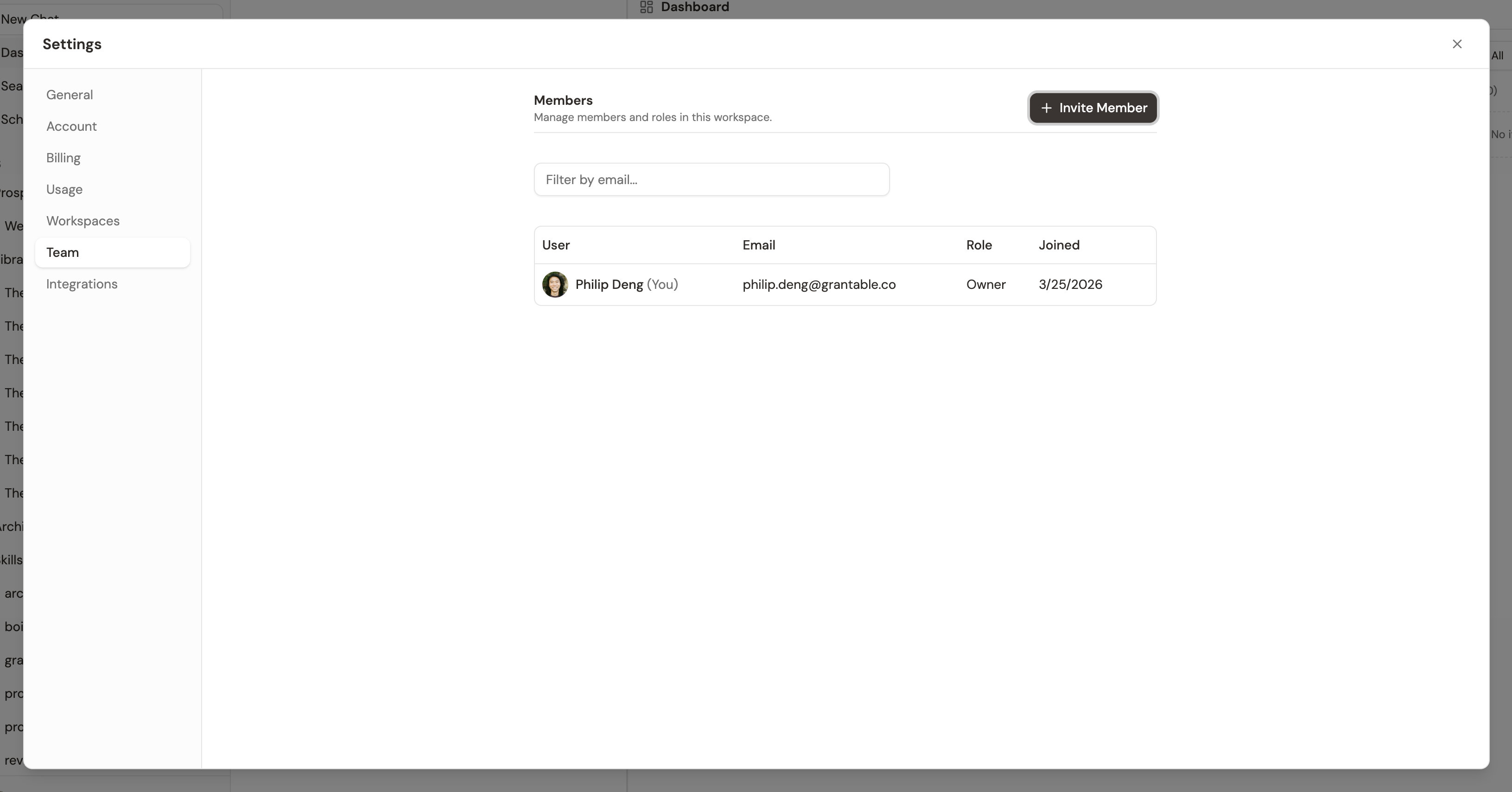
How to Invite Team Members
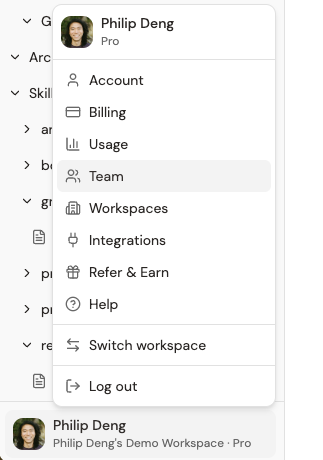
Open the settings menu from the bottom of your sidebar to find Team, along with other workspace settings:
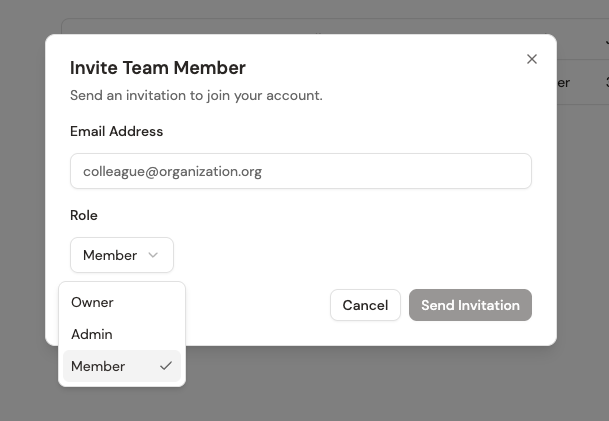
From the Team page, click + Invite Member. Enter an email address, choose a role, and send. Your teammate receives an invitation link and can join immediately.
Understanding Roles
Grantable uses a straightforward permission model:
Owner
Full control over the workspace — billing, settings, member management, and all content. Typically the person who created the workspace.
Admin
Can manage members, edit settings, and access everything in the workspace. Good for lead grant writers or department heads.
Member
Can create and edit documents, run searches, use the AI, and collaborate on proposals. The right role for most team members.
Start by inviting your core grant team. You can always add program staff, finance colleagues, or leadership later when you need their input on specific proposals.
What Team Members See
When a new member joins, they immediately have access to the workspace’s shared documents, conversations, and funder research. They don’t start from scratch — they inherit all the context your workspace has built up.
This is especially valuable for onboarding. A new grant writer joining your team can review past proposals, see how the AI has been used, and get up to speed without anyone having to walk them through every detail.
Every team member who joins your workspace adds to the shared context. Their conversations, documents, and research become part of the organizational knowledge that makes the AI smarter for everyone.
A new grant writer just joined your team. What's the fastest way to get them productive in Grantable?
Invite your first team member and set up shared context:
- Invite one colleague. Go to Settings → Team → Invite. Enter their email and choose the appropriate role. If you’re not sure, start with Member — you can change roles later.
- Prepare a welcome message. Start a new conversation and ask: “Write a brief message I can send to [colleague name] explaining what Grantable is and how we’ll use it. Keep it to three sentences.” Use the AI’s draft as a starting point for a Slack message or email.
- Create a shared starting point. Upload a document your team member will recognize — maybe a proposal you worked on together. When they log in, having something familiar in the library makes the tool feel less foreign.
- Plan your roles. If you have a team of two or more, decide who handles what: Who manages the library? Who triages the inbox? Who reviews AI-generated drafts? You don’t need formal rules — just a quick agreement so work doesn’t overlap.
- Invite team members from workspace settings with Owner, Admin, or Member roles
- New members immediately access all shared documents and context
- The workspace itself serves as an onboarding tool for new team members
- Start with your core grant team and expand as needed
Next Lesson
Your workspace is set up, your documents are imported, and your team is in. Time to have your first conversation with Grantable’s AI.
Notice an error or have a question about this lesson?
Get in touchHave questions about this lesson?
Ask Grantable to explain concepts, suggest how they apply to your organization, or help you think through next steps.