From Draft to Submission
The last mile — Page Mode for distraction-free final edits, version history for team review, the compliance check against your checklist, and exporting to Word or PDF.
- Page Mode for Final Edits
- Team Review with Comments
- Version History as a Review Tool
- The Compliance Check Against Your Checklist
- Exporting to Word or PDF
- What You've Mastered
- Next Module
5 min
reading time
Interactive knowledge check
From Draft to Submission
You have a proposal that’s structurally done — every checklist item addressed, every section drafted and revised. This is the point in the old workflow where most last-minute disasters happen: someone notices a missing attachment at hour 48, formatting gets mangled in the final Word export, a teammate’s comment didn’t get addressed, the file name doesn’t match the portal’s convention.
The submission-readiness phase has a rhythm that avoids all of that. It’s four moves: final edit in Page Mode, team review through comments, a compliance check against the checklist, and a clean export to the format the portal wants.
Page Mode for Final Edits
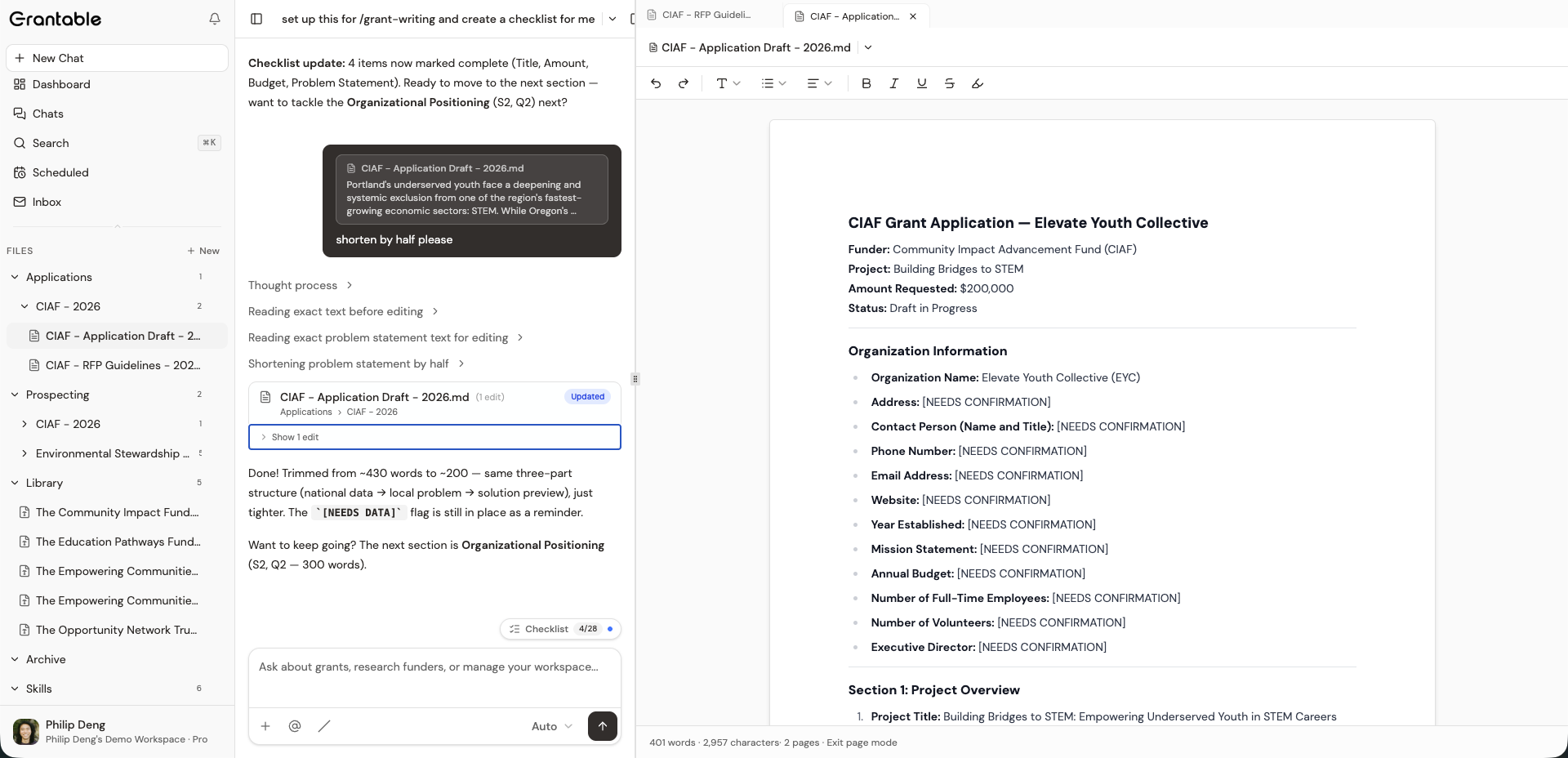
The sidebar and chat helped you draft. By the final editing pass, they’re distractions. Page Mode expands the document to full screen, hiding the sidebar and chat so you’re reading your proposal the way a reviewer eventually will.
Click the Page Mode toggle in the file header. The editor expands, word count and page count render in the footer (so you can verify the RFP’s page limits), and you can focus on flow, transitions, and the places where the voice drifts. When you’re done, toggle back to the three-area layout and keep iterating.
Do one full Page Mode pass with AI assistance off — just reading. The passage-level friction you spot by reading straight through is different from the issues that surface while drafting section by section. Page Mode is the tool for that read.
Team Review with Comments
Proposals get stronger when program staff, the ED, and the board member who’s actually reading the 990 data have a chance to weigh in. Comments keep that review inside the workspace.
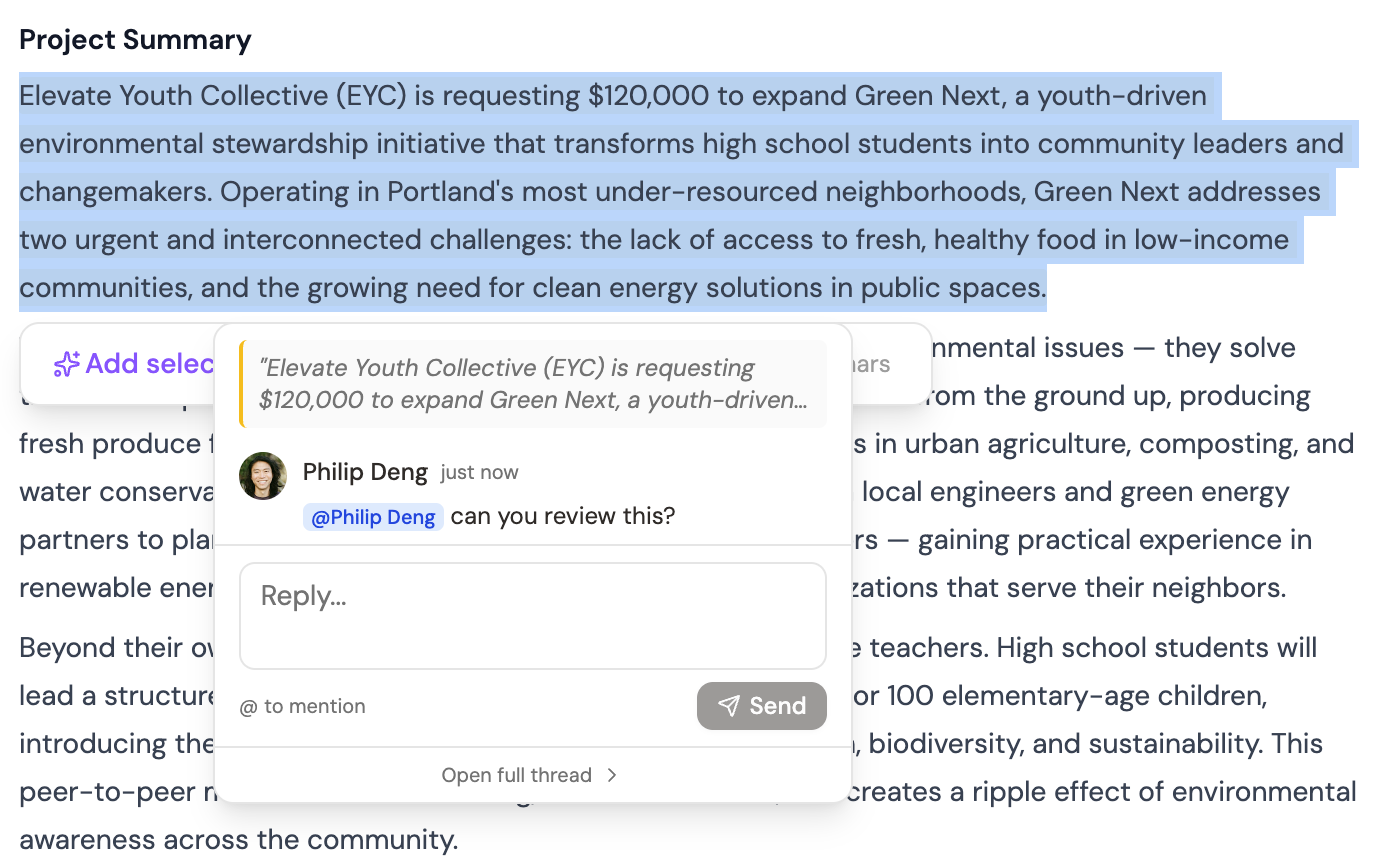
Highlight a passage, add a comment, @mention the person you want to weigh in. They see it in their workspace, reply in-thread, and the whole conversation stays attached to the passage it’s about — not scattered across Slack, email, and track-changes in a Word document someone emailed around.
When you’ve resolved a comment, mark it resolved. A running list of open comments at the file level tells you exactly what’s still outstanding before submission.
Version History as a Review Tool
Every save is a version. During a team review phase that stretches across a week, version history is how you answer “what did this section look like before Sarah’s edits?” without copying files around or searching inboxes.
Open the file’s version history from the header. You’ll see a timeline of saved states; you can preview any version, compare it against the current draft, or restore it if a revision went in the wrong direction. Especially useful when multiple people are editing the same sections.
The Compliance Check Against Your Checklist
Before you export, go back to the checklist at the top of your conversation. Every item should be checked off — narrative questions answered, attachments gathered, formatting rules verified, budget documents prepared.
Uncheck what's actually incomplete
It's tempting to mark items complete as soon as the AI produces a draft. Re-audit: is every item actually done, or was the checkbox optimistic?
Verify formatting against the RFP
Page limits, font size, margins, file naming. The checklist extracted these; now verify Page Mode's word/page count against them and confirm your document matches.
Confirm attachments are gathered
Board list, audited financials, letters of support, IRS determination letter — all the documents the RFP listed separately from the narrative. These don't get exported with the proposal; you upload them to the portal alongside.
Read the portal's submission instructions
How the funder wants the file named, which format, one combined PDF or separate documents. This is the step that catches disqualifying mistakes the checklist can't know about in advance.
The compliance check isn’t a formality — it’s where most proposal disasters get caught. Ten minutes of verifying every checklist item against the RFP beats discovering the problem an hour before the deadline. The checklist is the scoreboard; end every proposal with it on your screen.
Exporting to Word or PDF
Open the file header’s export menu and pick your format. Grantable exports to Word (.docx) preserving your formatting, or to PDF if the funder wants a finalized, locked version. Both downloads come through the browser; you can attach them to the submission portal or an email from there.
Export to Word if the portal lets you upload .docx — reviewers often prefer it because they can add comments. Export to PDF if the portal specifies PDF, or if you want to lock the document against accidental edits during the upload step. Some portals take either; match what the funder asks for.
What You’ve Mastered
You’ve moved an opportunity from a prospect table through a scored Decision Matrix, into a Grant Opportunity Brief, through a co-writing workspace, into a first draft via Help me on each checklist item, through inline revisions landing directly in the draft, and now out the door as an exported proposal. That’s the full Discover-to-Write arc, end to end.
Your proposal is structurally complete — every checklist item drafted, every comment resolved. What should the last ten minutes before export look like?
- Page Mode is for distraction-free reading passes — sidebar and chat hide, word count and page count are visible so you can verify the RFP's limits
- Comments + @mentions keep team review inside the workspace; version history lets you see what any section looked like at any point
- The final compliance check runs against the checklist: unchecked items, formatting, attachments, portal-specific rules
- Export to Word or PDF from the file header; match the format to what the funder's portal accepts
Next Module
Writing is one side of the equation — but what happens between proposals is where the winning practices do their best work. The next module, Mastering Intelligence, covers the tools for tracking your pipeline, monitoring funder activity between applications, and building the kind of institutional memory that compounds over time.
Notice an error or have a question about this lesson?
Get in touchHave questions about this lesson?
Ask Grantable to explain concepts, suggest how they apply to your organization, or help you think through next steps.