Your First Prospecting Search
How Grantable searches for funders — across its proprietary dataset, GrantGraph, and the web — and how to steer the search with specificity, skills, and templates you can edit.
- What Happens Behind One Prompt
- Running a Search
- What Comes Back
- Skills and Templates Are Shortcuts You Own
- Steering the Search
- The First Pass Is a Shortlist, Not a Final Answer
5 min
reading time
Interactive knowledge check
Your First Prospecting Search
Prospecting used to mean opening five browser tabs — Candid, GrantStation, Instrumentl, your state’s grant portal, maybe a foundation’s 990-PF filings on ProPublica — and tab-hopping until something stuck. You’d read a funder description, squint at their recent grants, decide whether to keep going, then open another tab. The searching itself was most of the work.
Grantable flips that. You describe what you’re looking for, and the AI runs the search for you — across its own proprietary funder dataset, GrantGraph™, federal opportunity databases, and the open web, all in one conversation. The skill you bring to prospecting isn’t searching databases anymore. It’s knowing what to ask for.
What Happens Behind One Prompt
When you ask Grantable for funders, it’s not running one search — it’s running several in parallel and merging them.
The funder dataset
800K+ U.S. organizations with IRS 990-PF data — mission, financials, program areas, giving history — refreshed monthly. Grantable searches this first for funders whose stated focus matches what you're looking for.
GrantGraph
Grantable's proprietary map of who funds whom. Instead of asking 'who funds X?' it asks 'who funds organizations like yours?' That compresses years of landscape research, relationship mapping, and grant-history review into one lookup.
Federal opportunities
Active federal RFPs with deadlines, searched alongside the funder dataset. (State and local opportunity coverage happens via web search.)
The open web
Foundation announcements, corporate giving pages, state and local RFPs, news about shifting priorities — anything that isn't in Grantable's own databases yet. Runs on every search, not as a fallback.
All four tracks run, their results get deduplicated, and the AI scores each candidate against your organization’s profile. What you see in chat is the merged, ranked list.
You’re not searching a database. You’re describing what you need, and Grantable is running parallel searches across its funder dataset, GrantGraph, federal opportunities, and the web — then merging them into a single ranked result. The more specific your description, the better the ranking.
Running a Search
You can start a prospecting search two ways, and both work equally well.
Plain chat. Just describe what you need:
“Find family foundations that fund youth mentoring programs in the Mountain West, grant sizes $25K–$100K, that have given in the last two years.”
Grantable recognizes this as a prospecting request and runs the search. No command needed.
The /prospecting skill. Type / in the chat input and pick Prospecting from the skill list, or type /prospecting directly. This invokes the skill — a set of instructions that walks Grantable through a thorough prospecting workflow: scoping the search, running complementary queries, writing structured briefs, and presenting results in an interactive table.
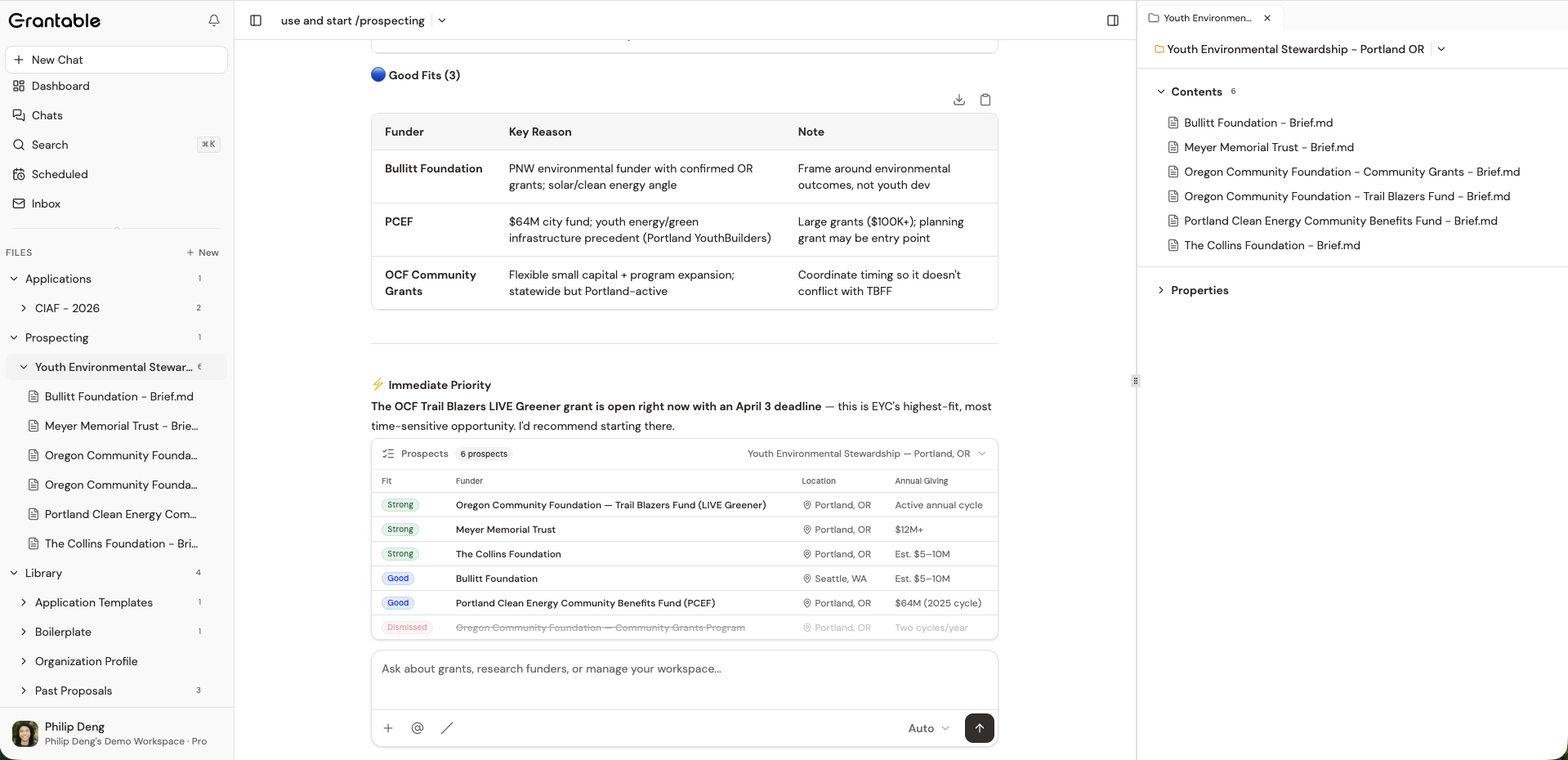
The skill’s job is to give you a repeatable, high-quality prospecting pass. Plain chat is faster for exploratory questions. Use whichever matches the moment.
If Grantable returns 200 results, that’s not a problem — tiered matching puts the strongest fits at the top, and you can filter or ask follow-up questions to narrow down. Don’t confuse “lots of results” with “unscoped search.”
What Comes Back
A /prospecting search produces three things that all tie together:
- A search vector folder under
/Prospecting/in your workspace library — something like/Prospecting/Youth Mentoring - Mountain West/. This folder is the search itself, saved. You can come back to it, rerun it, or schedule it to refresh. - A Prospect Brief for each top match inside that folder — one file per funder, with why it’s a match (including any real concern — a geographic edge case, a narrow focus, declining giving — named right there rather than in a section of its own), key data points (giving history, typical grant size, geographic focus), how complete the data behind it is and what would fill each gap, notable grantees similar to yours, and cited sources. The brief doesn’t stamp a fit verdict on the funder — that comes later, from an assessment against your organization.
- An interactive prospect table in chat — clickable rows that open each funder’s brief, and Accept/Dismiss buttons so you can narrow a long list into a shortlist without leaving the conversation.
Because the briefs live as real files in your library, everything the AI does next — fit scoring, opportunity briefs, writing outreach letters — can pull from them. A prospecting search isn’t a one-shot report. It’s the start of a research thread your team can build on.
Skills and Templates Are Shortcuts You Own
The /prospecting skill and the Prospect Brief template both live in your workspace library, at /Skills/prospecting/. They ship pre-loaded — but they’re files, not hardcoded behavior. You can open them and edit them.
Edit the skill
Change the workflow itself — add a required step, remove one, change the narration style, adjust what counts as a 'strong' fit. Future /prospecting runs follow your edits.
Edit the template
Change what a Prospect Brief looks like — add sections your team wants, remove ones you never use, change the fit scale from 4 tiers to 3. All future briefs follow your template.
Skip them entirely
Ask for prospecting in plain chat without invoking the skill. You'll get a looser, more conversational result — useful when you're exploring, not reporting.
Skills and templates are starting points, not guardrails. They exist so your team doesn’t have to reinvent the structure of a prospecting pass every time — but the moment one doesn’t fit how you work, you change it. Grantable uses what’s in your library, so your edits stick.
Steering the Search
Specificity is the single biggest lever. A vague request produces a vague result. Be concrete about:
- Program area — “K-12 STEM education for girls” beats “education.”
- Geography — “funders giving in Pennsylvania” beats “U.S. funders.”
- Grant size range — “$25K–$100K” filters out the Gates Foundation grants that’ll never come to you.
- Funder type preference — “family foundations only” or “avoid corporate funders” shapes results.
- Language the funder would use — “positive youth development” and “youth mentoring” overlap but surface different funders. Describing your work the way the sector describes itself expands coverage.
You can also:
- Add material mid-search. Upload an RFP you’re studying, or @mention a file from your
/Library/— a past proposal, an annual report, a board deck. Grantable will use it to shape what “good fit” means. - Emphasize a vector. Say “focus on federal opportunities only” or “skip our current funders, we want new ones.” Grantable will bias the search.
- Iterate. A single pass is rarely enough. Run two or three variations — different focus wording, different geographic scopes — and compare what each surfaces.
If your first search feels generic, your org profile probably isn’t rich enough. Prospecting pulls heavily from /Library/Profile.md. Upload your website, a recent annual report, or your three strongest past proposals — then rerun the search.
The First Pass Is a Shortlist, Not a Final Answer
Prospecting works in rounds. A /prospecting run hands you a ranked shortlist — enough to decide which funders deserve a closer look. From there, you drill in by asking Grantable follow-up questions about the ones that caught your eye:
“Tell me more about Meyer Memorial Trust’s recent giving to youth programs.”
“Which of these three has the strongest history with organizations our size?”
“Show me the last five grants from Oregon Community Foundation and flag anything similar to ours.”
Grantable pulls deeper research on the funders you point it at — using the briefs it just wrote as context, plus any additional 990 data, web sources, and org-specific analysis. Your first query doesn’t have to be perfect. Start broad enough to see the landscape, then go narrow on what matters.
You ran a /prospecting search and got back a shortlist of 10 funders. What's the most useful next move?
- Grantable runs parallel searches across its funder dataset, GrantGraph, federal opportunities, and the open web — you describe what you need, it does the searching
- The /prospecting skill creates a search-vector folder with Prospect Briefs per funder, plus an interactive table in chat; plain chat also works for lighter-weight questions
- Skills and templates live as editable files in your library — change them to match how your team works
- Specificity is the biggest lever: program area, geography, grant size, funder type, and the language funders use to describe the work
Next Lesson
Next we’ll look closer at GrantGraph itself — how it connects organizations to their funders, and how to read what it’s telling you when a funder shows up in your results.
Notice an error or have a question about this lesson?
Get in touchHave questions about this lesson?
Ask Grantable to explain concepts, suggest how they apply to your organization, or help you think through next steps.