Working Item by Item with Help Me
How the Help me action turns each checklist requirement into a focused drafting session — and the rhythm that lets you move through a 30-item list without losing momentum.
- The Help Me Action
- The First Draft Is Your Reaction Surface
- Specificity Beats "Try Again"
- Selecting Text for Follow-ups
- What Order to Work In
5 min
reading time
Interactive knowledge check
Working Item by Item with Help Me
A 30-item checklist can still look overwhelming at the top of the conversation. The trick isn’t motivation; it’s dropping the unit of work from “write a proposal” to “write the answer to this one question.” Grantable’s Help me button does exactly that.
The Help Me Action
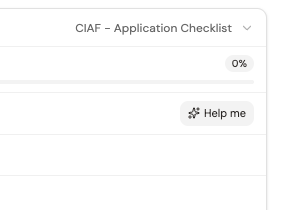
Click any checklist item and it expands to show the full requirement text from the RFP. Next to it: a Help me button. Click Help me and Grantable opens a focused conversation on that one requirement, pulling in everything it needs — the RFP text, your org profile, past proposals, the Opportunity Brief, any relevant 990 data.
Because Grantable already has the context, its first response isn’t “tell me about your organization.” It’s a working first draft — usually 200 to 600 words that answer the question with what it knows, flagged where it needs specifics you’ll need to supply.
Click the item
The checklist item expands. You see the requirement text from the RFP, word limit, any formatting notes — and the Help me button.
Click Help me
Grantable starts a drafting session scoped to that requirement. It reads the RFP section, your Library, and any prior drafts. First output is a working draft, not a question.
Iterate with specifics
Read the draft. Tell the AI what's missing or what needs changing. 'Pull in outcomes data from our 2024 annual report.' 'Tighten to 250 words.' 'Lead with the equity framing the funder used on page 4.'
Mark complete
Once the drafted section is where you want it, check the item off. The checklist pill updates; you move to the next one.
The First Draft Is Your Reaction Surface
Working through a proposal by drafting from a blank page is slow and paralyzing. Working by reacting to a draft is fast and generative — you know immediately what’s wrong, what’s missing, and what to keep. That’s what the Help me action is optimized for: put something in front of you to react to, not a blank form to fill.
Reading and reacting is cognitively cheaper than producing. A reasonable first draft — even one that needs heavy edits — turns the work from “what do we say?” to “here’s what’s missing, here’s what’s wrong, here’s what to keep.” Most of the time savings from AI-assisted drafting come from that shift, not from accepting AI text unchanged.
Specificity Beats “Try Again”
The single biggest difference between a team that gets good AI drafts and a team that doesn’t is how they give feedback. “Try again” and “make it better” produce circular revisions. Specific feedback produces sharp revisions.
What works: “Lead with the health disparities data from our annual report rather than the national statistics.” “Cut the first paragraph — it’s too general.” “Use the funder’s phrasing: they say ‘community-led solutions,’ we say ‘grassroots approaches.‘” Every one of those is a concrete instruction the AI can execute. “Make it better” is not.
Selecting Text for Follow-ups
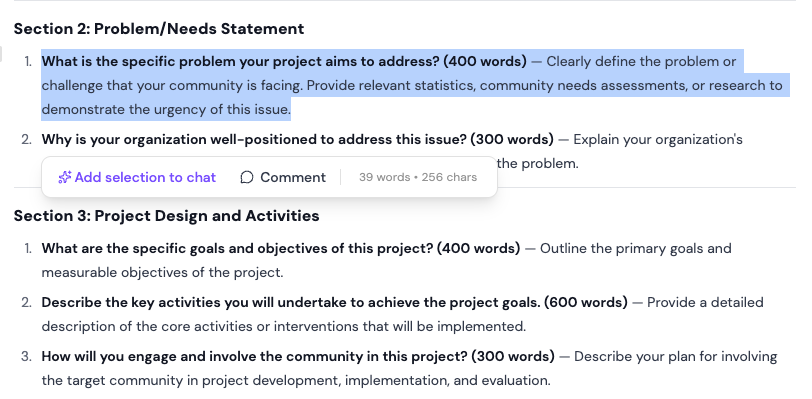
When you want to revise a specific passage rather than ask for a whole new draft, highlight the passage in the document and use selection-to-chat (covered in the previous lesson). The AI’s response scopes to that selection — tighten this paragraph, rephrase this sentence, add a citation here — without touching the rest of the section.
What Order to Work In
Not every item on a 30-item checklist is equally hard. Use the checklist view to plan:
Hard narrative first
Project description, problem/needs statement, evaluation plan — the items that take the most original thinking. Do these while you're fresh and while the RFP context is top of mind.
Attachments you'll delegate
Board list, financials, letters of support — items that involve other people's time. Ask for them early; don't let the last 48 hours be about chasing PDFs.
Formatting and compliance near the end
Page limits, font rules, file naming — these are verification passes, not drafting work. Save for the final polish.
You've clicked Help me on a checklist item asking for your evaluation plan. Grantable's first draft is structurally reasonable but generic — it doesn't reference your actual program's metrics. What's the most effective next move?
- Help me on a checklist item opens a drafting session scoped to that one requirement, with Grantable pulling RFP + Library + Brief context automatically
- The first draft is your reaction surface — reading and reacting is faster than producing from blank
- Specific feedback (name the data, the source, the phrasing) beats generic 'try again' every time
- Sequence the checklist strategically: hard narrative first, dependency-heavy attachments early, formatting checks last
Next Lesson
Working through items gets you a full first draft. The next step is revision — tightening sentences, adjusting tone, aligning sections written by different team members. That’s where AI revisions landing directly in your draft, with tracked-changes-style strikethroughs and additions, earn their keep.
Notice an error or have a question about this lesson?
Get in touchHave questions about this lesson?
Ask Grantable to explain concepts, suggest how they apply to your organization, or help you think through next steps.