The Co-Writing Workspace
The three-part writing workspace — sidebar, chat, context panel — and the moves (selection-to-chat, inline AI, tabs, @mentions) that turn the AI from a separate tool into a co-writer.
- The Layout, Left to Right
- Opening a Draft
- The Co-Writing Moves
- The Chat Knows What's Open
- Autosave and Version History
6 min
reading time
Interactive knowledge check
The Co-Writing Workspace
You’ve got a Grant Opportunity Brief that tells you what the funder wants, what to write toward, and where the gaps are. Now comes the moment that used to eat the week: actually sitting down to write.
The old workflow had you in four tools at once — Word on one monitor, the RFP PDF on another, past proposals scattered across Finder windows, ChatGPT in a browser tab. You copy-pasted between them all day. Grantable’s writing workspace collapses that into one surface where your draft, your reference material, and an AI co-writer are all in view and all wired to each other.
The Layout, Left to Right
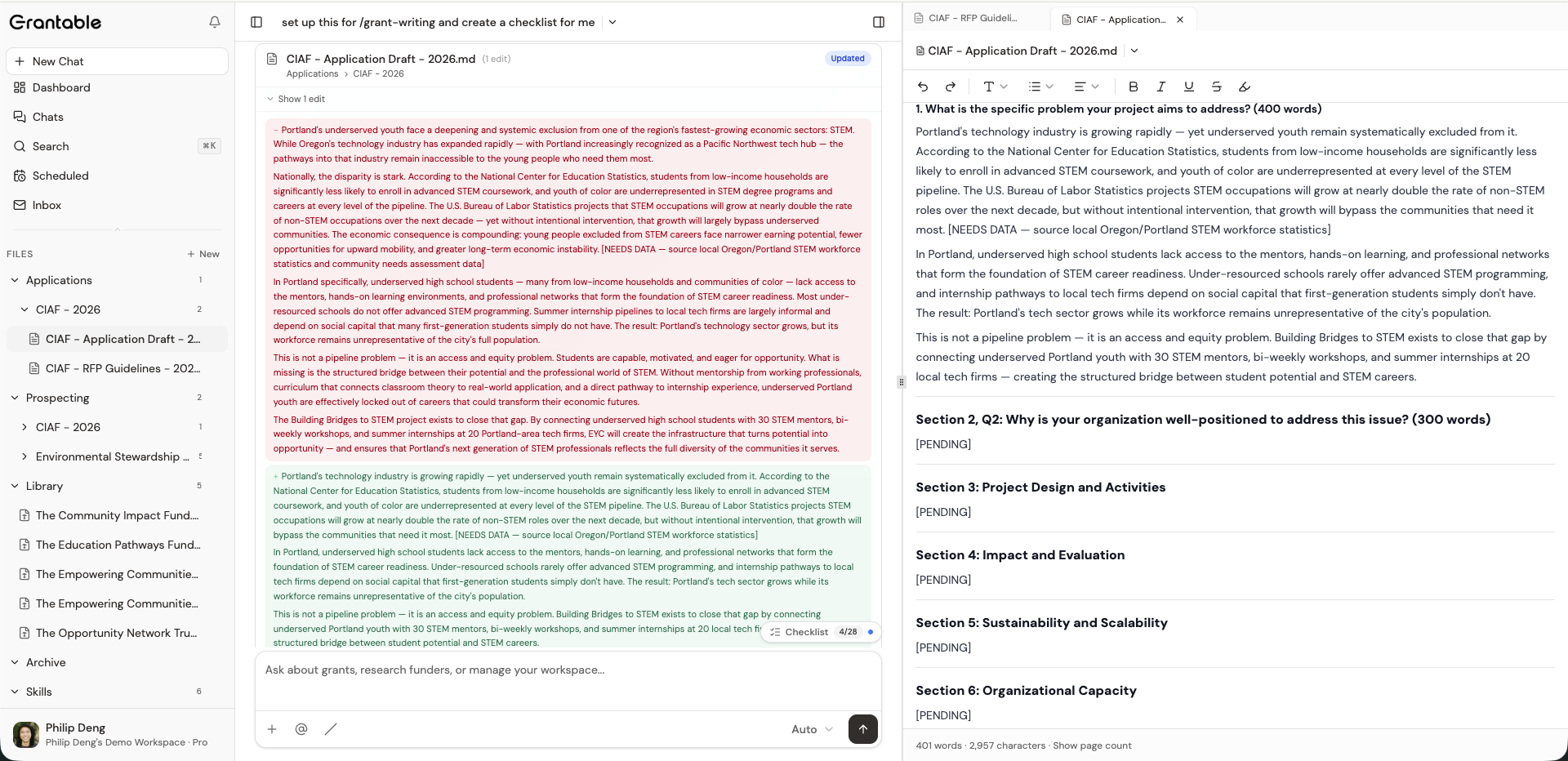
Sidebar — file tree
Your whole workspace: Library, Prospecting folders, drafts, skills, settings. This is how you navigate to your draft file and open reference material — past proposals, the RFP, the Opportunity Brief.
Chat — your AI co-writer
Ask for help with specific sections, request alternatives, pull in context from other files, run skills like /grant-writing or /review. Everything you type here knows what's open in the context panel.
Context panel — where documents live
Your draft opens here in an editor. Reference files — RFP, past proposals, Opportunity Brief — open alongside as tabs. One panel, multiple tabs; click a tab to switch without losing your place.
The three areas aren’t equal. The chat and the context panel are the two working surfaces — you read and edit in the context panel, you talk to the AI in the chat. The sidebar is navigation. Treating the layout that way (one working duo + a nav rail) matches how most people actually use it.
Opening a Draft
Click a text file in the sidebar and it opens in the context panel in editor mode — cursor ready, the AI can see what you’re writing in real time. PDFs and spreadsheets open in viewer mode (read-only with search and scroll). Reference material like the RFP usually opens as a viewer tab; your draft opens as an editor tab. Both live in the same context panel, side by side as tabs.
When drafting, open three tabs in the context panel: your draft (editor), the RFP (viewer), and your strongest past proposal on the same topic (viewer). Switch between them as you write. The AI reads whichever is in focus plus whichever you @mention, so you can reference any of them without leaving the editor.
The Co-Writing Moves
Three UX patterns make the difference between “AI chat next to a Word doc” and actual co-writing:
Selection-to-chat
Highlight a passage in your draft and a chip appears offering to Add to chat. Click it and the AI responds to that specific text — 'tighten this paragraph,' 'make this more concrete,' 'does this answer question 3 of the RFP?' The selected text is the subject of the conversation, not something you have to describe.
Inline AI revisions
When you ask the AI to revise or rewrite, the change lands directly in your draft — not as a chat reply you copy-paste. Old text gets a red strikethrough; new text appears in green, like tracked changes from a colleague. If a pass doesn't land, you iterate in plain language — 'restore the original and try again with a different angle' — or use version history to step back.
@mention other files
Inside the chat or the editor, type @ to reference any file in your workspace — your Opportunity Brief, a past proposal, the RFP — without opening it as a tab. The AI reads the file for context. Useful when you want the brief's question-alignment to drive a section without clicking into it.
Selection-to-chat and inline suggestions are the moves that change the rhythm of writing. You stay in the editor, in flow, and the AI comes to where you’re working rather than you going to a separate tool. The cost of asking for help drops to zero clicks away.
The Chat Knows What’s Open
The chat panel is context-aware. It reads whichever file is focused in the context panel, plus anything you @mention, plus the whole conversation history. A question like “tighten this section and keep it under 300 words” doesn’t need you to re-paste the section — the AI already sees it.
When the AI mentions a file path in its response — “I looked at /Library/Past Proposals/NSF 2024 - Final.md for the evaluation language” — the path is clickable. One click opens that file as a new tab in the context panel. Following a thread of references doesn’t break your flow.
Autosave and Version History
Text edits save continuously — there’s no Save button because there doesn’t need to be one. If you walk away and come back, your draft is where you left it. If you want to see what you had yesterday, open the version history from the file’s header and scroll back; you can preview and restore any prior version.
Before a major rewrite — say, taking a section from 500 words down to 300 — don’t worry about copying the long version somewhere “just in case.” Every save is a version. Cut aggressively; if you want the old text back, the history has it.
You're writing the Problem Statement section of a proposal. You want the AI to help tighten a paragraph you've just written, and you also want the language to reflect specific phrasing from the RFP. What's the most efficient move?
- The writing workspace has three areas, left to right: sidebar (navigation), chat (AI co-writer), context panel (your draft + reference tabs)
- Your draft opens in the context panel in editor mode; RFPs and past proposals open as viewer tabs alongside — switch with tabs, don't close them
- Selection-to-chat makes a specific passage the subject of an AI conversation; @mention pulls in files without opening them; inline AI suggestions land in the editor with an accept/dismiss toast
- Autosave is continuous and version history is available from the file header — rewrite aggressively, the old text is preserved
Next Lesson
The workspace gives you a place to write; the RFP tells you what to write. Next we’ll extract the requirements from an RFP into a working checklist — the scaffold you’ll move through, question by question, as you draft.
Notice an error or have a question about this lesson?
Get in touchHave questions about this lesson?
Ask Grantable to explain concepts, suggest how they apply to your organization, or help you think through next steps.