The Pipeline Dashboard
How the dashboard reads your workspace files for status, stage, deadline, funder, and amount — and how to keep it accurate via AI, inline edits, or conversation.
- How the Dashboard Gets Its Data
- Sections First, Then Views
- Applications — Three Views, Three Questions
- Prospects — The Funnel
- What to Watch For
- Keeping It Honest
8 min
reading time
Interactive knowledge check
The Pipeline Dashboard
Most grants teams track their pipeline in a spreadsheet that’s wrong by Monday morning. Someone updates it when they remember; deadlines drift; status columns go stale because the source of truth lives in someone’s head, on someone’s calendar, in someone’s inbox. The pipeline review meeting becomes “let’s reconcile what’s actually happening” before it becomes anything strategic.
Grantable’s dashboard avoids that by being a view of work you’re already doing, not a separate tracker to maintain. It reads from your workspace files — every grant in your /Applications/ folder, every prospect in /Prospecting/ — and surfaces them across three sections: an Overview, an Applications table, and a Prospects funnel. You don’t update the dashboard. The dashboard updates itself.
How the Dashboard Gets Its Data
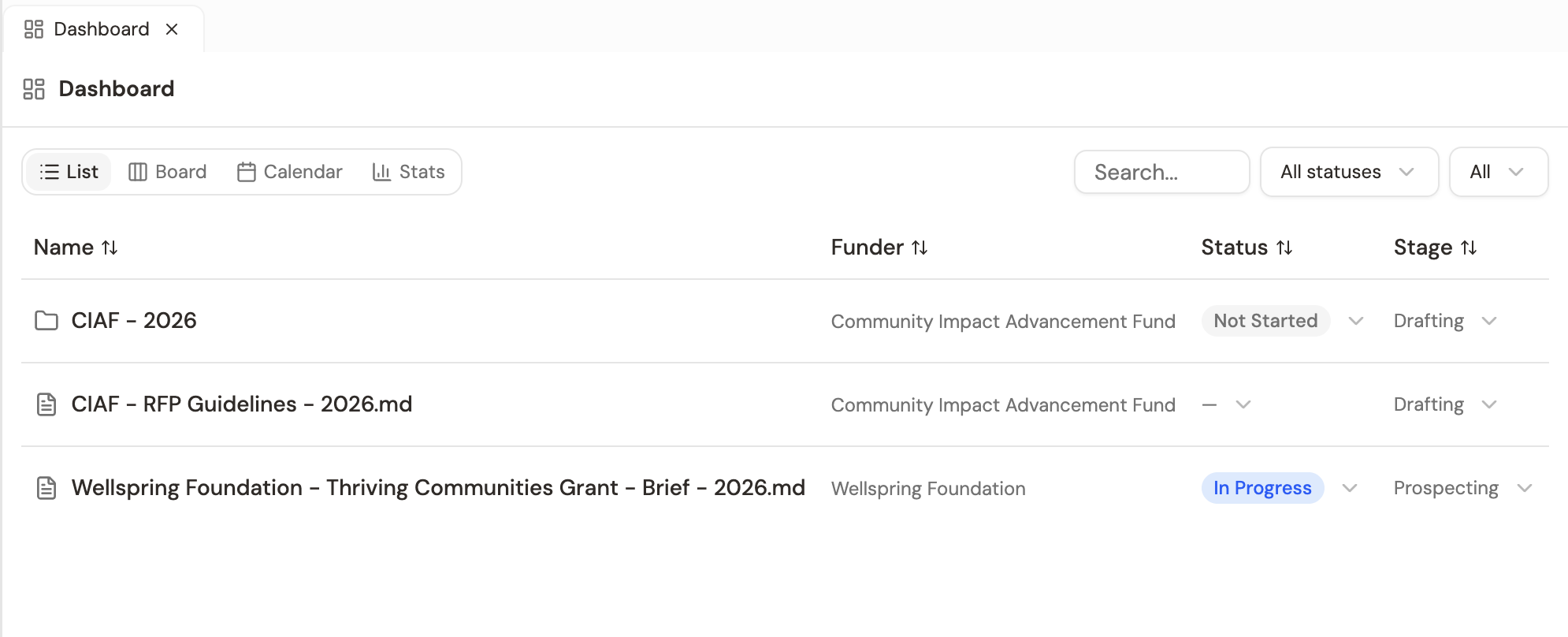
This is the part most teams underestimate at first. The dashboard isn’t a separate database. It reads file metadata — properties attached to each grant document or prospect folder: status, stage, due date, funder name, ask amount, priority. When those properties are set, the dashboard sees them. When they’re not, the row doesn’t appear.
That metadata gets set in three ways:
AI sets it during work
When the prospecting skill writes a Prospect Brief, it stamps the funder name and status into the file. When you generate a Grant Opportunity Brief, the AI adds stage and amount. When you accept a prospect, status updates. The bookkeeping happens as a byproduct of the work — you don't have to remember.
You edit inline in the dashboard
Every cell on the dashboard is editable. Status and stage are dropdowns; due date is a calendar picker; funder and amount are click-to-edit text fields. Changes save instantly and the metadata updates on the underlying file.
You tell the AI in conversation
'The CIAF application has a due date of June 15.' 'Mark the Healy Foundation brief as submitted.' Grantable updates the file's metadata and the dashboard reflects it on the next render.
The dashboard can only show what’s in the metadata. If a deadline is mentioned in the body of a document but no due_date property was set, the dashboard won’t see it. If something looks wrong or missing, fix the metadata — either inline on the dashboard, or by telling the AI.
Sections First, Then Views
Applications and prospects answer different questions, so the dashboard separates them before it offers you any view at all. The tab row at the top switches between Overview, Applications (N), and Prospects (N), and each section carries its own filters and remembers the view you last used.
The Overview is the two-minute read: summary cards for applications (Active, Submitted, Awarded, Declined) and for prospects (New, Accepted, Dismissed), then the next five deadlines across both, soonest first. Watch what the dollar figures mean — applications report what a grant is worth, prospects report what you’d be asking for. Anything finished drops off the deadline list, so a closed grant’s old submission date never crowds out live work.
Both Overview headings are clickable. View all drops you straight into that section with its filters already scoped.
Applications — Three Views, Three Questions
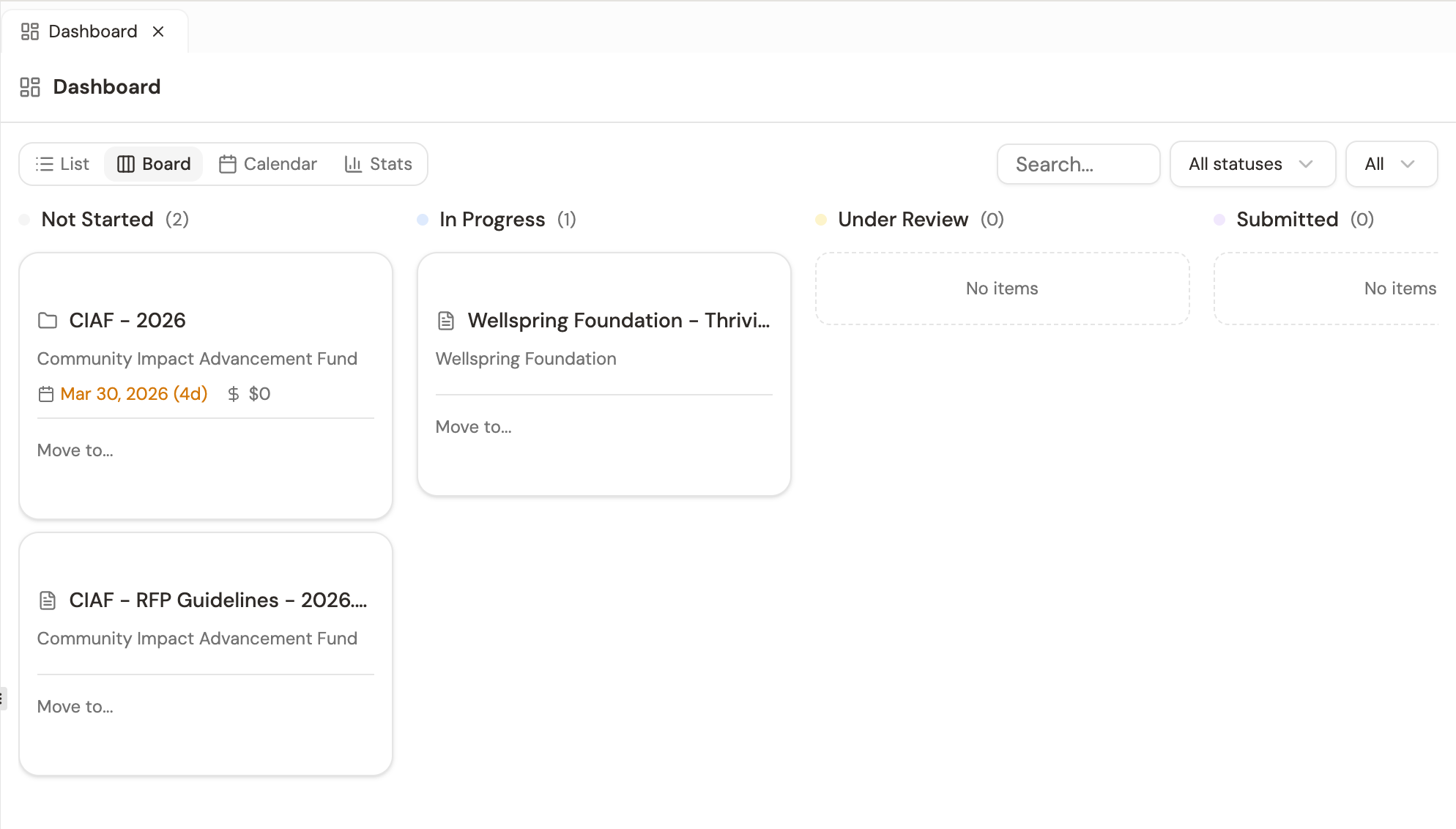
Each view is optimized for a different kind of question.
List — 'what's the state of everything?'
A sortable, filterable table with columns for status, stage, funder, due date, amount, priority. Best for bulk audits, pipeline reviews, and filtering by ask range or stage.
Board — 'where is everything in the funnel?'
Cards organized by status: Not Started, In Progress, Under Review, Submitted, and on through the lifecycle. Each card carries a Move to… control to send it to the next stage. Best for visualizing throughput and bottlenecks.
Calendar — 'when is everything due?'
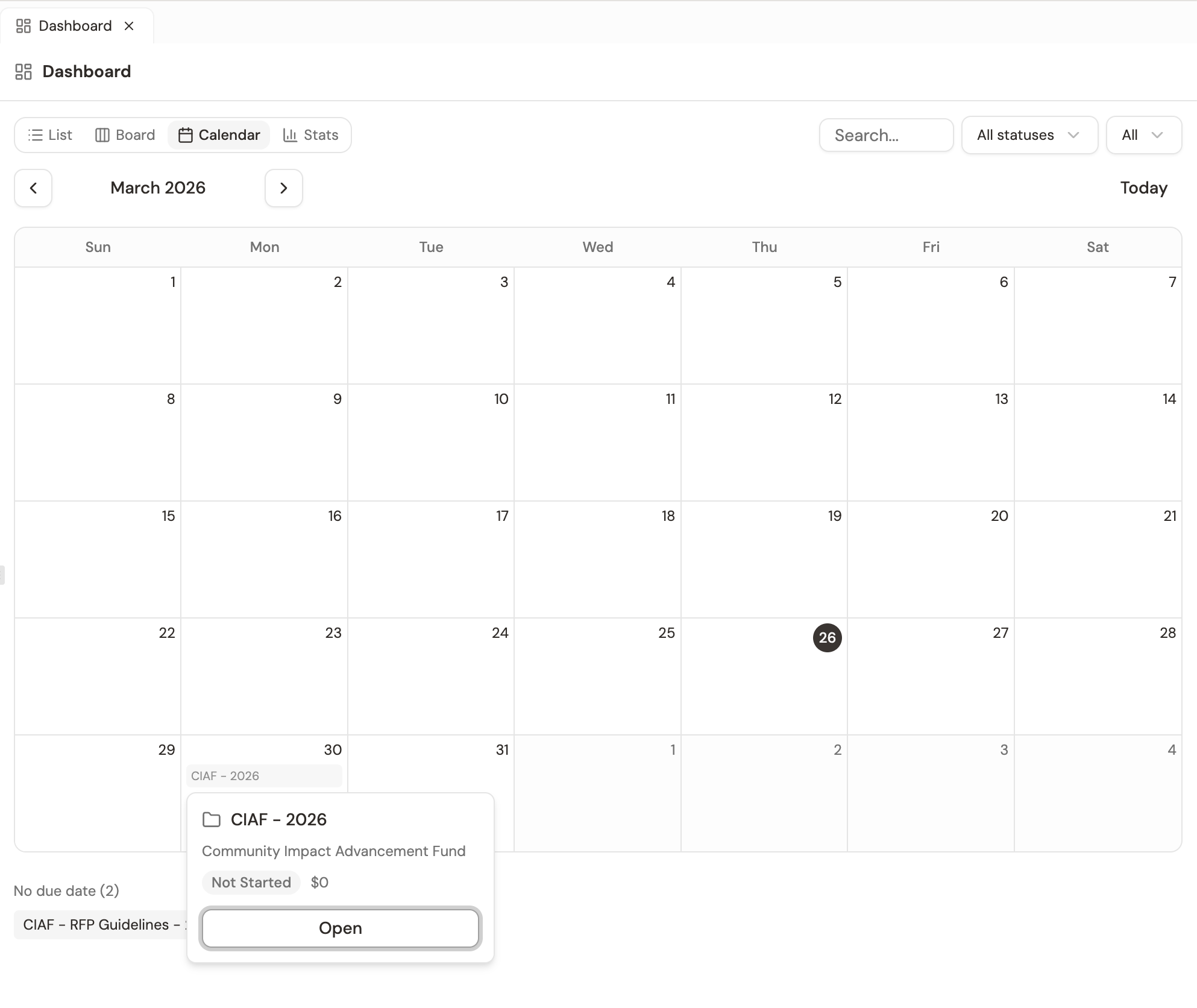
Opportunities plotted on a calendar by due date. Anything without a due date collects in a No due date row underneath, so undated work doesn't silently vanish.
Prospects — The Funnel
Prospects get their own set, because triage isn’t lifecycle management. There is deliberately no board here: a funder you haven’t decided on has no status pipeline to move it through.
Funnel — where the section opens
Prospects grouped by pipeline stage: New, Watching, Pursuing, Drafting, Submitted, Closed. It answers the question that matters most about a prospect list — how many funders are still undecided versus how many you've actually committed to. Dismissed prospects leave the funnel rather than occupying a column.
List — the reference table
The same prospects as a sortable table, with prospect-specific columns: fit, accept/dismiss status, and which search turned the funder up.
Runs — where this came from
The history of your prospecting searches, each one linking back to the conversation it ran in. When a funder surfaces in your pipeline six weeks later, you can still trace its provenance.
What to Watch For
The dashboard isn’t just a tracker — it’s a strategic surface. A few things to scan for:
- Deadline clusters — three submissions due in the same week is a planning problem, not a Friday-afternoon problem. The calendar surfaces them while you can still adjust.
- Stage distribution — if everything is sitting in New and Watching and nothing is in active drafting, your pipeline will have a revenue gap in three months. The prospect funnel surfaces that imbalance; the applications board does the same one stage further down.
- Dollar concentration — when 70% of your projected revenue depends on one application, the portfolio is fragile. The list view (sorted by amount) makes that visible.
The dashboard is a view, not a system. It assembles itself from the metadata on your workspace files; you keep it accurate through a combination of AI bookkeeping during the work, inline edits when you spot something off, and conversational updates when something happens outside the workspace. There’s no separate spreadsheet to reconcile.
Keeping It Honest
The metadata-driven dashboard model has one failure mode worth naming: a file with stale metadata is invisible to the dashboard if the staleness flips a key field to wrong. A submitted application that still says status: in_progress skews your board. A funded grant that says stage: prospecting skews your forecast.
End every pipeline meeting with one minute on the dashboard, sweeping for staleness. Anything you discussed that doesn’t match what the dashboard shows? Fix it inline right there. The cost of a fix is seconds; the cost of a wrong dashboard at the next review is a meeting wasted reconciling.
A grant application file exists in your /Applications folder but isn't showing up on the dashboard. What's the fastest fix?
- The dashboard reads file metadata from your workspace — it's a view of work, not a separate tracker to maintain
- Metadata gets set three ways: the AI during work, inline editing on the dashboard, or telling the AI in conversation
- Sections come before views — Overview summarizes, Applications tracks the lifecycle, Prospects triages
- Applications get list (state), board (funnel position), and calendar (deadlines); prospects get a funnel, a list, and run history — no board
- End pipeline meetings with a one-minute staleness sweep — fix anything that doesn't match what was discussed
Next Lesson
The dashboard is a snapshot of where your work stands today. The deeper value of working in Grantable is what compounds across dashboards — the years of conversations, decisions, and relationships your workspace remembers. Next we’ll look at how that institutional memory accumulates, why search across the whole workspace matters, and what to capture on purpose so future team members can find it.
Notice an error or have a question about this lesson?
Get in touchHave questions about this lesson?
Ask Grantable to explain concepts, suggest how they apply to your organization, or help you think through next steps.