Power User Techniques — A Walkthrough
Step-by-step: try each of the small techniques fluent operators rely on — slash commands, model tiers, specific prompt patterns, file action cards, and asking Grantable about itself.
- Before you start
- Technique 1: Use slash commands to skip warm-up
- Technique 2: Match the model tier to the task
- Technique 3: Be specific in prompts — reference real source material
- Technique 4: Use file action cards as your jump-to surface
- Technique 5: Ask Grantable about itself
- Saving prompts that work
- Track Complete
6 min
reading time
Interactive knowledge check
Power User Techniques — A Walkthrough
Watch a fluent grant operator work in Grantable for an hour and most of what you see looks identical to a competent one. Same screens, same files, same conversation surface. The differences are small and they add up: a slash command instead of a paragraph of warm-up, a specific reference to last year’s NEA proposal instead of “draft a section,” the right model tier for the task at hand, a follow-up that pushes back instead of starting over. None of these are revelations on their own. Together they’re the difference between using the product and being fluent in it.
This is the graduation lap. Open Grantable in one tab and try each technique below. Most take ten seconds; the longest is two minutes. By the end you’ll have a working memory of how a fluent operator moves through the same product you’ve been using.
Before you start
You’ll want:
- An active workspace with at least a few existing files. Empty workspaces don’t show off the techniques — past proposals, briefs, and notes are what give the AI context to draw on.
- A real task you’re working on. Trying these techniques abstractly is fine; trying them on actual work is better. Open a chat and have a draft, an RFP, or a question in front of you.
Technique 1: Use slash commands to skip warm-up
Open a fresh chat. Type / (just the forward slash) in the chat input. The skill picker appears, listing the six default skills with short descriptions.
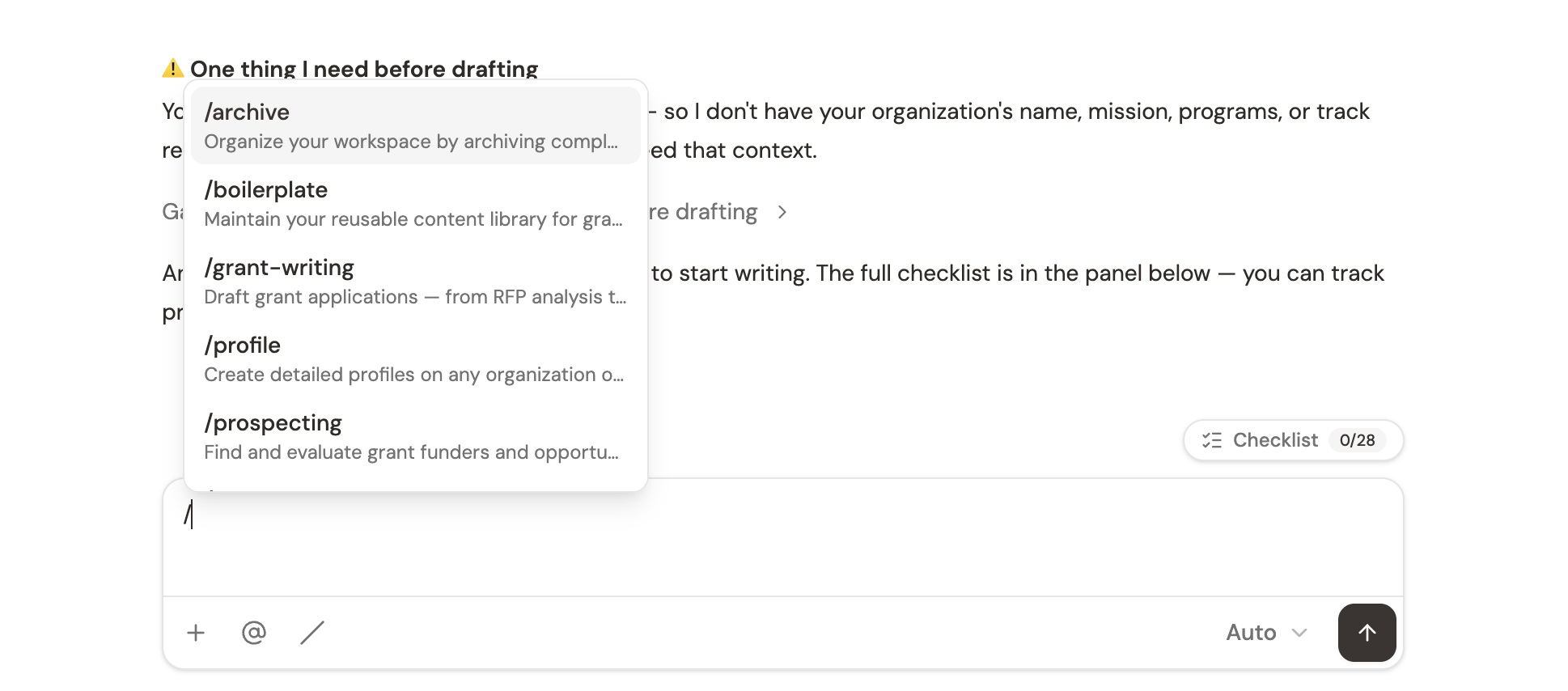
The six default skills:
/grant-writing— RFP intake → eligibility check → drafting → submission/prospecting— find funders, evaluate fit, build prospect tables/profile— generate Funder Profiles or Org Profiles/boilerplate— maintain reusable language at/Library/archive— surface stale workspace items for cleanup/review— three-pass compliance and quality review of a draft
Try it: Pick a skill that matches a task you’re actually doing. Tab to autocomplete it, then type the rest of your prompt:
“/grant-writing extract the requirements from this RFP as a checklist.”
Compare that to the warm-up version: “Hi, can you help me with a grant application? I have an RFP and I want to make sure I capture all the requirements…” Same result, less ceremony, less ambiguity. The skill activates the right specialist behavior immediately.
Slash commands aren’t only for the start of a chat. You can invoke a skill mid-conversation when the work shifts. Drafting in /grant-writing and you want to research the funder? Drop in /profile generate a Funder Profile on [Funder] in the same chat. The previous context stays available; the new skill activates for this turn.
Technique 2: Match the model tier to the task
Look at the chat input bar — there’s a small dropdown showing the current model tier (default is Auto). Three options:
- Auto — the system picks the right model. Default for most work.
- Pro — extended reasoning. Use for genuine synthesis tasks.
- Fast — quick responses. Use for short lookups or simple rewrites.
Try it three times on the same chat:
- Quick lookup with Fast: “What’s the deadline on the NEA Arts Education RFP in /Applications?” — the answer should come back in a second or two.
- Standard work with Auto: “Draft the project narrative section based on the RFP requirements and our org profile.” — Auto picks the right model; you get a solid first draft.
- Hard reasoning with Pro: “Compare these three RFPs for our org. Which one is the strongest fit, and what’s the strategic case for prioritizing it over the others?” — Pro takes longer but does deeper synthesis.
The most common mistake is leaving Pro on for everything (slow, more expensive in tokens) or leaving Fast on for everything (shallow on tasks that need depth). Auto is the right default for most work; reach for Pro or Fast deliberately.
Technique 3: Be specific in prompts — reference real source material
The single highest-yield prompt habit: tell the AI which documents to draw from, not just what kind of work to do.
Compare these two prompts on a real drafting task:
Generic:
“Draft a project narrative for this RFP.”
Specific:
“Draft a project narrative for this RFP. Use the framing from our 2024 NEA proposal in
/Applications/2024/NEA-Arts-Education/— that proposal won and the funder profile here is similar. The funder cares about measurable outcomes and partnership models. Match the voice of our last cover letter (in/Library/).”
The second prompt produces a draft you can revise from in 20 minutes. The first produces a draft you’ll rewrite in 90.
Other patterns that consistently produce better drafts:
- Name the framing constraint: “Emphasize community impact, not capacity. The funder funds direct service, not infrastructure.”
- Ask for alternatives: “Give me two more versions with different framings.” Seeing options lets you pick; iterating from one version anchors you to it.
- Be explicit about voice: “Match the tone of our last cover letter.”
- Push back when something’s wrong: Don’t rewrite the AI’s draft yourself — tell it what’s wrong and ask for another pass. “This is too jargon-heavy. Rewrite for an executive director audience.” The AI improves with critique; manual rewriting bypasses the loop.
Technique 4: Use file action cards as your jump-to surface
When the AI creates, reads, or edits a file, it renders a small card in the chat showing what happened:
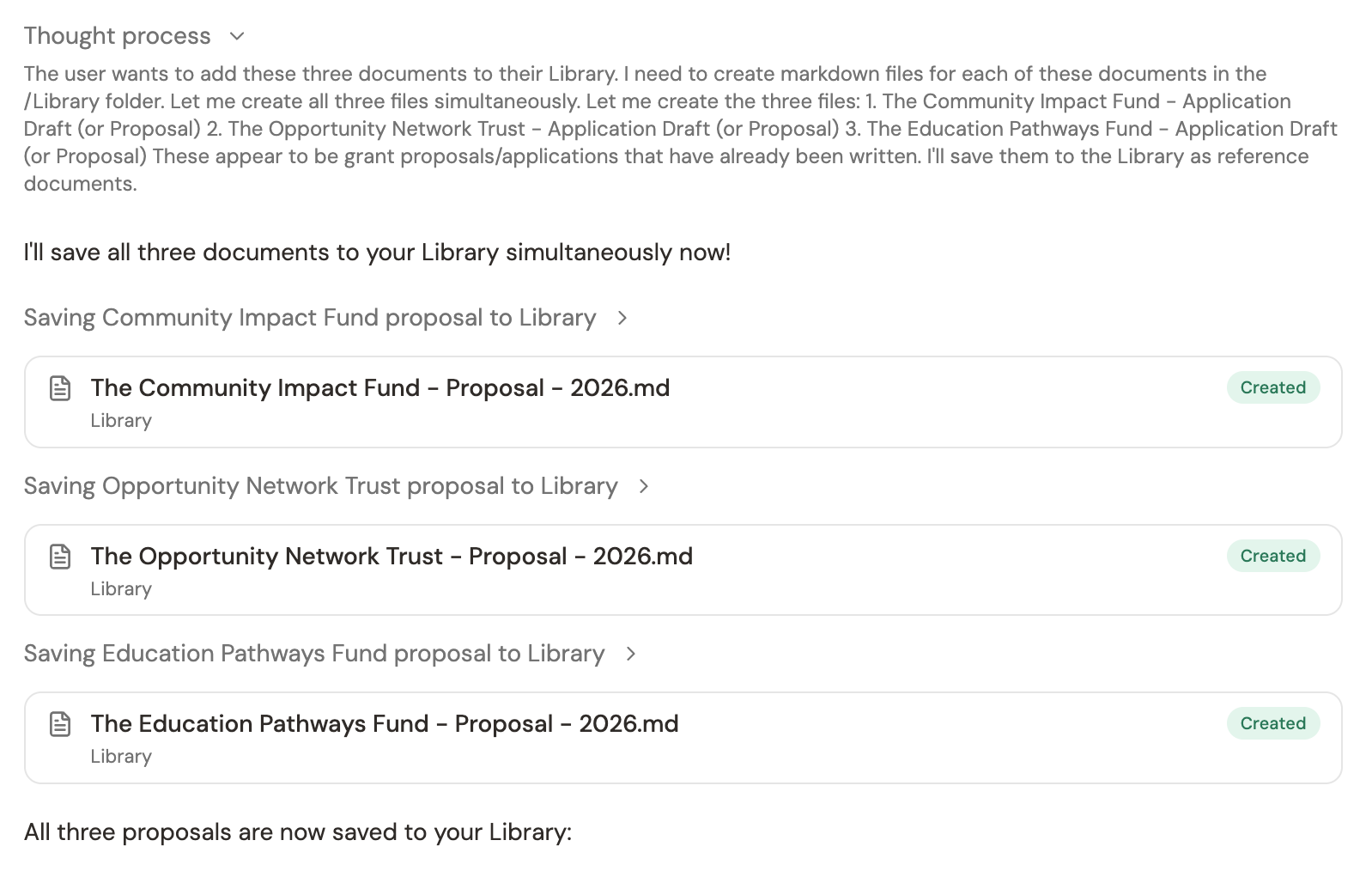
Each card is clickable. Tap it; the file opens in the context panel on the right, right next to the chat. You stay in the conversation while reviewing the file; you can edit, ask follow-ups, request revisions — all without leaving the chat.
Try it: ask the AI to generate any document — a Funder Profile, a brief, a checklist. When the file action card appears, click it. The file opens. Edit a line directly in the editor; ask the AI a follow-up that references the file. The seam between chat work and document work disappears.
This is how fluent operators work — chat and document panel side by side, conversation flowing through both.
Technique 5: Ask Grantable about itself
You can ask Grantable how Grantable works. Try:
“How do scheduled tasks work?”
Or:
“Where do funder briefs get saved by default?”
Or:
“How do I share a file with someone outside the workspace?”
The AI searches the help documentation and answers in the chat with links into the relevant doc pages. Faster than leaving the workspace to look something up; especially useful when the question is about the work you’re already doing.
This works as a self-help tool and also as a discovery tool — when you suspect there’s a feature you don’t know about, asking the AI is faster than reading the full help center.
Saving prompts that work
When you find yourself repeating a prompt that consistently produces good output — “draft an LOI using our standard format”, “three-pass review on the attached draft”, “summarize this RFP into a fit memo” — save the wording.
Two places that work:
- A personal note in your own notes app, reused by copy-paste.
- A workspace file at
/Library/Prompt patterns.mdwith your team’s collected effective prompts. Anyone on the workspace can reference it; the AI itself can read it.
Consistent prompts produce consistent results. You build a personal (or team) library of effective requests over time. The fluent operators in any tool are the ones who’ve internalized which prompts work — codifying it in a shared file just makes that explicit and shareable.
Power users don’t have access to a different Grantable. They use the same product — they’re just more deliberate about it. Slash commands instead of paragraphs. The right model tier for the task. Specific prompts referencing real source material. The compounding effect across hundreds of small interactions per week is what separates fluent use from competent use.
You need to draft a project narrative for a new proposal. You've written three similar narratives in the past year. What's the power-user move?
- Slash commands (/grant-writing, /prospecting, /profile, /boilerplate, /archive, /review) skip the warm-up and activate specialist behavior
- Match model tier to task: Auto for most work, Pro for genuine reasoning, Fast for quick lookups — Auto is usually correct
- Specific prompts with named source material beat vague prompts on capable models. Reference real files; name the framing; ask for alternatives
- File action cards are clickable — tap one and the file opens in the context panel without leaving the chat
- Ask Grantable how Grantable works; the AI searches the help docs and answers inline
- Save prompts that work in /Library/Prompt patterns.md so the team builds a shared library of effective requests
Track Complete
You’ve finished Track E: Grantable Mastery. You now have the operating model — workspace setup, prospecting, writing, intelligence, collaboration, and the workflows and habits that compound them.
The next step isn’t another lesson. It’s a few cycles of real grants. Every application makes the AI better at your voice, the prospect table sharper, the dashboard more accurate, the institutional memory deeper. The workspace earns its keep over months and years, not weeks.
When you’re ready, share what’s worked with your team — fluency spreads faster across an organization than across an individual.
Notice an error or have a question about this lesson?
Get in touchHave questions about this lesson?
Ask Grantable to explain concepts, suggest how they apply to your organization, or help you think through next steps.