Importing Your Documents and Past Proposals
Three ways to bring files into Grantable — cloud storage integrations, the file sidebar, and chat uploads.
- What to Import
- Connecting Cloud Storage
- Importing Files from Cloud Storage
- Uploading Files in Chat
6 min
reading time
Interactive knowledge check
Importing Your Documents and Past Proposals
You might be tempted to migrate your entire Google Drive into Grantable on day one. Don’t. The AI doesn’t need volume — it needs accuracy and coverage.
Resist the urge to mass-import. Dumping hundreds of old, outdated proposals and documents doesn’t make the AI smarter — it gives it more places to find stale information. A folder of grants from 2018 with outdated budget numbers and old program descriptions will actively hurt your results. The AI doesn’t know which version is current unless you do.
Instead, think of your library like a curated reference shelf. You want the most current, most accurate version of each type of document — not every version that ever existed. And you can add to it anytime. Found an RFP you want to save? Upload it right then. Finished a strong proposal? Add it to the library. This is an ongoing process, not a one-time migration.
Accuracy and coverage matter more than quantity. Five current, high-quality documents give the AI better context than fifty outdated ones. You’re not training a model — you’re building a reference library that the AI searches every time it helps you.
What to Import
Focus on documents that give the AI an accurate, current picture of your organization:
Your best recent proposals
One or two successful applications from the past year. These show the AI your current voice, framing, and program descriptions — not how you wrote five years ago.
Current organizational documents
Your latest annual report, strategic plan, or board presentation. Emphasis on latest — an outdated strategic plan is worse than no strategic plan.
Active funder reports
Recent progress reports and final reports with current outcomes data. These give the AI real numbers to work with.
RFPs you're working on now
Current RFPs and guidelines. The AI can reference these when helping you write.
Connecting Cloud Storage
The easiest way to bring in a batch of files is through cloud storage. Go to Settings > Integrations to connect your accounts.
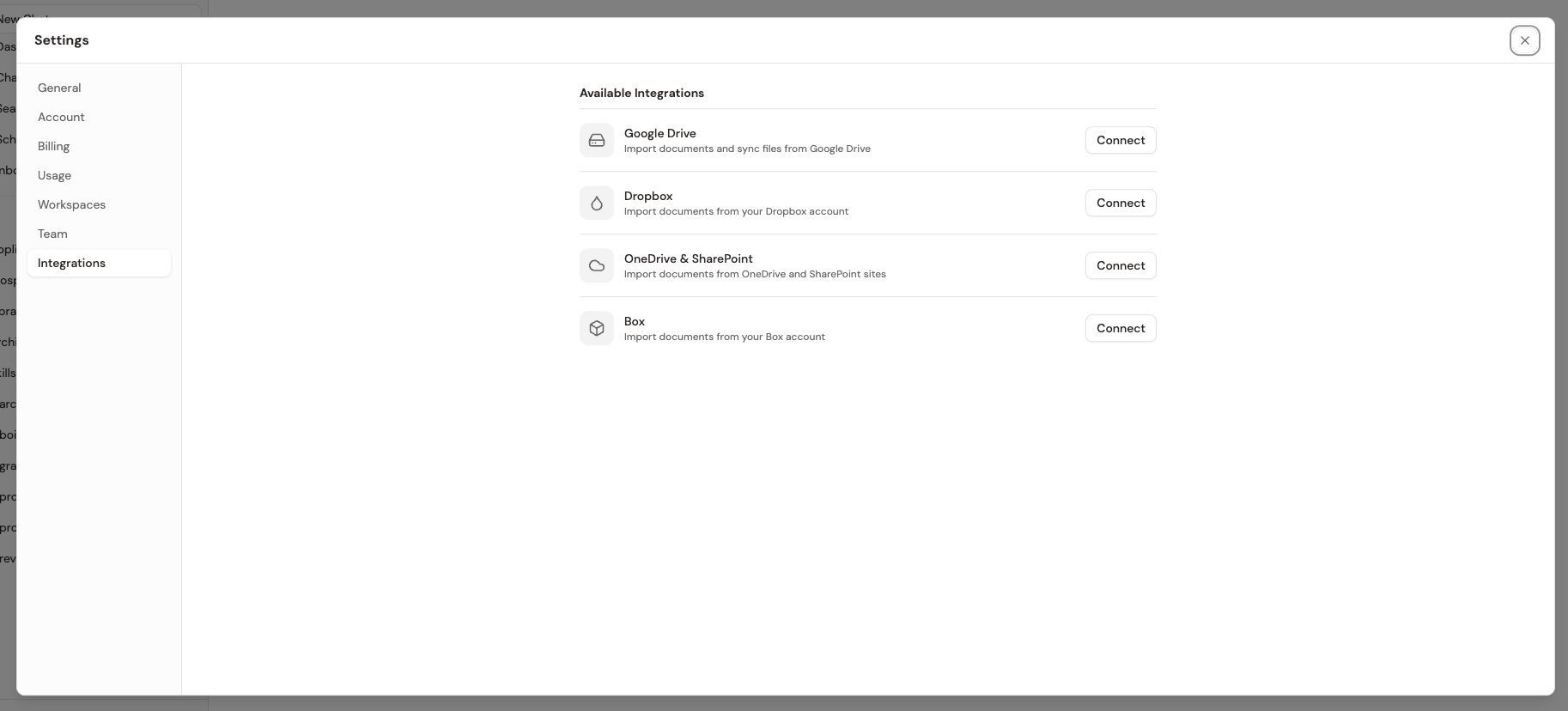
Grantable supports Google Drive, Dropbox, OneDrive & SharePoint, and Box. Click Connect next to the provider you use, authorize access, and you’re set up.
Importing Files from Cloud Storage
Once connected, you can import files from anywhere in the app. In the file sidebar, click + New at the top of the Files section and pick your provider under Import from:
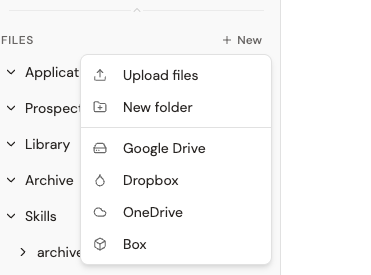
Select a provider and Grantable opens a dialog to browse and pick files:
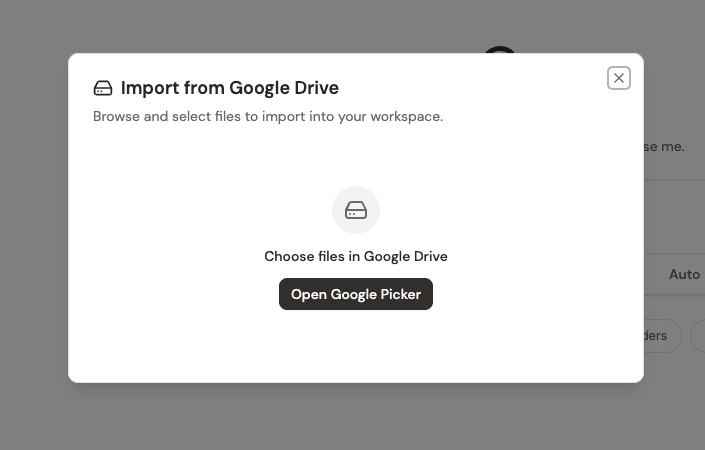
From there, you get a native file picker where you can search, browse folders, and select the files you want to bring in:
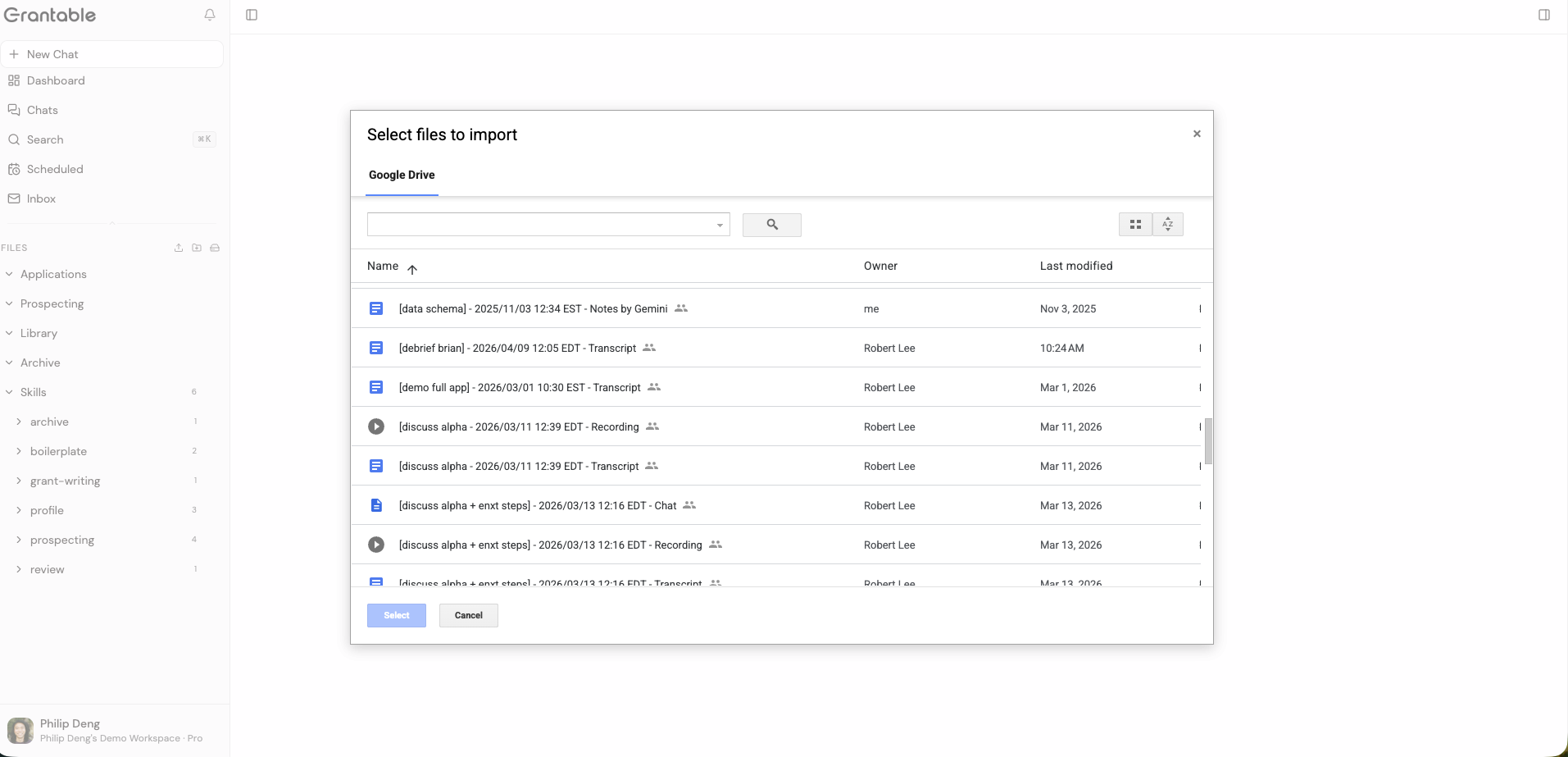
Selected files are imported into your workspace library where the AI can search and reference them in any conversation.
Want files to land in a specific folder instead of the top of your library? Open that folder’s ⋯ menu in the sidebar and choose a provider under Import from — the picker works the same way, but everything you select is imported straight into that folder.
Uploading Files in Chat
You don’t always need to go through the file sidebar. You can also upload files directly in a conversation using the + button in the chat input:
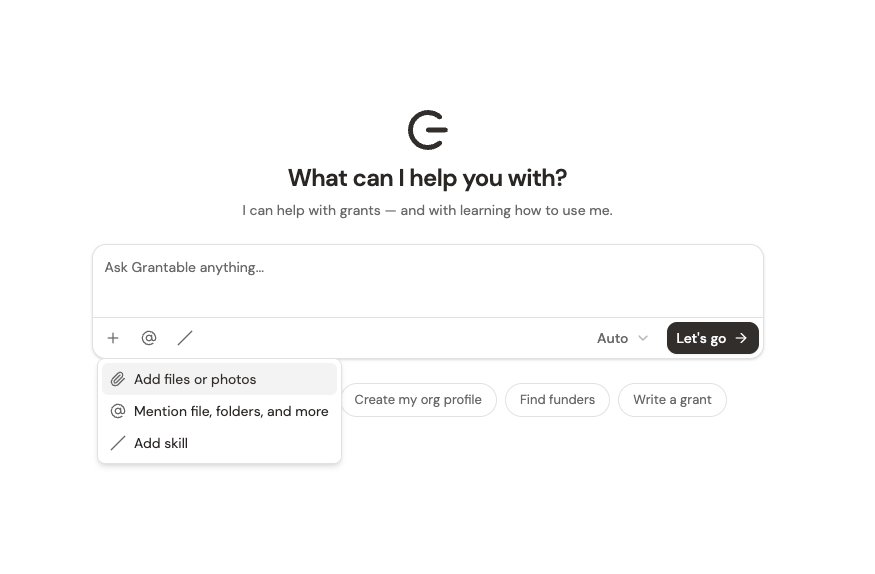
This is handy when you’re already in a conversation and want to give the AI something specific to work with — an RFP you just received, a draft that needs review, or a past proposal to use as a reference. The file gets added to your workspace library and the AI can use it immediately in the conversation.
The @ option in the chat input lets you mention files already in your workspace without re-uploading them. This is useful when you want the AI to reference a specific document during a conversation.
You're setting up a new workspace. A colleague says 'Let me just sync our entire shared drive — 2,000 files going back to 2015.' What's wrong with this approach?
Get your most important documents into Grantable right now:
- Gather your five key documents. Find your best-funded proposal, a recent funder report, your organization’s strategic plan, a budget template, and a boilerplate or LOI you reuse frequently. These are the documents the AI will draw from most often.
- Upload them all at once. Drag all five files directly into the sidebar. They’ll land in the root of your library — that’s fine for now.
- Ask Grantable to organize them. Start a new conversation and say: “I just uploaded several documents to my library. Can you look at what’s there and create a folder structure that makes sense for a grant team?” The AI will review your files and create folders — by program area, document type, or grant year — then move your files into them.
- Try a cloud import. Go to Settings → Integrations and connect Google Drive (or your preferred cloud storage). Then click the import icon in the sidebar and pull in one additional document from the cloud.
- Verify the AI sees everything. Start a fresh conversation and ask: “Summarize my most recent proposal.” If the AI can do it accurately, your library is working.
- Accuracy and coverage over quantity — curate your library, don't mass-dump
- Add documents as you go, not all at once. Every upload makes the AI a little smarter.
- Connect cloud storage in Settings > Integrations for easy imports from Google Drive, Dropbox, OneDrive, or Box
- Upload files from the sidebar or directly in a conversation with the + button — whatever fits the moment
Next Lesson
Your workspace has context. Now let’s bring in your team so everyone can work from the same foundation.
Notice an error or have a question about this lesson?
Get in touchHave questions about this lesson?
Ask Grantable to explain concepts, suggest how they apply to your organization, or help you think through next steps.