Comments, Mentions, and Sharing Without the Email Chain
How to get the program director's input on a budget number, the ED's sign-off on positioning, and the partner organization's review on a section — without losing the trail in email.
- Comments and @mentions
- Sharing with people who don't log in
- Roles, briefly
4 min
reading time
Interactive knowledge check
Comments, Mentions, and Sharing Without the Email Chain
A grant proposal almost never has a single author. The program director needs to verify the activities section, finance signs off on the budget, the ED reads the cover letter, and a partner organization confirms the section about their role. The traditional way to coordinate that is a forwarded Word doc with track changes, three reply-all chains, and a “final-FINAL-v3” attachment somebody is editing while somebody else is editing the version from yesterday.
Grantable handles the whole loop in one place. Comments live on the document. Mentions pull people in. Sharing handles the people who don’t have a Grantable login. The proposal stays canonical; the conversation around it stays attached.
Comments and @mentions
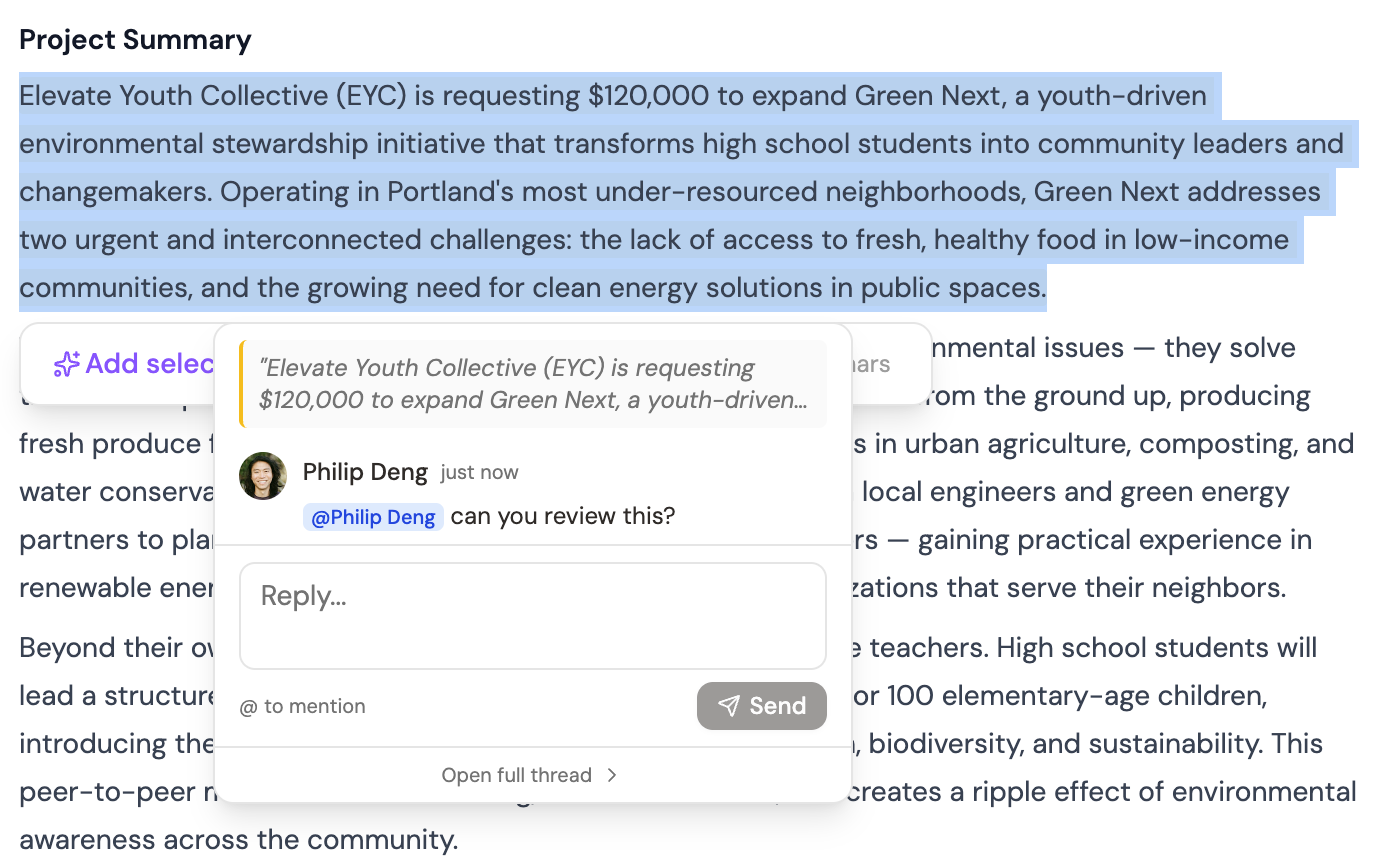
Highlight any text in a document, click the comment icon, and write your question. The comment is anchored to the passage — anyone reading later sees both the language and the discussion that shaped it.
Highlight, comment, ask
Select the sentence you have a question about. The comment opens with that text already in context. Reviewers see exactly what you're asking about — no need to quote the passage in an email.
@mention to route
Type @ and pick the teammate. They get a notification that pulls them straight to the comment in the document. 'Sarah, can you confirm these match the Q2 numbers?' lands in front of Sarah with the budget paragraph attached.
Threaded replies
Comments thread — back-and-forth stays organized under the original. When the question is resolved, mark it resolved and the thread collapses out of the way.
The same comment system works on any workspace file: proposals, briefs, funder profiles, board reports. Wherever there’s a document worth reviewing, there’s a comment thread on it.
Sharing with people who don’t log in
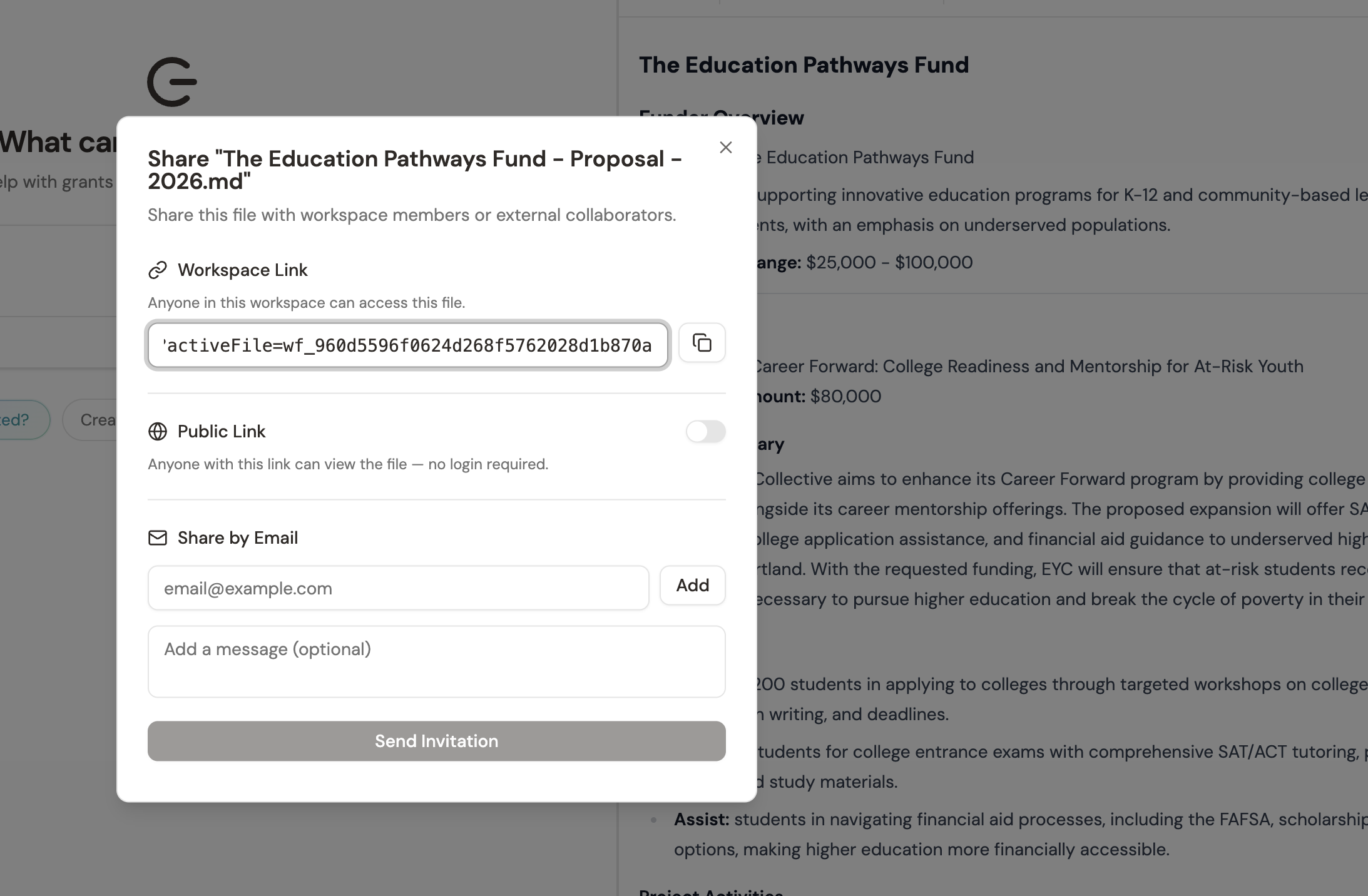
Most reviewers aren’t full-time grant team members. The board chair, the partner organization’s program lead, the funder relations consultant who sees one proposal a year — asking them to learn a new tool just to leave a comment is a non-starter.
Grantable’s sharing dialog has three modes:
- Internal link — anyone in your workspace can open it. The default; nothing extra to configure.
- Public link — a long, hard-to-guess URL anyone can open without logging in. Right for board members and external reviewers who need to read but don’t need an account.
- Email invite — sends the recipient a link with optional message text. Right when you want a clear “I’m asking you specifically” rather than a forwarded URL.
A shared link always shows the latest version. There’s no “did you get the updated draft?” — when you save, the link updates.
Roles, briefly
When you add a teammate to a workspace, you pick a role:
- Admin — can add and remove members, change settings, do anything an editor can.
- Editor — full read/write on documents, the dashboard, conversations.
- Commenter — can read everything and leave comments, but can’t change document content. Right for reviewers who shouldn’t edit prose.
- Viewer — can read; can’t comment or edit. Right for stakeholders who just need visibility.
Most grant teams need one or two admins and a handful of editors. Reach for commenter or viewer when someone needs visibility but shouldn’t be changing the draft.
When a board member or external reviewer asks for “the latest version,” resist the urge to export a PDF and email it. The PDF is stale the moment a number changes. Send a public link or add them as a commenter instead — they read the live document and can leave comments in place.
Collaboration in Grantable isn’t about getting everyone into the tool full-time. It’s about routing the right question to the right person at the right moment, in context, without losing the thread. Comments anchor the conversation to the passage. Mentions route attention. Sharing handles people without accounts. The proposal stays canonical; the work around it stops scattering across inboxes.
Your finance director needs to verify the budget numbers in a proposal you're drafting. They're not a regular Grantable user. What's the cleanest move?
- Comments anchor to the passage you highlight — reviewers see exactly what you're asking about, no quoting required
- @mentions notify the teammate and pull them straight to the comment in context
- Three sharing modes: internal link (workspace), public link (no login), email invite (specific reviewer)
- Roles: admin, editor, commenter, viewer — use commenter for reviewers who shouldn't edit prose
- Send live links instead of PDFs — the link updates when you save; the PDF doesn't
Next Lesson
Comments handle the conversation around a document. The next collaboration surface is the inbox — where funder emails arrive, get classified, and turn into work the team can act on.
Notice an error or have a question about this lesson?
Get in touchHave questions about this lesson?
Ask Grantable to explain concepts, suggest how they apply to your organization, or help you think through next steps.