When to Use Multiple Workspaces
Why a separate workspace per program (or per client) keeps the AI's context clean — and when one workspace is the right call instead.
- The default: one workspace
- When separation actually helps
- How switching works
- Naming that scales
- Next Module
4 min
reading time
Interactive knowledge check
When to Use Multiple Workspaces
Most grant teams need exactly one workspace. The whole org’s funder pipeline, all the proposals, all the institutional memory — one place. That’s the default and it’s usually right.
But not always. Some organizations run distinct programs that don’t share funders or strategy. Some grant writers serve multiple nonprofits. Some teams need watertight separation between, say, a fiscally-sponsored project and the parent organization. For those cases, Grantable supports multiple workspaces per account, with the AI’s context staying scoped to whichever one you’re working in.
This lesson is about the choice — when separation helps, when it just adds friction, and how to switch between workspaces when you do split.
The default: one workspace
Before you reach for multiple workspaces, consider why one usually wins:
The AI sees the full picture
When everything lives in one workspace, the AI can cross-reference. A new RFP gets evaluated against your full prior history. A draft section can pull language from any previous proposal. Splitting workspaces splits that context.
Search works across everything
One workspace means one search. Looking for outcomes data from a 2024 STEM proposal? It's there. Splitting into per-program workspaces means searching each one separately — and forgetting which one you put the thing in.
The team has one place to look
New hires onboard once, not five times. The pipeline meeting reviews one dashboard. The institutional memory accumulates in one searchable corpus.
When separation actually helps
Multiple workspaces start earning their keep when these conditions are real, not aspirational:
- Distinct legal entities. A 501(c)(3) and a fiscally-sponsored project may need separate audit trails and separate funder contact records. Splitting workspaces preserves that.
- Programs with no funder overlap. If your community-health program is funded by federal HRSA grants and your arts program is funded by local foundations, the AI cross-referencing one against the other doesn’t help — it’s noise. Separate workspaces let each program’s profile stay tightly tuned.
- Service to multiple organizations. If you’re a grant writer serving several nonprofits as a consultant, every client’s data must stay isolated. Confidentiality, not just convenience.
If none of those apply, stay in one workspace. Folders inside the workspace handle program separation just fine when the funders and language overlap.
The most common multi-workspace mistake is splitting prematurely. “We have three programs, let’s have three workspaces” sounds organized but trades real cross-context value (the AI seeing your full track record) for theoretical neatness. Until the programs genuinely don’t share funders or language, keep one workspace and use folders.
How switching works
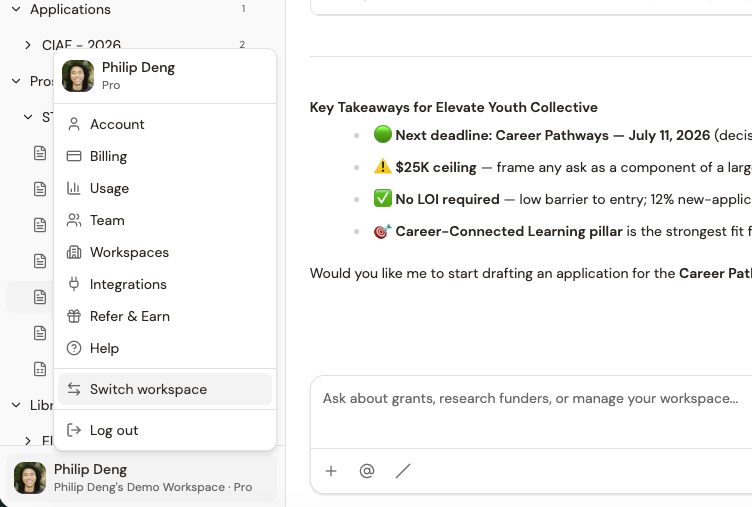
When you have multiple workspaces, click your name and avatar at the bottom of the sidebar to open the user menu. “Switch workspace” sits near the bottom; clicking it takes you to the workspace chooser, where every workspace you’re a member of is listed. Pick one, and the app reloads with that workspace as your current context — its files, its dashboard, its chats, its org profile.
The “Switch workspace” item only appears when you’re a member of more than one workspace. If you’re in just one, you don’t see it — the workspace you’re in is the workspace, no chooser needed.
The switch is per-user. You can be a member of five workspaces and toggle between them; teammates can be members of just the ones they need. Permissions are scoped per workspace too — you might be an editor in one and an admin in another.
Each workspace has its own org profile
The Org Profile (introduced in Module 1) is what tells the AI who you are. In a per-program setup, each workspace has its own profile with the right mission language, theory of change, and constituency for that program.
Each workspace has its own pipeline
Dashboards, deadlines, status — all scoped to the workspace you're in. No cross-contamination of pipelines between programs or clients.
Each workspace has its own files
Documents, briefs, and chats stay in their workspace. There's no 'send a file to another workspace' shortcut — if you need shared boilerplate across workspaces, copy it intentionally.
Naming that scales
If you do split, use a naming convention. “Health Programs” and “Arts Programs” is clear at a glance. “Workspace 1” and “Workspace 2” will haunt you within a month.
For consultants serving multiple nonprofits, the convention that holds up: {Client Name} as the workspace name, full stop. When you have nine clients and you’re switching three times an hour, anything more than the org’s name is friction.
The right number of workspaces is the smallest number that keeps each one’s AI context coherent. One workspace is the default; reach for multiple only when programs or clients genuinely don’t share funders, language, or audit trails. Folders inside one workspace handle program separation cleanly until the contexts actually conflict.
A community foundation runs three program areas — education, housing, and arts — that share roughly half their funder base. They're considering a separate workspace per program. What's the right call?
- One workspace is the default — splitting trades real cross-context value for theoretical neatness
- Reach for multiple workspaces when legal entities differ, when programs have no funder overlap, or when you're serving multiple unrelated organizations
- Switch via the user menu at the bottom of the sidebar — 'Switch workspace' opens the chooser; each workspace has its own profile, pipeline, and files
- Permissions and roles are scoped per workspace; you can be an admin in one and a viewer in another
- Name workspaces by what they contain (program name, client name) — not by number
Next Module
You’ve covered the team layer: comments, sharing, the inbox, and when to split into multiple workspaces. The next module — Advanced Workflows — pulls everything together with end-to-end patterns: how a single piece of work moves from prospecting through writing through report-out, and how to build the rituals that turn an individual workspace into an organizational habit.
Notice an error or have a question about this lesson?
Get in touchHave questions about this lesson?
Ask Grantable to explain concepts, suggest how they apply to your organization, or help you think through next steps.