The Workspace Inbox — Where Funder Email Becomes Work
How forwarded funder emails arrive in the workspace inbox, get classified by the AI, and turn into a chat with a working analysis already started.
- Your workspace's email address
- Automatic classification
- Send to Chat — the action that does the work
- Triage as a team
5 min
reading time
Interactive knowledge check
The Workspace Inbox — Where Email Becomes Work
A grant team’s mailbox is a mess of inputs. Funders send RFP announcements, deadline reminders, and decline letters. Mailing lists drop newsletters. Program officers reply with notes from a call. Internally, your ED forwards a strategy memo, your evaluation lead sends a draft of last year’s outcomes data, your finance team shares an updated indirect-cost rate. Most of it lands in someone’s personal inbox, where it competes with everything else and gets read at midnight or never. The piece that actually mattered — a new RFP from a foundation you’d applied to before, an outcomes paragraph you wanted to reuse — gets lost in a thread three days later.
The workspace inbox gives your team a shared address for any of this. Forward email there, subscribe newsletters there, point program officers there, drop in your own internal documents when it’s easier than uploading. The AI classifies what arrives, attachments come along for the ride, and the “Send to Chat” button turns any message into a working artifact with one click.
Your workspace’s email address
Every workspace gets its own address: your-slug@inbox.grantable.co. Use it however you’d use any inbox — it works for funder communications, for content from your own organization, and for anything in between:
Forward anything worth keeping
Funder emails, RFP announcements, decline letters — forward them in. Internal mail too: a colleague's memo with outcomes data you'll reference next quarter, the ED's strategic update, an evaluation report from your program team. If you'd want to find it again or have the AI work with it later, the workspace inbox is the right destination.
Subscribe newsletters
Foundation mailing lists, philanthropy news digests, sector updates — point them at your workspace address. New issues arrive in the inbox where they're searchable and analyzable, instead of disappearing into a personal Promotions tab.
Share with program officers
When a funder asks where to send a follow-up, give them the workspace address. The whole team sees the response; the AI sees it; the audit trail is built into the workspace, not somebody's personal sent folder.
Automatic classification
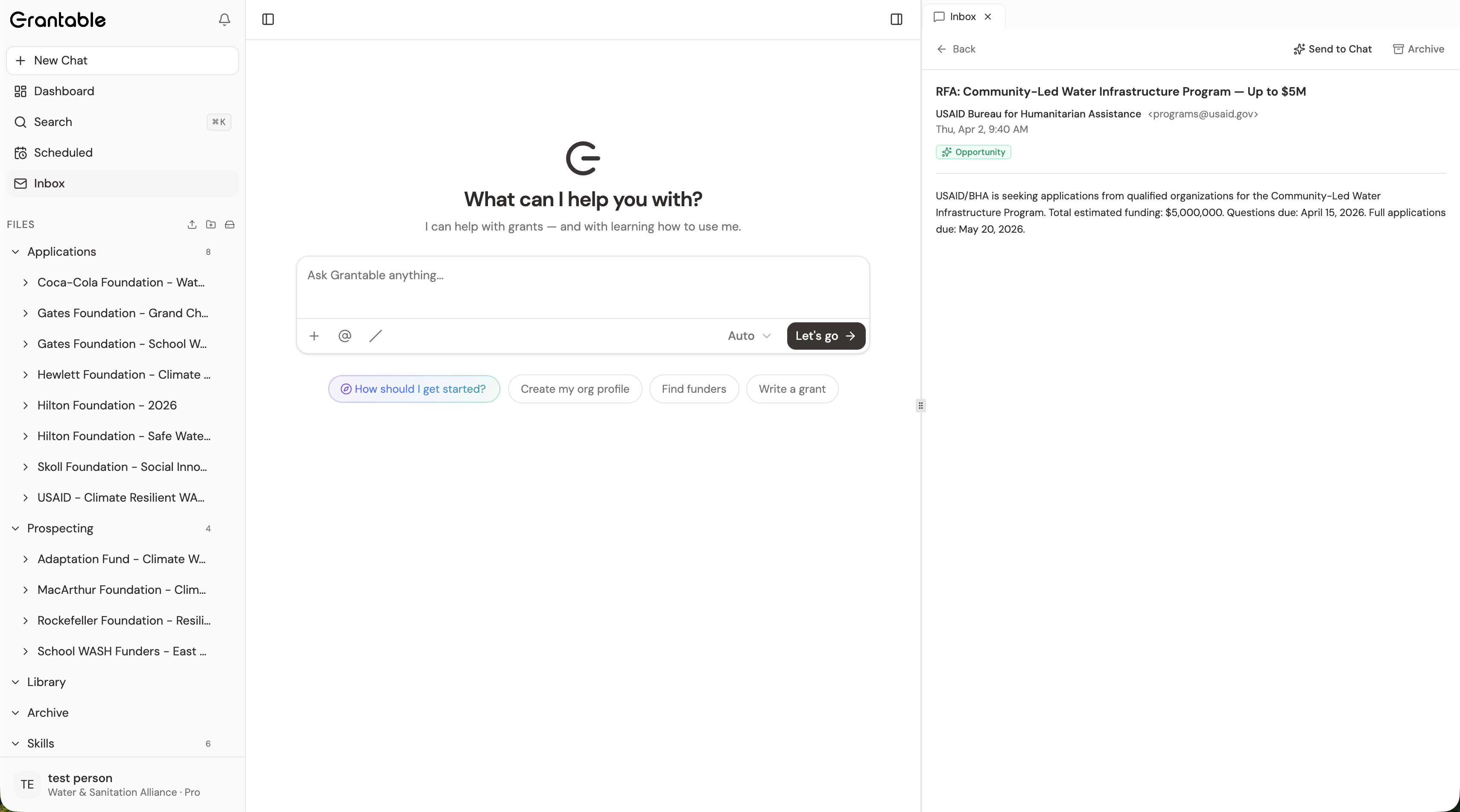
When email arrives, the AI reads it and tags it with one of five categories:
- Opportunity — RFPs, LOI invitations, anything that looks like a funding chance
- Deadline — reporting reminders, renewal notices, due-date communications
- Correspondence — direct replies from program officers, internal threads, conversational mail
- Newsletter — mailing list content, digests, sector updates
- Noise — auto-replies, calendar invites, things you can ignore
Classification means you can scan the inbox by category — “show me the opportunities this week” — instead of reading every subject line.
Send to Chat — the action that does the work
The single most useful button in the inbox is Send to Chat. Open any email and click it. The full message — subject, sender, body, every attachment — gets queued into the chat. You then type what you want done, in plain language:
- “Read this RFP and tell me whether we’re a fit. Use our org profile.”
- “Extract the requirements as a checklist. Note submission deadline and format.”
- “This program officer mentioned a ‘collaborative model’ in the third paragraph. What do they mean by that? Cross-reference our prior conversations with this funder.”
- “This is our 2025 evaluation report from the program team. Summarize the outcomes data into bullets I can paste into a proposal.”
The AI works with the email and any attached PDFs the same way it works with any other document in your workspace. By the time you’re done reading the chat response, the email has done its job — turned into a brief, a checklist, a fit assessment, a draft reply, or reusable language.
For funders you regularly hear from, pair this with a scheduled task that scans for new opportunities each week. Forwarded mail handles what funders send directly; scheduled tasks handle what they post publicly. Together they cover both directions of monitoring.
Triage as a team
When more than one person processes the inbox, things go sideways without ownership. The pattern that works for most teams:
One person triages
Designate someone to scan new inbox items each morning — usually whoever runs the prospecting cadence. Five minutes; less when the AI's classification is doing its job.
Route what matters
For an Opportunity, click Send to Chat and start the analysis right there — or @mention the right teammate in a comment on the resulting brief. For Correspondence, route to whoever owns that funder relationship.
Archive the rest
Newsletters that didn't surface anything new, noise that the classifier caught — archive. The point of the inbox is to be empty by end of day, not to accumulate.
The inbox isn’t a separate place to read email — it’s a feeder for the chat. Forward funder mail in, click Send to Chat, ask for what you actually want. The AI reads the email and any attachments together; you get a brief, a checklist, or a fit assessment instead of one more thing to read.
A foundation you've applied to before sends a newsletter announcing a new RFP, with the program guidelines as a PDF attachment. What's the most efficient way to handle it?
- Every workspace has an email address — forward funder mail there, subscribe newsletters, share with program officers
- The AI classifies arriving mail into Opportunity, Deadline, Correspondence, Newsletter, or Noise
- 'Send to Chat' queues the email and all attachments into a chat — type what you want done in plain language
- Pair the inbox (reactive, what funders send you) with scheduled tasks (proactive, what they post publicly)
- Triage daily; one person scans, routes what matters, archives the rest
Next Lesson
Some teams run grants for more than one program — or, if you’re a consultant, more than one organization. The next lesson covers when to use multiple workspaces, how to switch between them, and why context separation matters for the AI.
Notice an error or have a question about this lesson?
Get in touchHave questions about this lesson?
Ask Grantable to explain concepts, suggest how they apply to your organization, or help you think through next steps.