Revising with AI in Your Draft
How to ask for a revision — select the passage, tell the AI what you want in plain language, and watch the change land in your draft with tracked-changes-style strikethroughs and additions.
- How You Ask for a Revision
- How the Revision Lands
- How to Step Back
- When to Just Edit It Yourself
- Asking for Tone and Voice
4 min
reading time
Interactive knowledge check
Revising with AI in Your Draft
First drafts are the easy part. What usually determines whether a proposal lands well isn’t the draft — it’s the twenty rounds of tightening, reframing, and cutting that happen after. And in a traditional workflow, every round of revision involves copying text out of the editor, pasting it into an AI tool, editing, pasting back, and fixing the formatting that got mangled in the round trip. It’s slow, and the friction kills the iteration rhythm.
Grantable runs revisions inside the draft. You point the AI at the passage you want changed, tell it what you want — in plain language, in your own words — and the change lands directly in your document. Old text struck through in red, new text added in green. Like tracked changes from a colleague who edits faster than anyone in the office.
How You Ask for a Revision
Select the sentence, paragraph, or section you want changed. A small action appears next to your selection: Add selection to chat. Click it, and the selected text appears as a chip above your chat input — with the file name and a preview so you know what’s about to get worked on.
Then you type what you want, in plain language, in the chat:
“Shorten this to 200 words.”
“Make this specific to our East Portland sites — use the enrollment data from our 2024 annual report.”
“Rewrite this to match the tone of the Problem Statement section above. Less hedging, more concrete.”
“Remove the last sentence and add a stronger close tying back to the RFP’s ‘community-led’ language.”
There’s no menu of preset revision options to pick from — the prompt is yours. Whatever you’d tell a human editor, you can tell Grantable.
How the Revision Lands
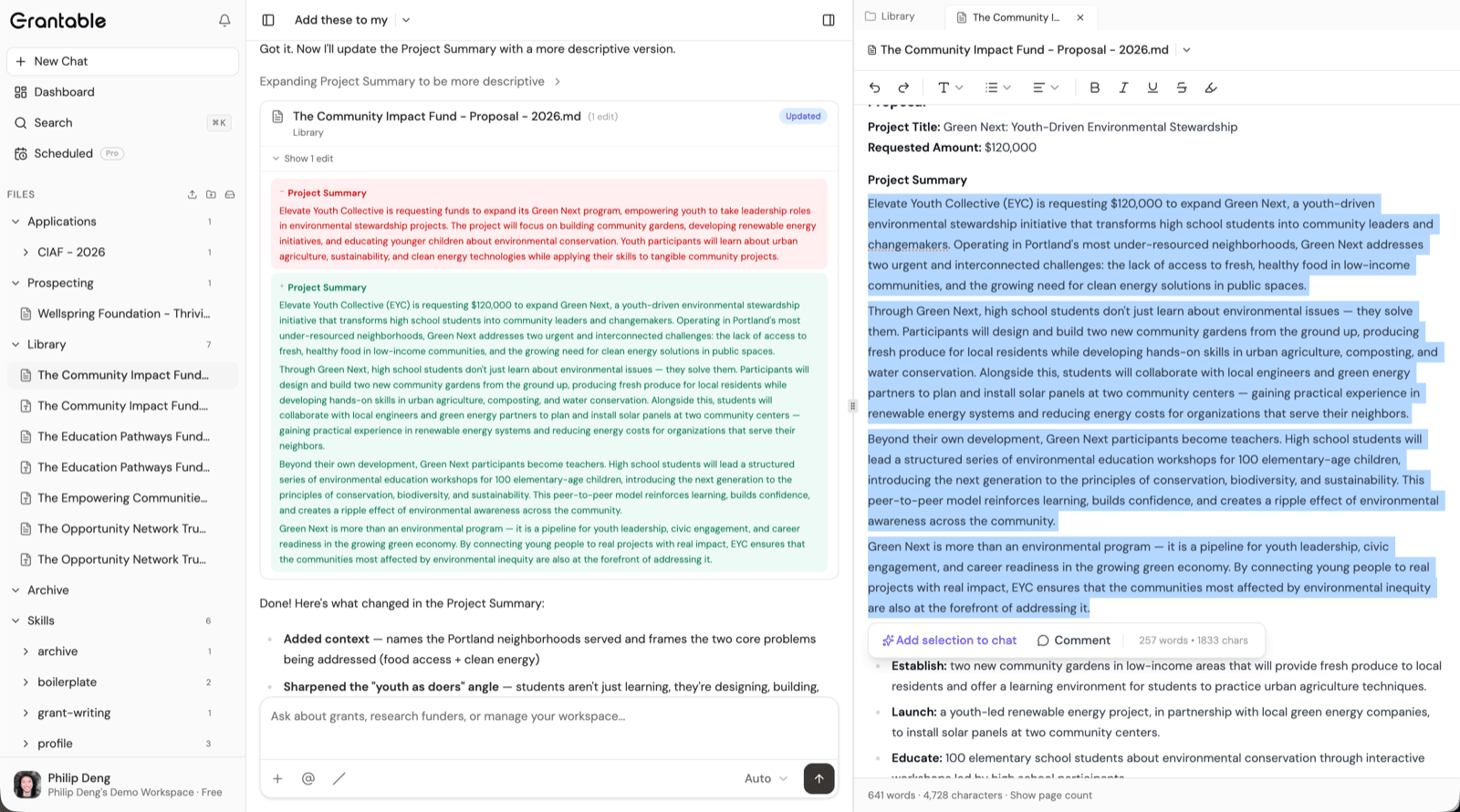
The AI applies the revision directly to the selected text. Your draft now shows the change with tracked-changes marks — red strikethrough through what was removed, green for what was added. Below the edit, a short chat summary in plain language explains what moved and why (“added Portland context,” “sharpened the youth-as-doers angle,” “cut the redundant framing sentence”).
Two things to notice:
The change is in the document, not in chat
The revised text lives in your draft — not in a chat bubble you'd have to copy-paste. The strikethroughs and additions show you what's different at a glance; the summary in chat tells you why the AI made the calls it did.
You react in plain language
Didn't land? Tell the AI. 'Go lighter on the strikethroughs — keep the original opening.' 'The tone is too formal now — pull back.' 'I preferred the first version.' Each message is another round of revision; each round lands in the draft the same way.
How to Step Back
There’s no Accept or Discard button. Revisions just happen. If a pass doesn’t land, you have two ways to step back:
Tell the AI to revert
'Put the original back and try again with a different angle.' 'Restore the version before that last shorten.' Grantable reads your draft's recent state and can revert or re-revise from your instruction. Fastest way to recover when the miss is small.
Use version history
For bigger misses — several revisions deep, or a whole section you want back — open the file's version history from the header. Every save is captured as a restore point; pick one, preview it, restore it. The old text isn't lost, which means you can revise aggressively without worrying about losing work.
You’re always in control, but control doesn’t come from a button that pauses the AI before it edits. It comes from describing the revision you actually want, reading what landed, and iterating in plain language until it’s right — with version history as your safety net for anything that goes sideways.
When to Just Edit It Yourself
The AI isn’t the only tool in the workspace. The editor is a full-featured writing surface on its own — standard text editing, formatting, keyboard shortcuts, find-and-replace, all the usual moves. It works the way you’d expect.
For small edits, that’s usually the fastest path. Fixing a typo, swapping “but” for “however,” moving a sentence up a paragraph, deleting a redundant phrase — reach for the keyboard, not the chat. Every AI request costs a moment of your flow and a sliver of your plan’s usage; the AI earns that cost on substantive revisions but rarely on a one-character typo.
A decent rule of thumb: if you already know exactly what the change should be, just type it. Save the AI for revisions where you want its help figuring out how the change should land — tightening fifty words into twenty, matching a tone, working a piece of context into a section you’ve drafted, reframing an argument that isn’t quite working yet.
Asking for Tone and Voice
Proposals written across multiple sessions by multiple authors drift in tone. One section sounds like grant boilerplate, the next like a case study in a magazine, the next like a board memo. When you notice drift, select the drifting passage and describe the voice you want:
“Rewrite this in the same register as the Problem Statement section. Less hedging, more concrete.”
“Match the voice of the Project Narrative above — story-forward, specific, first-person plural.”
“Pull the tone back. This reads like a magazine article; the rest of the proposal is plainer.”
Grantable reads the surrounding document as context, so it can sample the voice you want to match rather than applying a generic “make it professional” pass. This works best when there’s a clear anchor section whose voice you already like.
Specificity matters more in tone requests than in most other revisions. “More formal” produces something generically formal. “Match the voice of the Problem Statement — drop ‘we believe’ and ‘we feel,’ name the communities we serve, cite specific outcomes” gives the AI something to actually sample from.
You ask Grantable to shorten a 400-word Problem Statement. The revision lands in your draft, but it cut the sentence you most wanted to keep — the one naming the specific neighborhoods you serve. What's the most efficient next move?
- Select the passage, add the selection to chat (it appears as a chip above the input), then tell the AI what you want in plain language — no preset revision menu, just your own words
- Revisions land directly in the draft with red strikethroughs and green additions; a chat summary explains what changed and why
- There's no Accept/Dismiss button — you iterate by telling the AI what to do differently, or by using version history to step back to an earlier state
- If you already know exactly what the change should be, just type it yourself — the editor is full-featured, and the AI earns its cost on substantive revisions, not typos
- For tone requests, name the anchor section or the specific qualities you want — 'match the Problem Statement voice' beats 'more formal' every time
Next Lesson
You’ve drafted and revised. Next we’ll walk through the submission-readiness phase: Page Mode for distraction-free final edits, team review through comments, a compliance check against the checklist, and exporting your finished document to Word or PDF for submission.
Notice an error or have a question about this lesson?
Get in touchHave questions about this lesson?
Ask Grantable to explain concepts, suggest how they apply to your organization, or help you think through next steps.