Monitoring Funders Without Watching Them
Two complementary tools for staying on top of funder activity — scheduled tasks that run recurring AI prompts, and inbox rules that auto-process funder emails when they arrive.
- Scheduled Tasks — Recurring Research on Your Schedule
- Inbox Rules — Automatic Processing of Funder Emails
- Picking the Right Tool
5 min
reading time
Interactive knowledge check
Monitoring Funders Without Watching Them
Most funder updates get missed not because nobody knew where to look, but because nobody had time to check. Foundation websites change quietly. RFPs land in newsletters that pile up. A program officer’s LinkedIn post about a new initiative scrolls past at 9pm. The team would have caught any of these in time — if anyone had been actively checking.
Grantable’s two monitoring tools cover the gap by checking for you. Scheduled tasks run recurring AI prompts on a cadence you set. Inbox rules automatically process funder emails the moment they hit your workspace. They serve different jobs and work well in combination.
Scheduled Tasks — Recurring Research on Your Schedule
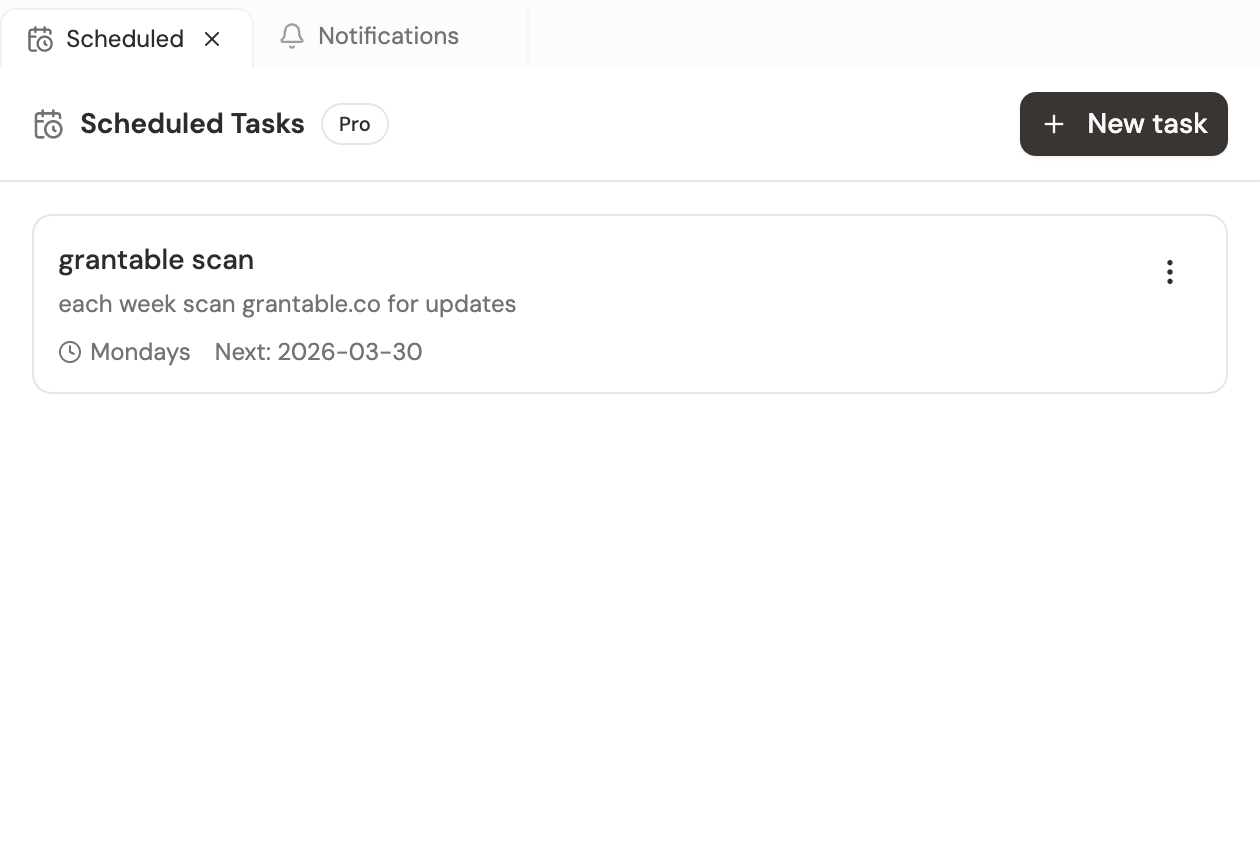
A scheduled task is a saved AI prompt that runs on a daily, weekly, or monthly cadence. Each run creates a new chat in your workspace with the result, so the history is searchable later and the AI can build on prior runs.
You set them up like saving a recipe:
Write the prompt
Describe what you want the AI to do each run. 'Search the web for new RFPs in environmental justice with deadlines in the next 90 days. Summarize anything new since last week's run.' Specific, scoped, repeatable.
Pick the cadence
Daily for active applications and tight-deadline windows. Weekly for landscape scanning. Monthly for slower-moving research like board prep or sector trends.
Let it run
On the cadence, the task fires automatically. A new chat opens in your workspace with the run's results — same as if you'd run the prompt by hand, except you didn't have to remember.
Review when convenient
Open the resulting chats from your chat list. Read what's new. Act on what matters. Skip what doesn't.
Common monitoring tasks:
- “Search for new federal grants in K-12 STEM education with deadlines in the next 60 days. Compare against last week’s run and call out anything new.”
- “Pull the most recent giving from Meyer Memorial Trust and the Collins Foundation. Note any new program areas or grantees that look like our org.”
- “Scan the web for news, press releases, or LinkedIn posts about Ford Foundation’s program officers in our region from the last 7 days.”
Scheduled tasks are a Pro plan feature. Start with three to five tasks before adding more — too many running simultaneously creates a chat backlog you’ll stop reading.
Inbox Rules — Automatic Processing of Funder Emails
The other half of monitoring is what funders send you directly. Subscribe your workspace email to a foundation’s newsletter or program officer’s mailing list, and Grantable’s Workspace Inbox receives it automatically. Inbox rules then decide what happens next.
A rule has two parts: a condition (when does this rule fire?) and an action (what happens when it does?).
Conditions
Match by classification (Opportunity, Deadline, Correspondence, Newsletter, Noise — Grantable categorizes incoming emails automatically), from-address, or subject keyword. Rules fire when an incoming email matches.
Actions
Three options: create_chat (start a new AI conversation pre-loaded with the email — the right move for opportunities you want analyzed); notify (just flag it for your attention); or ignore (silently skip future occurrences of the same kind).
A common setup:
Condition: From address contains
sunrisefoundation.orgAction: create_chat — “New email from Sunrise Foundation. Read it, identify any new RFPs or program changes, and start a prospecting brief if the opportunity looks aligned with our work.”
Now every email that foundation sends spawns a chat with a working analysis already started. You read the chat when convenient instead of digging through the inbox.
Scheduled tasks check out on a cadence; inbox rules respond in when something arrives. Together they cover both directions of funder monitoring — proactive scanning and reactive triage — without you having to remember either.
Picking the Right Tool
| You want to… | Use |
|---|---|
| Watch for new opportunities you don’t know exist yet | Scheduled task with a search prompt |
| Track an active funder’s giving patterns over time | Scheduled task focused on that funder |
| Auto-process incoming funder newsletters | Inbox rule with create_chat action |
| Be alerted when a specific RFP arrives | Inbox rule with notify action on that funder’s domain |
| Preserve specific newsletter content for the AI to reference later | Inbox rule that creates a chat (which becomes part of workspace memory) |
Start with one of each. A weekly scheduled task scanning your primary focus area, plus an inbox rule on the two or three funders you most need to hear from. Expand only when you can read what’s already running.
You want to stay aware of new RFPs in your program area without constantly searching, and you also want to be sure you don't miss anything from three foundations you regularly apply to. What's the most efficient setup?
- Scheduled tasks run recurring AI prompts on daily/weekly/monthly cadences and create a new chat per run — proactive scanning
- Inbox rules auto-process incoming funder emails: classify, then create a chat / notify / ignore — reactive triage
- Use them together: scheduled tasks for landscape scanning and active-funder watching; inbox rules for newsletters and direct funder communications
- Start with three to five total; expand only when you're actually reading what's running
Next Lesson
Monitoring keeps you current on what’s outside your organization. Next we’ll look at the dashboard — where your own grant pipeline lives, how it gets its data, and the three views that answer different strategic questions.
Notice an error or have a question about this lesson?
Get in touchHave questions about this lesson?
Ask Grantable to explain concepts, suggest how they apply to your organization, or help you think through next steps.