Your First Conversation With Grantable
Starting your first AI conversation and learning the chat-first model.
- How Conversations Work
- Giving the AI Context
- The AI Takes Action, Not Just Answers
- Finding Past Conversations
- Model Selection
8 min
reading time
Interactive knowledge check
Your First Conversation With Grantable
Grantable is built around conversations. Instead of clicking through menus, you talk to the AI and it takes action — searching for funders, drafting proposals, analyzing RFPs, creating and organizing documents, renaming files, building folders, moving things around your workspace, or answering questions about your pipeline. If you’ve used ChatGPT or Claude, you already know how AI chat works. Grantable works the same way — except it knows your organization, has access to your files, and understands grant workflows.
How Conversations Work
Think of each conversation as a lightweight work session that floats above all of your workspace content. You can create as many as you want — one for prospecting, another for drafting an LOI, another for reviewing a budget. They all share the same underlying workspace, so nothing is siloed.
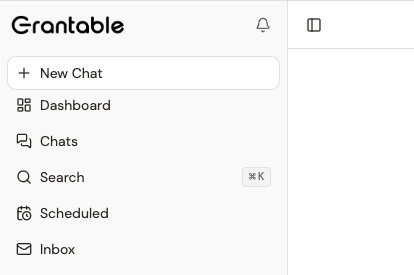
Click + New Chat in the sidebar to start a fresh conversation. The home screen shows suggestion chips that adapt to where you are — a new account sees “Create my org profile,” while an established account sees prompts relevant to your current work.
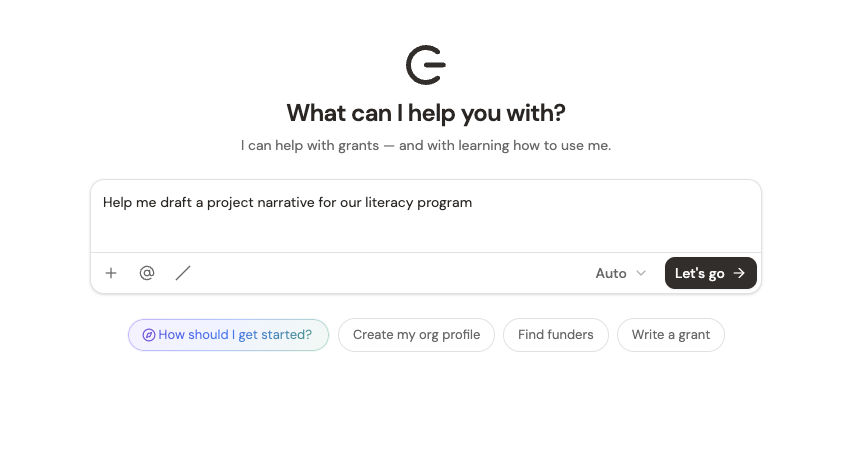
Type a question or request in plain language. Try something like:
- “What funders support youth workforce development in the Southeast?”
- “Help me draft a project narrative for our literacy program”
- “Summarize the key requirements from the RFP I uploaded yesterday”
- “Create a folder called ‘NEA Application 2026’ and move the RFP into it”
You can always go back to a previous conversation and pick up where you left off — the AI remembers the documents it read, the decisions you made together, and the full thread of discussion. When a conversation gets long or shifts topics, start a new one. It’s free, and the AI still has access to everything in your workspace regardless of which chat you’re in.
A good rule of thumb: one conversation per task or work session. “Research funders for the education grant” is a conversation. “Draft the LOI” is another. “Review the final budget” is a third. Keep them focused and you’ll get better results.
Giving the AI Context
The more context you include in a message, the better the response. You have three ways to bring information into a conversation:
Attach files with +
Click the + button (or drag and drop, or paste from clipboard) to attach documents directly to your message. Upload an RFP, a past proposal, a budget spreadsheet — the AI reads them immediately.
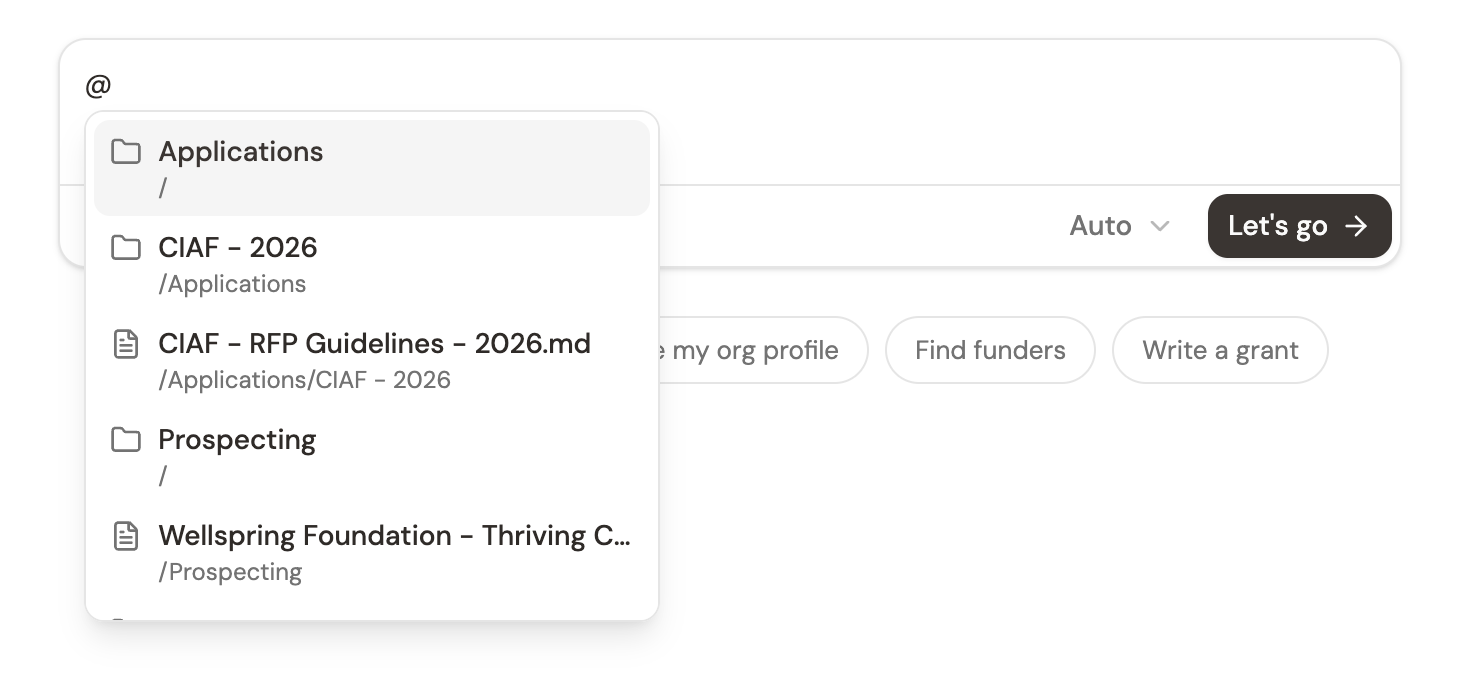
Reference workspace files with @
Type @ to point the AI at files already in your workspace without re-uploading. Reference your boilerplate, a past proposal, or a funder's guidelines. You can @ multiple files in one message — it's one of the most powerful features in Grantable.
Use skills with /
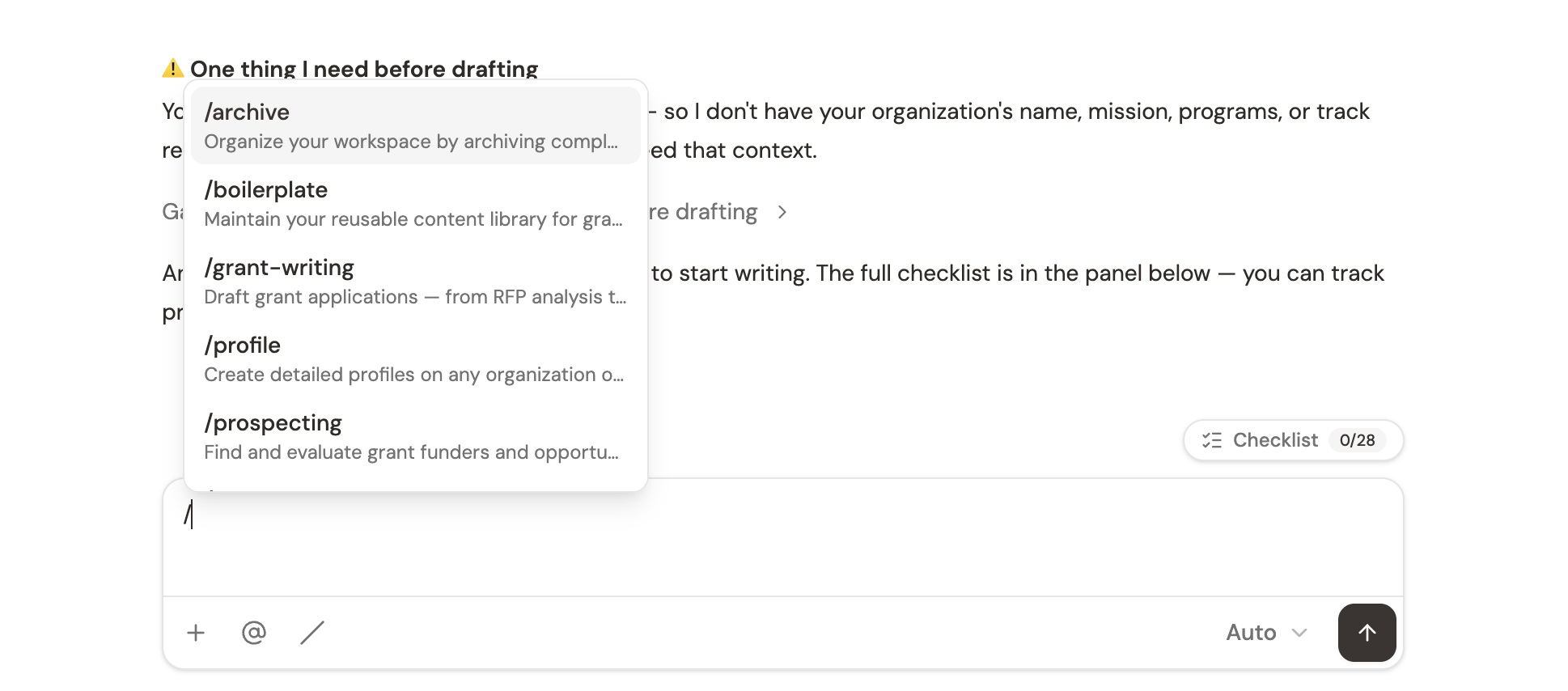
Type / to access structured workflows like /prospecting, /grant-writing, /review, and /boilerplate. Skills give the AI a deliberate methodology rather than an open-ended approach.
You can combine all three in a single message. Attach an RFP, @ mention your boilerplate, type /grant-writing, and say “Start the application using our standard language” — the AI gets all the context at once.
The AI Takes Action, Not Just Answers
This is the biggest difference from general-purpose AI tools. When you ask Grantable to draft a proposal section, it creates a real document in your workspace. When you ask it to organize your files, it moves them. When you ask it to research funders, it searches, evaluates, and produces a structured report.
You’ll see this in how responses look:
- File cards — When the AI creates or edits a document, a clickable card appears. Open it to see the file in your context panel.
- Research results — Funder searches and fit assessments appear as structured output with scores and rationale.
- Structured questions — When the AI needs your input, it presents clear options to choose from rather than asking you to type a paragraph.
- Live tables — Checklists and prospect slates persist as interactive objects near the chat input. Expand them, check off items, click into funder profiles — they stay with you throughout the conversation.
Finding Past Conversations
Click Chats in the sidebar to see all your conversations in one place. Each one is a saved work session you can return to anytime.

Press Cmd+K (or click Search in the sidebar) to search across everything — chat titles, file names, file contents, and folders. Your conversations are a searchable record of every decision, every draft, every funder evaluation. If you discussed something three weeks ago, you can find it.
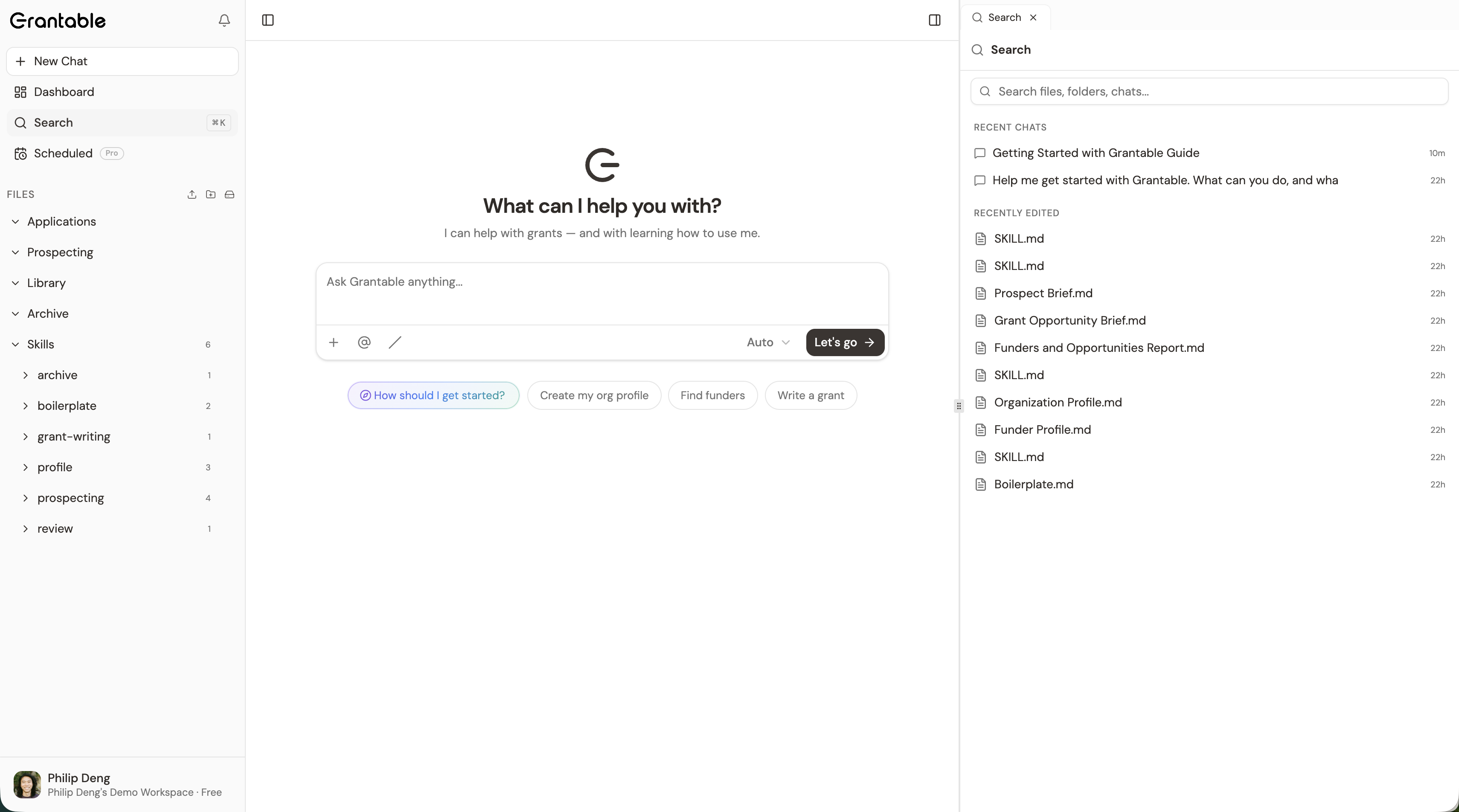
Name your conversations descriptively — “LOI Draft — Meyer Memorial” is easier to find later than “New Chat.” You can also click the title at the top of any chat and select Regenerate Title to let the AI name it based on what you actually discussed.
Model Selection
The chat input includes a model selector. Leave it on Auto — it picks the right model for each message and is the right choice for most work.
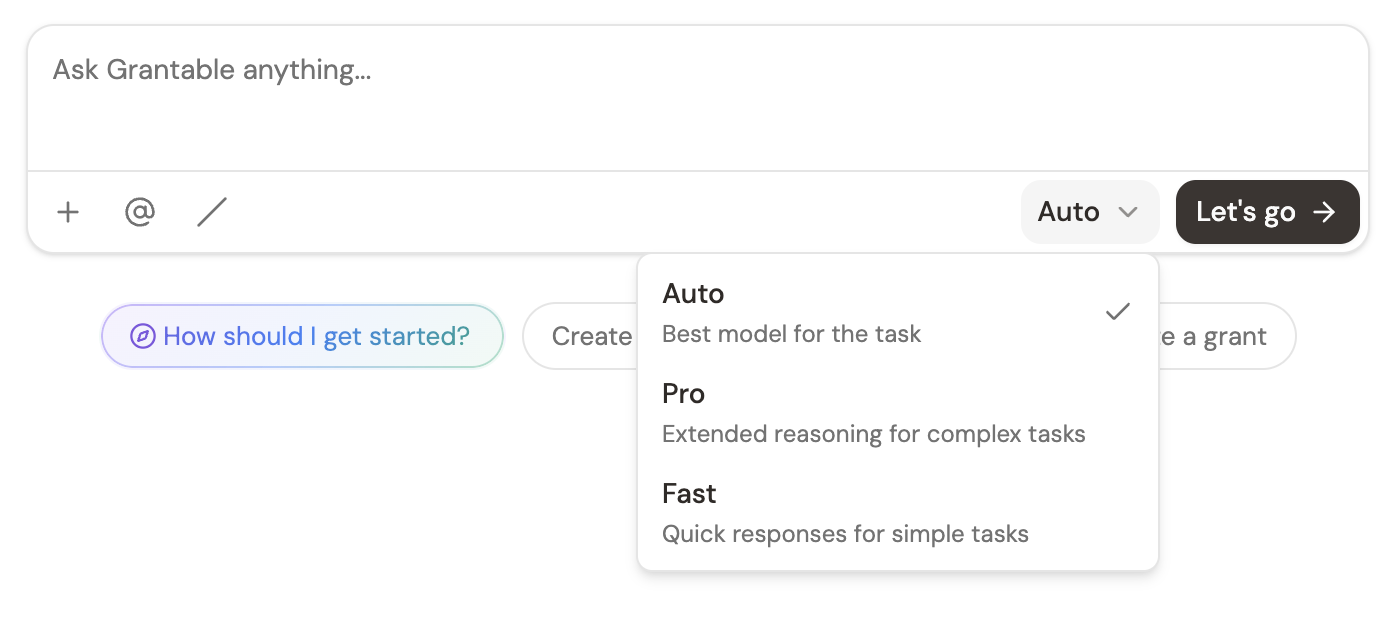
If you want more control: Pro gives extended reasoning for complex analysis and high-stakes drafts (uses more budget per message). Fast gives quick responses for simple questions and formatting tasks (uses less budget).
Conversations are the connective tissue of Grantable. Every chat session floats above the same workspace — your files, your pipeline, your org profile. Create conversations freely, go back to them when you need to, and search across all of them when you’re looking for something. Nothing is lost, and the AI’s memory compounds with every session.
You want Grantable to help draft a letter of inquiry. What's the most effective way to start the conversation?
Run through these five conversations to build muscle memory with each input method:
- Simple question (no context). Start a new chat and ask: “What are the most common reasons grant applications get rejected?” This tests the AI’s general knowledge — no files needed.
- Attach a file (+). Start a new chat, click the + button, and upload a past proposal or funder report. Ask: “Summarize this document and tell me the three strongest sections.”
- Reference a workspace file (@). Start a new chat, type @ and select a document from your library. Ask: “Based on this proposal, what’s our organization’s strongest program area for grant funding?”
- Use a skill (/). Start a new chat and type /profile. Review the organization profile the AI generates. Does it match your organization? If not, give it corrections and let it update.
- Combine everything. Start a new chat. Attach a new RFP with +, reference a past successful proposal with @, and ask: “Compare this new RFP’s requirements to our past proposal. What sections can we reuse and what do we need to write from scratch?”
After these five conversations, use Cmd+K to search across them. Try searching for a keyword from one of the documents you referenced — you should be able to find the conversation instantly.
- Each conversation is a work session that floats above your shared workspace content
- Give context three ways: attach files (+), reference workspace files (@), use skills (/)
- The AI takes real action — creating documents, organizing files, producing structured research
- Create conversations freely, name them well, and use Cmd+K to search across everything
Next Lesson
Now let’s explore the Workspace Inbox — the place where funder communications, notifications, and updates come together.
Notice an error or have a question about this lesson?
Get in touchHave questions about this lesson?
Ask Grantable to explain concepts, suggest how they apply to your organization, or help you think through next steps.